


Available
Free
version 0.1.0

StarDeck Labs Launcher
One download for the whole suite.
The launcher installs your StarDeck software, keeps your licences and updates everything — without ever touching a program while you are working. Windows, macOS and Linux, on equal footing.
 Download for WindowsWindows 10 · 11
 Download for macOSUniversal · Apple / Intel
 Download for Linuxx86_64 · tar.gz
Already own a StarDeck program? Start here →
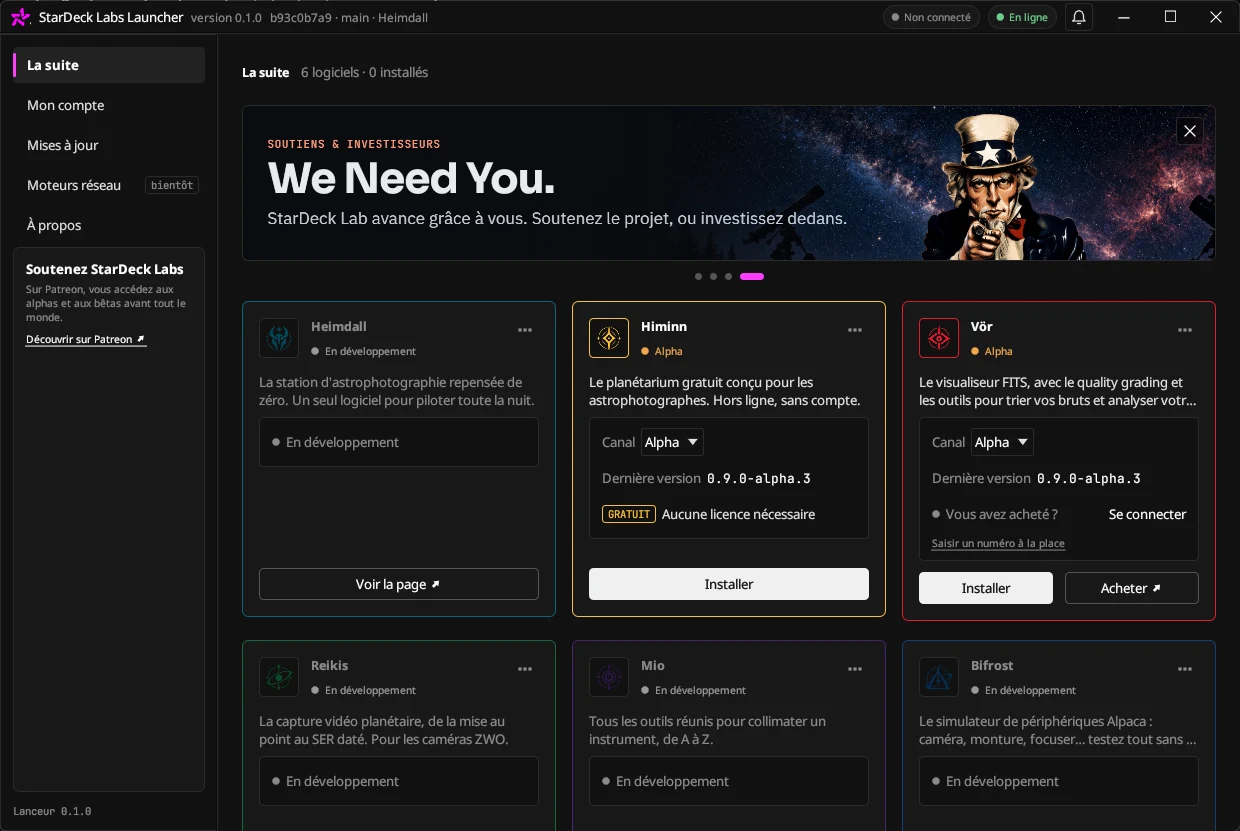
You download one program. It shows you the whole suite, installs what you are entitled to, finds your licences and keeps your software up to date.
Everything goes through it: no more hunting for the right installer on the website.
- No administrator rights
- No folder to pick
- No installer to hunt down
01 — The suite
All six programs, at a glance.
The Suite page gathers Heimdall, Himinn, Vör, Reïkis, Mio and Bifröst, the simulator. Each program has its own tile: its icon outlined in its colour, a short description, its version and its status.
The same statuses everywhere:
- In development
- Alpha
- Beta
- Pre-order
- Released
Nothing is hidden
A program that is not available yet keeps its tile, greyed out, with its status in plain view.
If it does not exist yet for your system, the tile says so, with a See the page button that opens its page on the website.
The bell
It tells you when a program’s status changes: Vör goes to pre-order, Mio is released. Each change is a dated notice; a counter shows the ones you have not read.
Nothing is pushed through the operating system: you find them by opening the bell.
The announcement banner
Above the tiles, what matters right now: a beta opening, something new. Several announcements rotate, you can close them, and with none to show the area disappears.
02 — Install
One click, into your user folder.
Each program installs in the natural place on each system, keeps its own icon and also launches on its own, without going through the launcher.
Himinn, free
- Install
One click. No licence needed.
Purchased programs
- Buy ↗
- Install
Vör, Heimdall, Reïkis, Mio: Buy opens the purchase page on the website — buying stays on the website. With no licence you can still install and try the program for 72 hours.
Launch, and the rest
- Launch
- Running
- ⋯
Launch starts the program, Running tells you it is open. The ⋯ menu opens its page, quits it if it is running, and uninstalls it once it is closed.
In the right place
Start menu and desktop on Windows, Launchpad on macOS, applications menu and desktop on Linux. No administrator rights.
Checked first
The launcher checks the archive’s address, size, fingerprint and signature. A tampered archive is refused and nothing is written.
Never half-installed
A power cut or a full disk never leaves a half-installed program: the launcher puts things back in order at its next start.
Uninstall
Removes the program, its shortcuts and its caches, and keeps your settings and your licence. A checkbox, unticked by default, deletes your settings too; the licence is never erased.
Take over in the launcher
Installed Vör or Himinn with the former Windows installer? The launcher recognises it, removes the old installation cleanly and keeps settings and licence.
Offline
A banner says so. Installed programs still launch; installing, buying and updating resume when you reconnect.
03 — Licences
Your licences live in the launcher.
Program by program: a purchase number, a Patreon key or a beta licence, entered in the program’s tile.
One number, one program
A Patreon subscriber entitled to Heimdall and Vör enters two keys, one per tile.
Two machines per licence
For example the PC at home and the machine at the telescope. You name the machine when you activate. Freeing a seat is done in My account, on the website.
Each tile shows where its licence stands
72-hour trial and time left, active, active through Patreon, beta until a given date, machine released, ended. The bottom button offers the logical next step: Buy, Reactivate, Renew on Patreon.
A purchase is never blocked
Adding a Patreon key on top does not take your purchase away: you can go back to it.
No network needed
Programs launched on their own find their licence in the launcher. If something needs doing, Open the launcher takes you straight to the right tile.
My account
Your whole account, on one page.
A link opens your account on the website. Offline, you see the last known state.
With neither a purchase nor a subscription, a discreet panel invites you to support StarDeck Labs on Patreon, where you get alphas and betas before everyone else. It disappears as soon as you hold a licence.
Global status
In one line: all good, to watch, or action required.
Patreon
Active or ended, your tier, the next due date, automatic renewal or not.
Maintenance
Program by program: until when your updates are included, for life, or as long as your subscription is active.
Trials
Your running trials and their remaining hours.
04 — Sign in
Your website account, nothing to retype.
Instead of typing numbers, Sign in links the launcher to your StarDeck Labs account.
- Sign in opens your browser on the website.
- You sign in there and confirm.
- You come back to the launcher, signed in.
No password is ever typed into the launcher.
Every licence
Purchases, lifetime licences, Patreon, maintenance: My account and the tiles show them without any typing.
Knowing is not activating
A seat is only taken when the program is installed, or at its first launch if it is already installed. A program you do not install uses no seat.
In the system vault
Windows Credential Manager, macOS Keychain, Secret Service on Linux. Without a vault, a file only you can read, and My account tells you so.
Sign out
Only makes the launcher forget the account: activated licences stay and keep working. You can also revoke the launcher from your account on the website.
As a fallback
Behind the “Enter a number instead” link, one number per program, for a machine with no browser, such as the mini-PC at the foot of the telescope.
05 — Updates
Up to date, never in the middle of your night.
The launcher updates all your programs, with the same rules for each.
Automatic or on demand
You choose for the whole suite on first launch, then program by program in Updates. Check for updates checks on demand; otherwise, at most once a day.
Never while you work
An open program is never replaced. The update downloads in the background and installs when the program closes. For Heimdall, as long as the engine runs nothing is installed, and the launcher never stops it.
One channel per program
Alpha, beta or stable. Only channels with a published version are offered, and a channel also receives versions from the safer channels.
What changed
Every version has its list, in your language, before as well as after installing.
Rollback
If the new version does not start, the launcher restores the previous one, tells you, and does not offer it again until a newer one is published. Can be turned off.
Maintenance ended
A version released after your included updates ended is not installed: the launcher tells you, with the date, and offers Extend on the website. Your program keeps working. Himinn, being free, has no limit.
The launcher too
It updates itself, silently, never in the middle of an installation, and restarts up to date. Its own channel, the same rollback.
A program launched on its own stays in the loop.
Opened from its own icon, Vör or Himinn queries the launcher, which starts in the background with no window, just an icon in the notification area. A new version is announced once, inside the program.
After installing, a pop-up tells you “Updated to version X”. The launcher stays as long as a program is running, installs what is waiting when it closes, then quits by itself.

A new version of Vör is available
It will install when Vör closes.
What changed
Install now
Later
06 — Systems
Windows, macOS and Linux, on equal footing.
The launcher, Vör and Himinn run on all three. Same screen, same title bar, same fonts; only what the system requires changes: window buttons and Cmd shortcuts on Mac.
Windows
Installs into your user folder, with no administrator rights.
macOS
A single download per program, universal: Apple-silicon and Intel Macs alike.
Linux
An archive unpacked into your user folder, with its menu entry and desktop icon.
The launcher speaks French and English.
Existing customers
Already own a program
Bought Vör, Heimdall or another program, or subscribed on Patreon? The launcher saves you from retyping anything.
No browser on the telescope machine? Enter your number instead, once: the program then finds it again without a network.
- Sign inYour licences, due dates and maintenance appear on their own in My account and in every tile.
- InstallActivates the program on this machine. Your purchase is there as it was; it is never blocked by a subscription or a trial.
- Your included updatesVisible program by program. When maintenance ends, the launcher tells you instead of installing, and you keep your version.
- Take over in the launcherInstalled Vör or Himinn with the former Windows installer: settings and licence kept.
Download
One download for the whole suite.
Free. It installs Himinn right away, and the rest of the suite as each program is released.
Download for WindowsWindows 10 · 11Download for macOSUniversal · Apple / IntelDownload for Linuxx86_64 · tar.gzVersion 0.1.0 · French and English · no administrator rights.