



 Heimdall
Your whole imaging night, in one app.
Heimdall runs your mount, camera, focuser and guiding from a PC, a Mac or a Raspberry Pi. You follow the session on a tablet or phone, and an AI assistant can handle the steps for you if you ask it to.
Pre-order price: 30% off the €99 launch price. Charged today, licence and download at release. Selected beta testers get Heimdall free, for life.
 Also included in the Valhalla tier on Patreon, €9 / month
- Windows
 macOS
 Linux x86_64
 Linux ARM · Raspberry Pi
- Tablet
- Phone
01 · Why Heimdall exists
Why another app?
When I got back into astrophotography, I couldn’t find the tool I wanted. I wanted to follow a target across several nights without hacks, run the rig from the living room or from the other side of the world, and describe my optical train as it really is. Heimdall is that app.
It’s built on almost forty years at the eyepiece and every feature I kept missing elsewhere.
02 · One piece of software, every screen
Start on your phone, finish on your PC
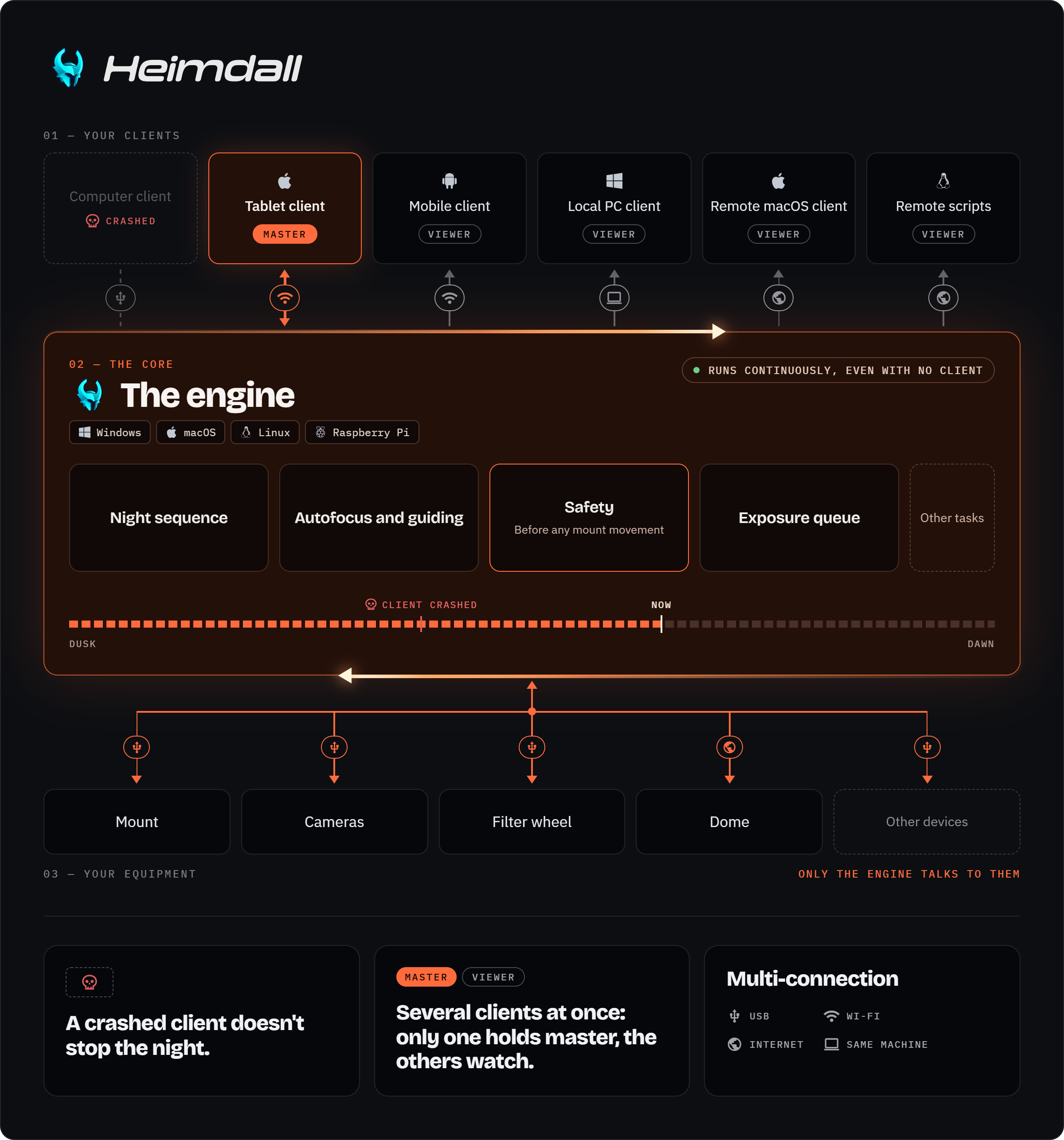
The engine runs the session. Interfaces are plain clients that never touch the hardware directly. Start on a phone or tablet, continue on the PC, pick it up again on the tablet from public Wi-Fi. The session follows you from one device and one network to the next.
The engine
It runs the session.
Safety, sequencer, autofocus, guiding, night log. A Raspberry Pi or a small board at the foot of your setup is enough.
- Windows
- macOS
- Linux x86_64
- Linux ARM
Client · Desktop
The full control desk
On the same computer, or from inside the house.
Client · Tablet & phone
It opens in the browser.
Served by the engine on your local network, at the foot of the telescope. Nothing to install on the device.
Spectator
Spectators on the session.
Other people can join your session as spectators, a practice popularised by smart telescopes. This feature is still in progress.
One client is in command, the spectators watch. Emergency abort stays reachable from any client.
Mix brands freely: your mount, camera, filter wheel and focuser can all come from different makers.
03 · One workshop per task
Only what you need, right when you need it.
Heimdall strictly separates the tasks of a session. Each workshop is a tab made of blocks. Darks, flats and bias exist only in the Calibration Library, not in the imaging tools. You start in Himinn, the planetarium built for imaging, then Framing for composition, then the node-based sequencer to prepare the night. You run it and follow it in the Dashboard. The Project workshop handles multi-night work.
Dashboard — the night’s cockpit
Workshop · 01 / 17
Dashboard
the night's cockpit
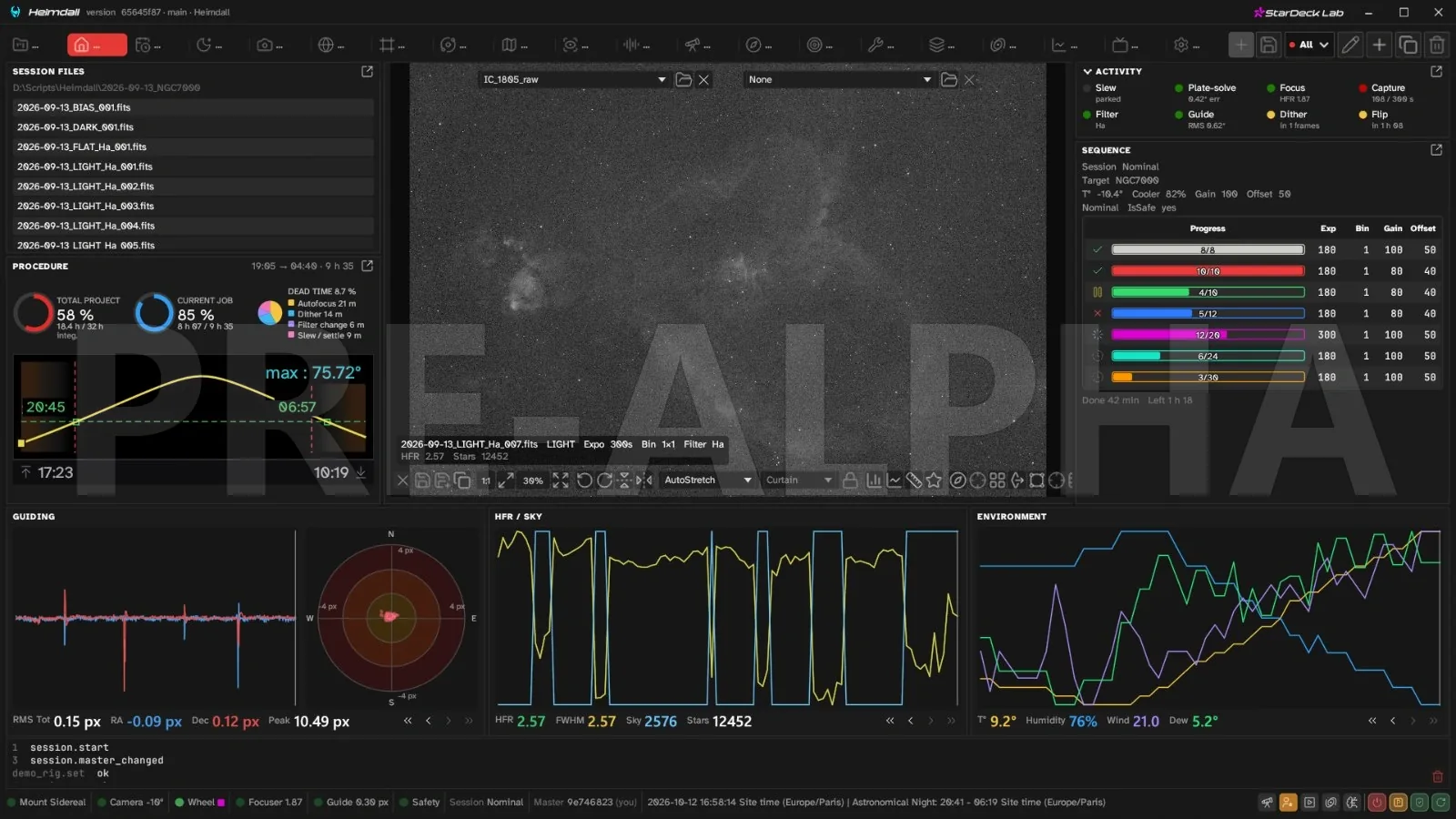
Latest frame, guiding, focus, weather, plan progress: the whole night in progress fits on one screen.
The Dashboard is Heimdall's home workshop. You don't use it to tune your gear. You use it to tell, at a glance, whether the night is going well.
In short
Everything in one place.
The latest frame, guiding, focus, weather and plan share one screen: no juggling windows during the night.
Real numbers, or nothing.
A box with no data stays empty. You never mistake a measured value for a sample one.
Know how much night is left.
The Procedure places the time within the night, with your site's twilights and the time lost by category. You see where your exposure time goes.
Follow the plan without editing it.
Sequence Run shows the Sequencer plan step by step and lets you start, pause or stop it.
What the workshop does
You start the sequence, walk away from the telescope, and come back from time to time. The Dashboard answers the questions you ask yourself then: is the latest frame sharp? Is guiding holding? Where is the plan? How long until dawn?
It reads the real state of the session. When a piece of information doesn't exist (night not started, guiding stopped, no weather), the box stays empty: never a decorative number.
What sets it apart
A classic status screen spreads the night across several windows: the image in a viewer, guiding in a separate module, weather elsewhere. Here, the image, the curves and the plan are blocks of the same workshop, readable without touching anything.
A sensor dashboard displays values. The Dashboard places them in the night: twilights, target altitude, project progress, dead time.
And it doesn't bluff: no filler numbers, and Demo mode is an explicit switch.
All features · 24
Home and files
- Opens at launchThe Dashboard is the home tab. A per-computer setting replaces it with the last tab you used or any workshop you choose.
- Lists the night's filesThe session folder and its FITS images, in the left column.
- Sends an image to the reference slot with a double-clickThe file goes to Vör as the reference image, with no button in between.
Image and capture state
- Shows the latest light in VörThe current image is always the session's most recent exposure; it replaces itself with every new frame.
- Compares against a referenceThe reference (double-click) and the latest light are compared side by side in Vör.
- Reads the latest frame's detailsName, type, exposure, binning and filter, overlaid on the image.
- Shows a quality badgeHFR and star count of the latest light.
- Lights up activity indicatorsSlew, plate-solve, focus, capture, filter, guiding, meridian flip, dither: each indicator lights up while the step runs and carries its useful value (HFR, RMS, current exposure, flip in X, dither in N frames).
- Tracks the exposure queueA table of filter, series progress, type, duration, gain and offset, with time done and time left.
- Follows the Sequencer plan (Sequence Run)A linear view of the plan, with the state of each step (waiting, running, done) and the Play, Pause, Stop and Reset controls, the same as on the Sequencer graph.
- Shows the cameraSensor temperature, cooler power, gain and offset, read from the camera itself.
- Displays the target and the mountCurrent target, right ascension and declination, tracking.
- Summarizes safetySite safety (IsSafe) and session state (nominal, safe…), complementing the status bar.
The three night graphs
- GuidingTotal, RA and Dec RMS, peak, the night's curve and a compact bullseye with green / orange / red tolerance zones. Unit of your choice: pixels or arcseconds.
- HFR and sky backgroundOne curve of star sharpness (HFR or FWHM) and sky background, frame after frame.
- EnvironmentTemperature, humidity, wind and dew point over the night, measured by an Alpaca weather device.
- Steps through framesUnder each graph, a toolbar shows the value of the point under the cursor and moves the reading by one point or by a larger jump.
The Procedure
- Shows project progressTwo gauges: the whole project and the current job, as a percentage and in hours of integration.
- Breaks down dead timeA pie chart splits the pauses between autofocus, dither, filter changes and slew / settle.
- Draws the nightAn altitude curve over civil, nautical and astronomical twilight, computed offline for your site, with a "now" cursor.
- Places the object's windowAltitude and visibility hours of the current target.
Comfort
- Resizes columns and rowsThe screen layout is fixed, but you adjust column widths and row heights.
- Switches to Demo modeA status-bar button fills the whole Dashboard with a fictional night, so you can present Heimdall without hardware. It switches off at every restart and never mixes fake and real.
- Speaks French and English
Project — integration, night and weather
Workshop · 02 / 17
Project
one target, many nights, all in one place
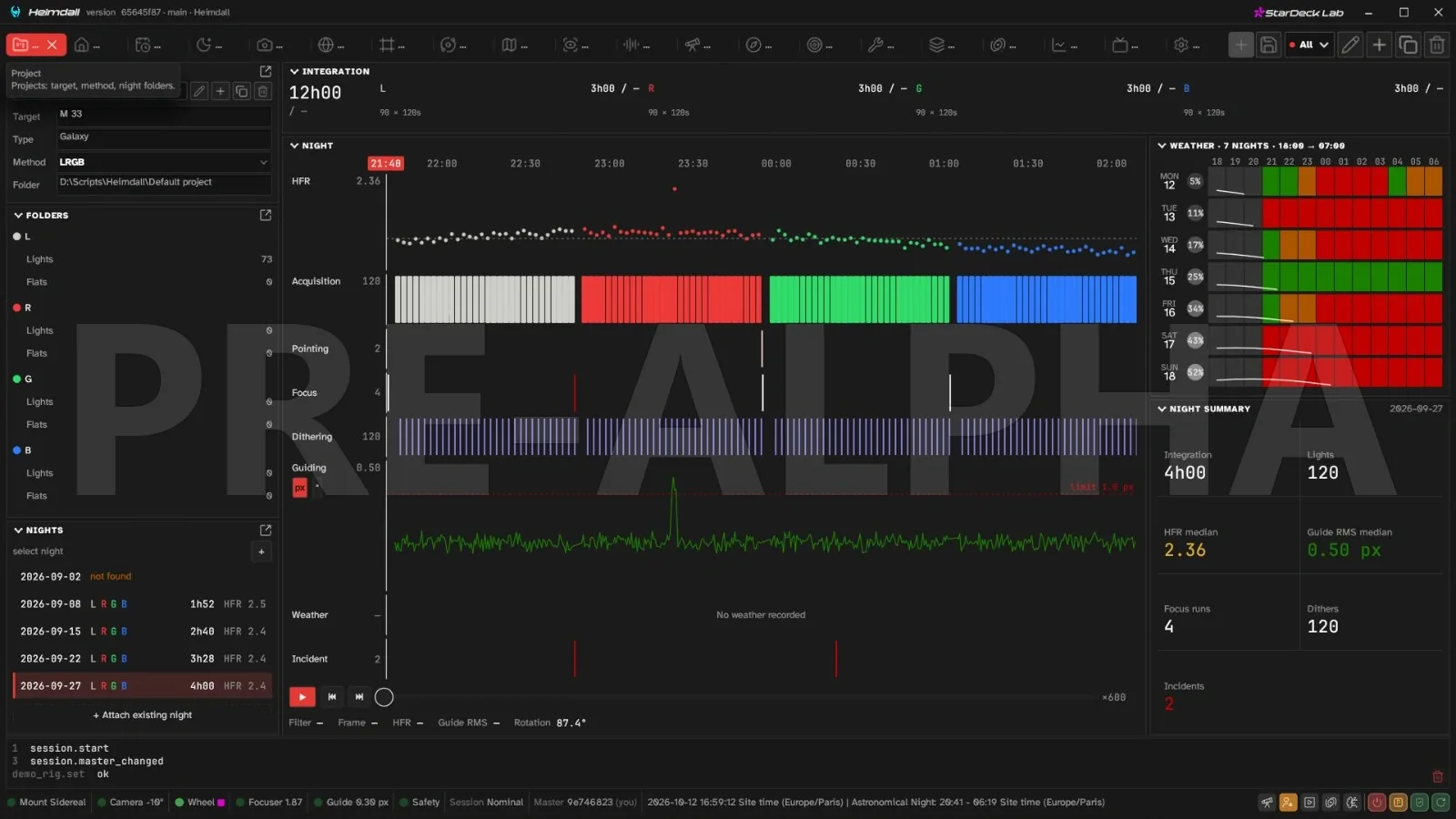
Integration per filter against your goal, past nights you can replay, weather for the next seven nights: the Project follows your target from the first frame to the final image.
The Project is Heimdall's organization workshop. One target, one method, nights that stack on top of each other: it keeps track when an image takes weeks to build.
In short
One target, all its nights.
Nights are added, attached (even last year's) and counted together: the final image has a readable history.
Know what's left to do.
One tile per filter, a goal in hours, a bar that fills: you see at a glance where you stand in L, Ha, OIII.
Nothing moved, nothing hacked together.
The Project / night / filter layout is Siril-compatible, files never overwrite each other, copies leave the originals intact.
Understand what happened on Tuesday.
The time axis replays a night with its focus runs, dithers, guiding losses and HFR curve.
Pick the right night.
Seven nights, hour by hour, with a score built for imagers and the Moon on the same band; your weights, your rules.
What the workshop does
A deep-sky image isn't made in one night. You shoot M33 tonight, come back in three days, then again next month. The Project answers the questions you ask between nights: how many hours do I have so far, filter by filter? What happened on Tuesday? When is the next good night?
A Project is a target, an acquisition method (LRGB, SHO…) and the folder that receives all the nights. Everything it shows is read from your disk and from the night journals: nothing is moved, nothing is made up.
What sets it apart
A file manager files things. The Project knows which target, which method and which night it is dealing with, and counts hours per filter against a goal.
A session log is read afterwards, by hand. Here the night replays: a time axis, a cursor, a summary.
A weather app gives cloud cover. The Project turns it into a verdict for every hour of true night, with the Moon, and lets you tune the weights.
All features · 38
Create and manage your Projects
- Creates a Project from a targetYou look up the object with Himinn's search engine; its names, type, constellation, size and coordinates are saved in the Project.
- Pre-fills the nameThe Project takes the target's name, editable right away. It becomes the folder name.
- Sets the acquisition methodEight methods to choose from: DSLR, OSC, RGB, LRGB, LRGB+Ha, SHO, HOO, LRGB+SHO. The method decides which filters are tracked.
- Sets the target as the current objectChoosing a Project makes its target the shared current object across Heimdall, without triggering anything: the mount is never slewed.
- Renames, deletes, duplicatesRename by clicking the name that is already selected. List actions are saved immediately.
- Duplicates in two modesStructure only (sheet and empty folders), or structure with the files already shot, copied in the background with a progress bar. Originals are never touched; a failed copy is cleaned up.
- Keeps a default ProjectAlways there, it receives exposures taken outside a Session. It also accepts a target: its photos are then filed in a subfolder named after it.
Clean filing, Siril-compatible
- Files every exposure in the same placeProject, then night date, then filter, then the raw, lights, darks, flats, biases folders: the structure Siril expects, created at the first photo of the filter.
- Names files without collisionsObject, filter, duration, UTC date and time, counter: an existing file is never overwritten.
- Writes the Project into every photoThe PROJECT FITS card and the night journal carry the Project's name, so the workshop finds its nights on its own.
- Counts your photos per filterLights and Flats for each filter of the method, nights added up; a filter with no photo stays visible at zero.
- Never moves anythingThe per-filter view reads the disk; it doesn't reorganize it.
The Project's nights
- Lists the nightsOne row per night: date, filters as colored chips, total exposure time and median HFR. The latest night is selected when you open the tab.
- Adds tonightOne click on "+" creates the dated folder and a night.json descriptor; the night date rolls over at noon. If the night already exists, it is simply selected.
- Attaches an existing nightA night folder in Heimdall's format, last year's for instance: as a link (Heimdall remembers the path and reads in place) or as a copy into the Project folder. A copy replaces no file and leaves the originals untouched.
- Refuses what isn't a nightA folder with neither a descriptor nor Heimdall's layout is rejected with a message.
- Keeps a missing night in the listFolder moved or drive unplugged: the night stays, flagged as missing, and doesn't count toward the totals.
- Reads older nightsNights filed before the workshop existed are listed, and nothing is written into them.
Integration against the goal
- Shows one tile per filterTime taken, goal, progress bar and number of frames × duration.
- Adds up across all nightsNights in the folder, linked nights and the default Project's target subfolders all count together.
- Sets a filter's goal in two gesturesDouble-click the tile, type "8h" or "8h30", press Enter to confirm; clicking elsewhere cancels. The goal is saved with the Project.
- Displays the totalTime taken against the goal for the whole Project.
Replay a night
- Draws the night on a time axisStacked tracks: each frame's HFR, acquisition (bars colored by filter), plate-solve pointings, focus runs (a failure in red), dithers and incidents.
- Plots guidingRMS guiding curve with its limit line, in pixels or arcseconds as you prefer.
- Replays the night▶ runs it sped up (×600) with a cursor that moves on its own; pause at any time.
- Steps frame by framePrevious / next buttons, and a cursor you can drag.
- Reads the state under the cursorFilter, frame number, duration, HFR, guiding RMS, angle of the latest plate-solve; "—" when a value wasn't logged.
- Summarizes the nightIntegration, lights, median HFR, median guiding RMS, focus runs, dithers, incidents (in red when there are any).
- Stays honest without a journalA night with no journal shows a message, greys out the playback controls and gives only integration and light count.
The next seven nights' weather
- Shows seven nights at a glanceOne row per night, the current or next night on top, one cell per hour from evening to early morning.
- Scores every hourA 0–100 score built from cloud cover (total and high), humidity, wind, gusts, visibility, rain and a risen Moon: green from 70, orange from 45 to 69, red below.
- Greys out hours that aren't dark enoughWhile the Sun is less than 18° below the horizon, the cell stays grey with no score: only true night hours carry a verdict.
- Shows the MoonA phase chip with its illumination at midnight, and a curve of its altitude across the hourly band.
- Computes the sky locallySun, twilights, Moon phase and altitude are computed on your machine, for your observing site.
- Lets you tune the weightsPreferences → Weather: one field per weight and threshold, with "restore defaults".
- Updates when you open itOn opening the tab, if the last forecast is more than an hour old. With no network, the last forecast stays on screen with its age; the rest of the workshop works offline.
- Says so when it doesn't knowObserving site not set, or no forecast ever retrieved: a clear message, not an invented grid.
Comfort
- Speaks French and English
 1 / 2
Search: target search
Workshop · 03 / 17
Scheduler
what should I shoot tonight, with this equipment?
Pick your target before the night, with your rig’s field and tonight’s sky.
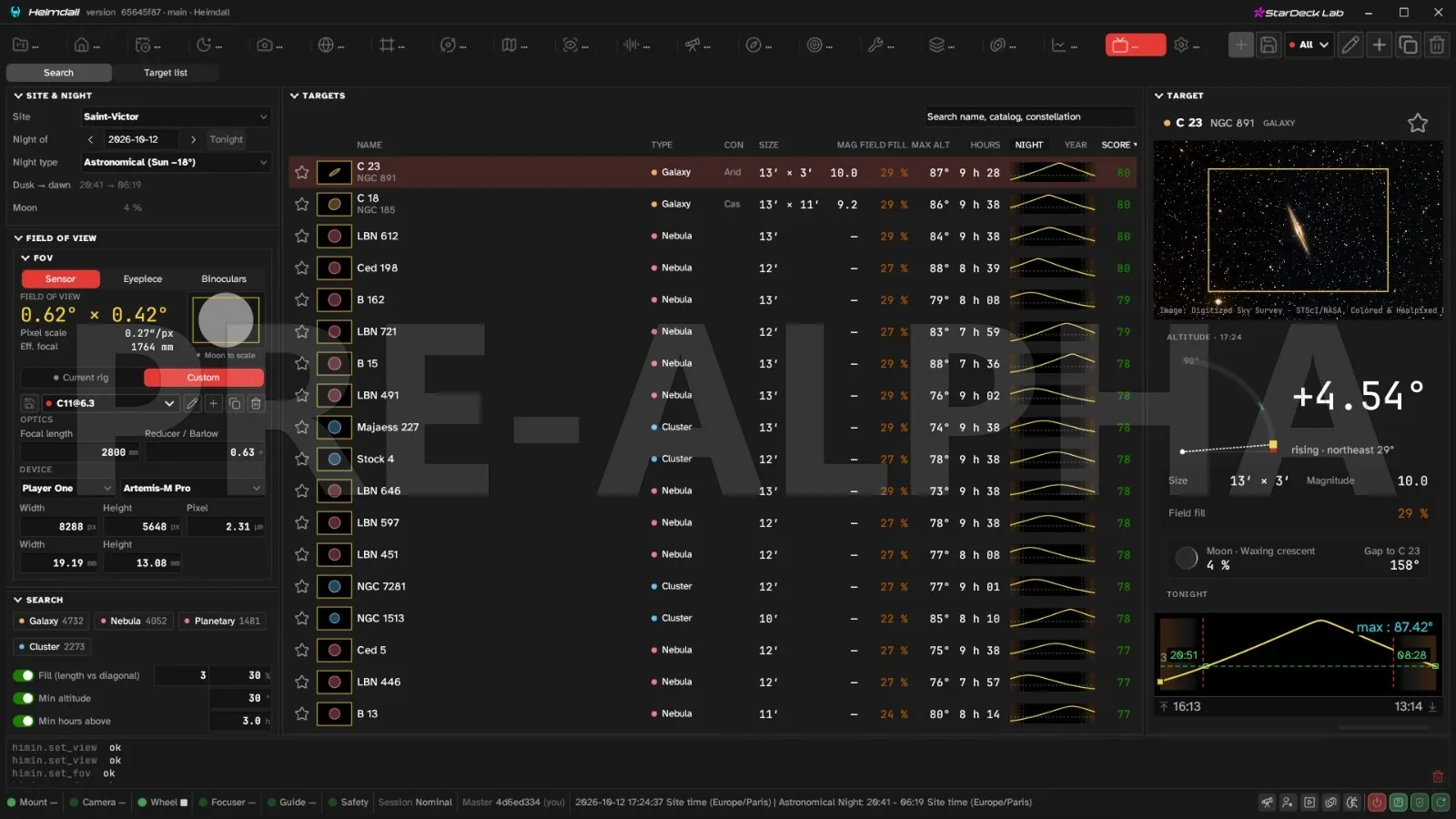
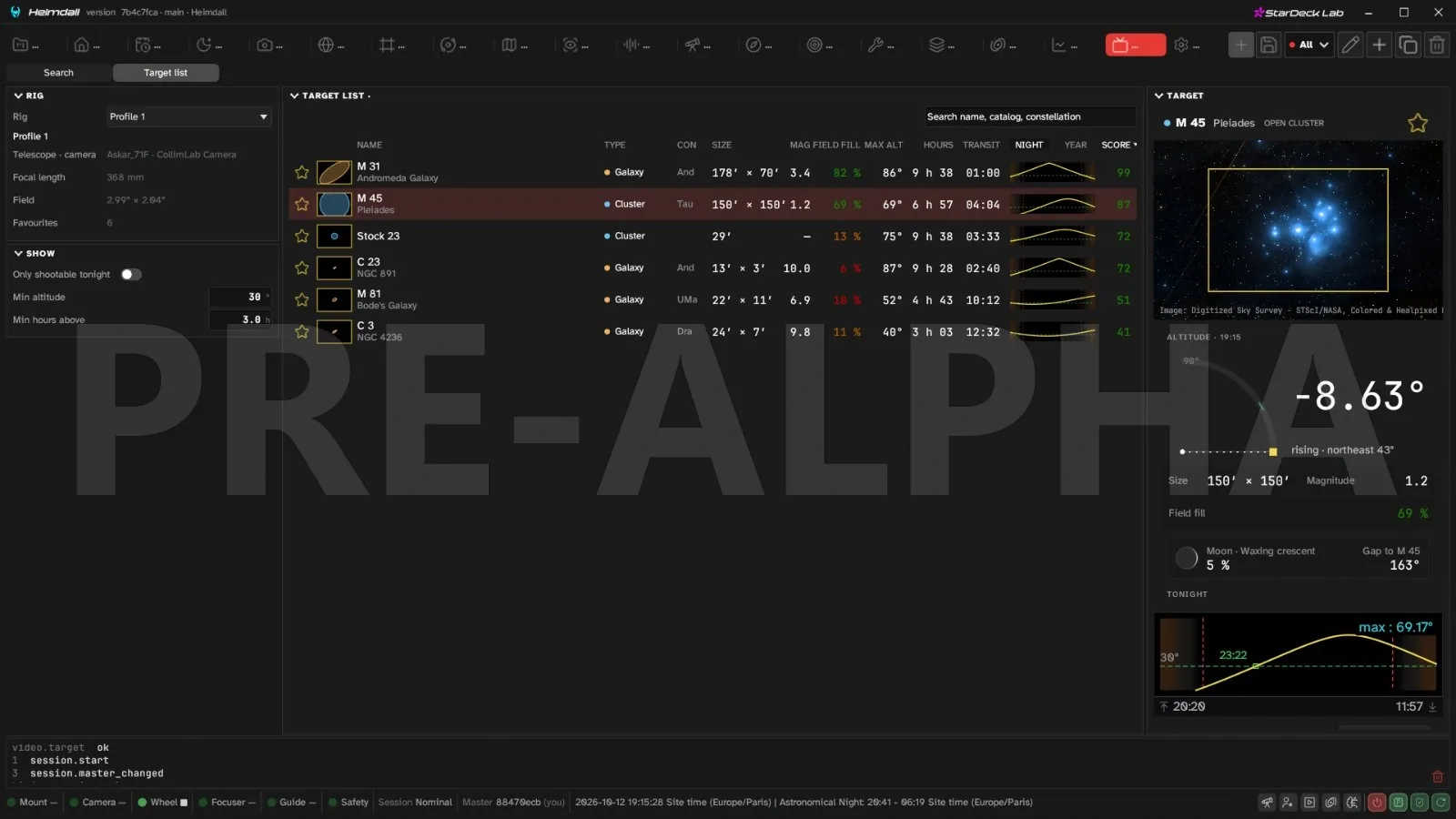
The Scheduler workshop answers one question: what should I shoot tonight, with this equipment? Two sub-tabs: Search and Target list.
In short
Your rig’s field, not a generic one
Frame fill is computed from your sensor and optics.
The real night
Hours above altitude during astronomical night, Moon included.
Favourites per rig
One target list per instrument.
Straight to project and framing
New project and Send to Framing from the card.
What the workshop does
Search looks through imager catalogues with criteria: frame fill in %, minimum altitude, hours above that altitude during astronomical night, distance from the Moon, magnitude. The table shows the silhouette, size, mini-curves for the night and the year, and a score.
Target list keeps your favourites per rig: a star on a target sets it aside for the chosen rig, and frame fill is recalculated with that rig’s field.
What sets it apart
The Scheduler thinks in sensor field: a target only matters if it fills your rig’s frame well.
All features · 11
Search
- Frame fill in %Does the target sit well in your rig’s field? Computed from the current rig’s sensor and optics, or a custom field.
- Minimum altitudeDrops whatever does not rise high enough from your site.
- Hours above altitudeCounts the time spent above the threshold during astronomical night.
- Moon distance and magnitudeTwo more criteria to drop targets that are washed out or too faint.
- Target tableSilhouette, size, night and year mini-curves, and a score to sort by.
Target list
- Favourites per rigA star on a target sets it aside for the chosen rig.
- Recalculated frame fillFrame fill is recalculated with the selected rig’s field.
- Only shootable tonightKeeps only what stays high enough for long enough tonight.
- Transit columnThe meridian crossing time.
Target card
- New projectCreates the target’s project in one click.
- Send to FramingSends the target to the Framing workshop.
 1 / 3
The night’s graph
Workshop · 04 / 17
Sequencer
the night composed as a graph
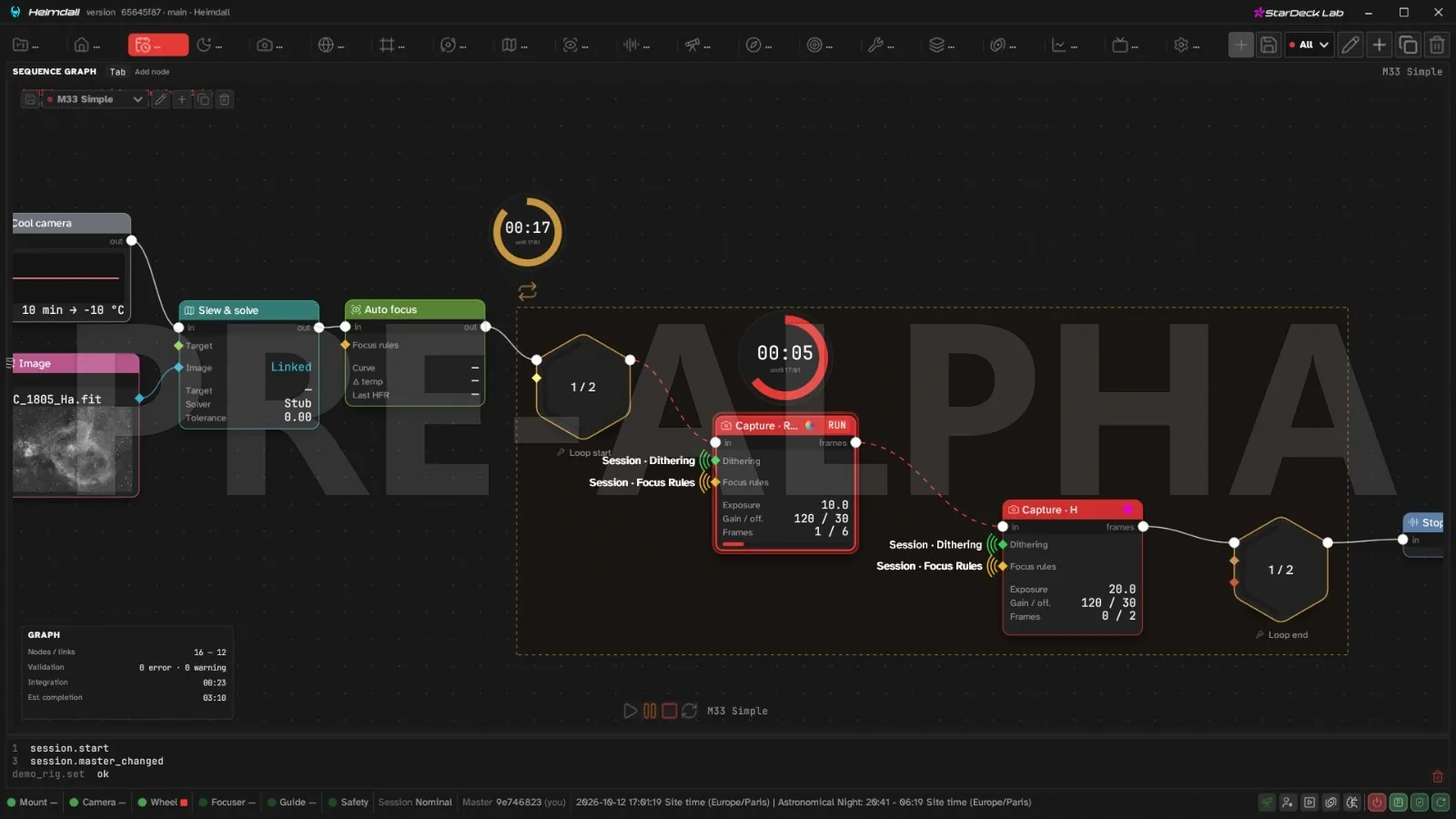
Targets, exposures, autofocus, guiding, meridian flip, dither: you draw your night as a graph of nodes, run it, and follow it.
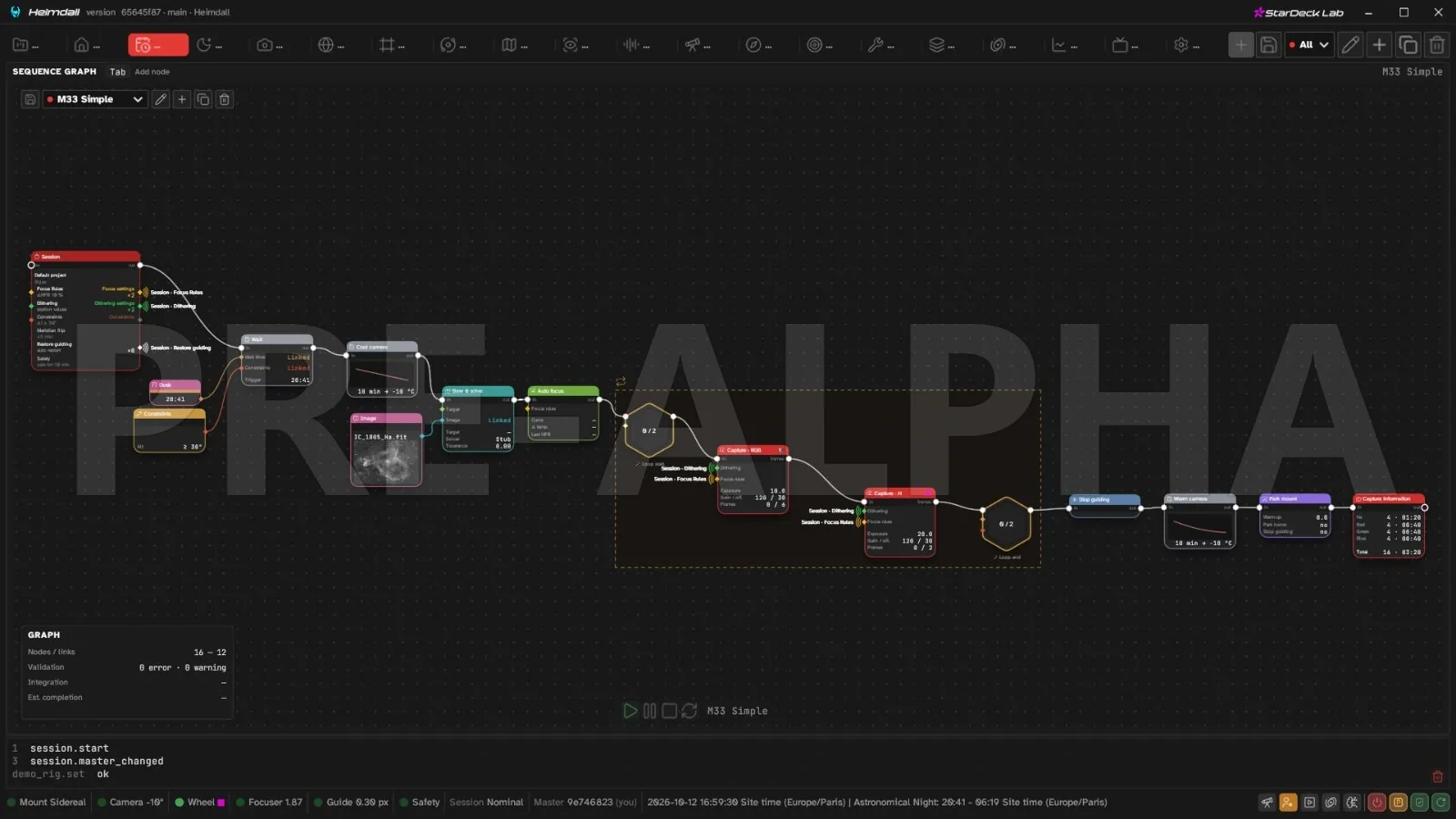
The Sequencer is the workshop where you decide what the night will do. Not a list of exposures: a visual plan, with rules that apply to a whole session, and an execution that adapts to what the sky and the gear actually do.
In short
A plan you can read.
The graph shows the order of the steps, the data flowing and what is connected: you see the night before it starts.
Rules written once.
Focus, dither, constraints, flip and safety are set on the Session and hold for everything after it; you take control node by node only when you want to.
A night that adapts.
Waiting for twilight, leaving at dawn or below an altitude, resuming after a cloud: the plan reacts to conditions rather than running exposures blind.
Nothing lost when it gets complicated.
An abort cancels cleanly, a pause finishes the current exposure, finished frames stay written and filed in their Project.
Reusable plans.
Per-node presets, successive Sessions, targets looked up in Himinn: the M33 night becomes the NGC 7000 night by changing the target.
What the workshop does
An imager's night isn't "30 exposures of 300 seconds". It means waiting for twilight, cooling the camera, slewing, focusing, cycling through filters, dithering, flipping at the meridian, stopping at dawn or when the target sinks too low, and shutting everything down safely if clouds roll in.
The Sequencer lets you drop each step as a node, connect them with wires, and set the shared rules once per session: focus, dither, constraints, flip, safety. The same plan is reused from one night to the next; each node keeps its settings under a name.
What sets it apart
A linear sequencer runs a list of actions. Here the plan is a graph: data branches, loops with exit conditions, per-session rules.
A target scheduler decides what to photograph. The Sequencer describes how the night unfolds, step by step, with its safeguards.
The principle is visual and intuitive, but different from what you may be used to: it takes a short learning curve.
All features · 35
Compose the plan
- Draws the night on a graphTargets, loops, exposures, autofocus, guiding, slewing, flipping: each step is a node, dropped by drag and drop and connected by an execution wire.
- Sorts the library into eight familiesSession, Plate solving, Focus, Mount, Guiding, Capture, Utility, Data, each with its own color.
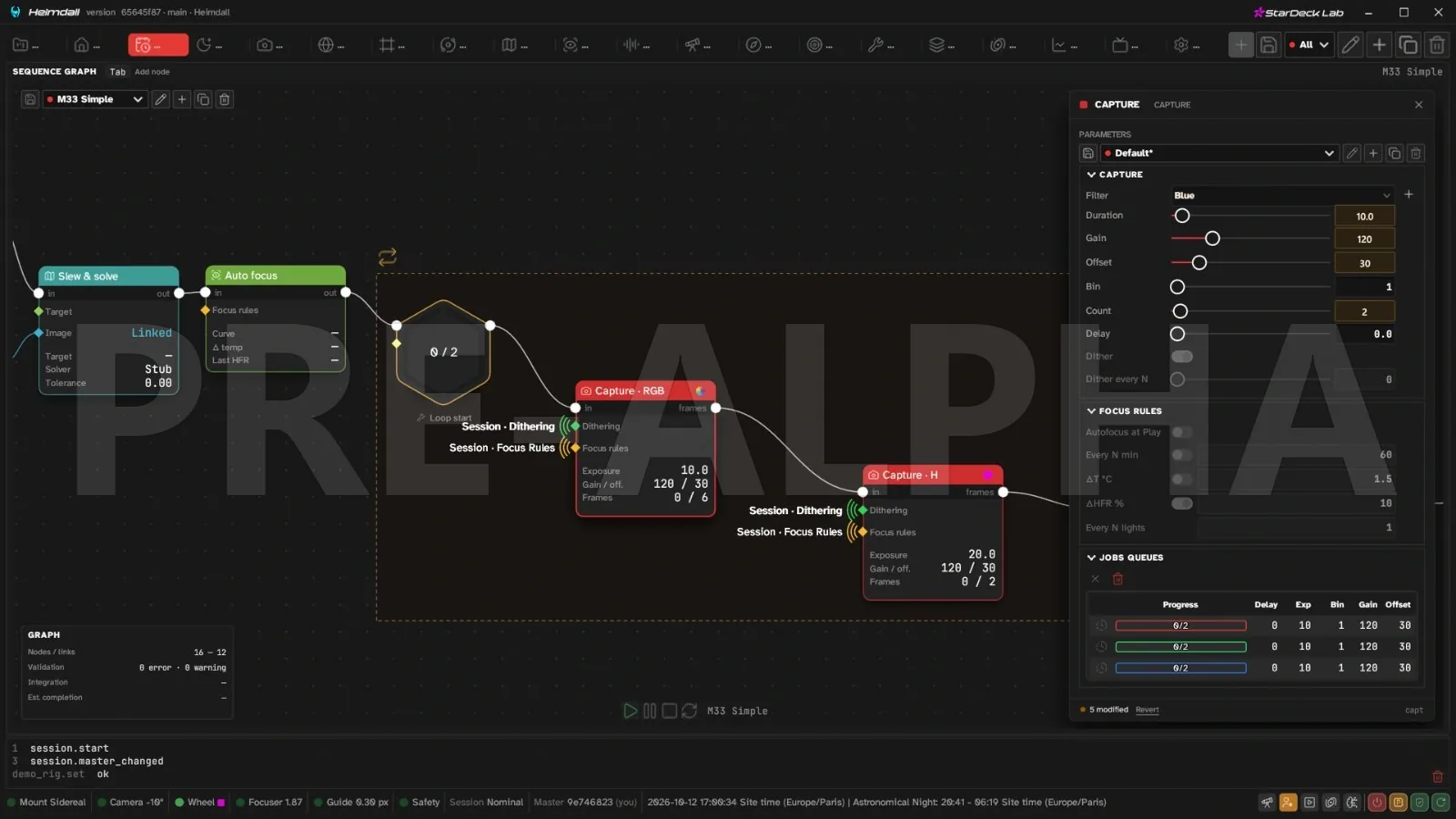
- Wires data through typed linksBesides the execution chain, a node receives data inputs (Focus rules and Dithering on a Capture, an image on a Plate solve). A wire only joins two ports of the same type; an empty required input is outlined in red.
- Feeds several nodes from one sourceA data output can serve as many inputs as needed.
- Avoids spaghetti plansThe Redirection node places a sender and receivers with no visible wire, linked by a name: data is broadcast without crossing the whole graph.
- Annotates the planThe Annotation node is a sticky note placed behind the wires, edited in place, with no effect on execution.
- Validates liveAn inconsistent connection or a missing required input is flagged while you compose, not at midnight.
- Saves a node's settings under a namePresets reload from one plan to the next.
- Reads at a glanceNode cards show the title, the main values and the state (waiting, running, done) without opening the inspector; the plan zooms.
Set the frame for the night
- The Session node imposes the rulesEvery sequence starts on a Session; its rules hold for the whole flow until the next Session. Several Sessions chain through the night.
- Focus rulesThe Session's Focus rules apply to the captures in its scope; a downstream node can take control back with "Override session rules".
- Dither and constraints rulesSame mechanism: set once, inherited by downstream nodes, or replaced by a data node you plug in.
- Meridian flipThe Session sets the minutes past the meridian, re-centering and refocusing after the flip. The current exposure finishes, then the flip happens before the next one.
- Guiding recoveryIf guiding drops, the Session restarts it.
- "While safe" safetyWhen the safety state turns "not safe", the exposure is stopped, guiding is cut and the mount is parked; once safety has held for N minutes, the mount is unparked, the target re-slewed, guiding restarted and the interrupted exposure redone.
- One Project per SessionThe Session picks or creates a named Project; its name is written into every photo (the PROJECT FITS card) and into the night journal.
Drive the observatory
- Waits for a date, a time, a time zoneThe Wait node triggers what follows at site time, in UTC or in a chosen zone, when its constraints are met; you can place several in one night.
- Waits for twilightThe Twilight node provides the civil, nautical or astronomical twilight time for your site, with an offset in minutes.
- Shoots only in good conditionsThe Constraints area: minimum altitude, maximum Moon illumination, distance to the Moon.
- Cools and warms the camera along a curveCool camera and Warm camera draw a time × temperature ramp, point by point, that execution follows to the last point's temperature.
- Looks up the target as in HiminnThe Target node accepts an object search, RA/Dec or Alt/Az coordinates.
- Slews and solvesSlew & solve, Plate solve, Park, Unpark: the plan unparks behind safety and slews to the target.
- Runs autofocusAn Auto focus node and a Focus rules node; the rules decide when to refocus.
- Handles guidingStart guiding (with a restart option), Stop guiding, Dither.
- Takes the exposuresThe Capture node gets the standard capture widgets, the job queue and the autofocus rules.
Loop and exit
- Loops a number of timesLoop start sets the number of rounds, typed in or supplied by an Integer wire; each round starts from zero.
- Exits by time or altitudeLoop end stops at a site time or when the mount drops below an altitude, whichever criterion comes first; the current round always finishes.
- Shows progressOne ring segment per round around the loop: done, running, to do.
- Can supply valuesThe Time, Duration, Angle, Integer and Float nodes are pluggable sources.
Run and follow
- Plays, pauses, stops, resetsPlay, Pause, Stop and Reset drive the plan; pause lets the current exposure finish, and it is saved.
- Protects itself against competing gesturesDuring a sequence, manual commands that would touch the camera, the wheel, the mount or the focuser are refused.
- Stops safelyAn abort cancels the plan, a park cuts the sequence, with no automatic resume: you restart explicitly.
- Writes a night journalEvery exposure and every plan transition is logged.
- Is followed from the DashboardThe linear Sequence Run view mirrors the state of each step.
Comfort
- Speaks French and English
 1 / 2
3D sky map and catalogues
Workshop · 05 / 17
 Himinn
the imager's planetarium, inside Heimdall
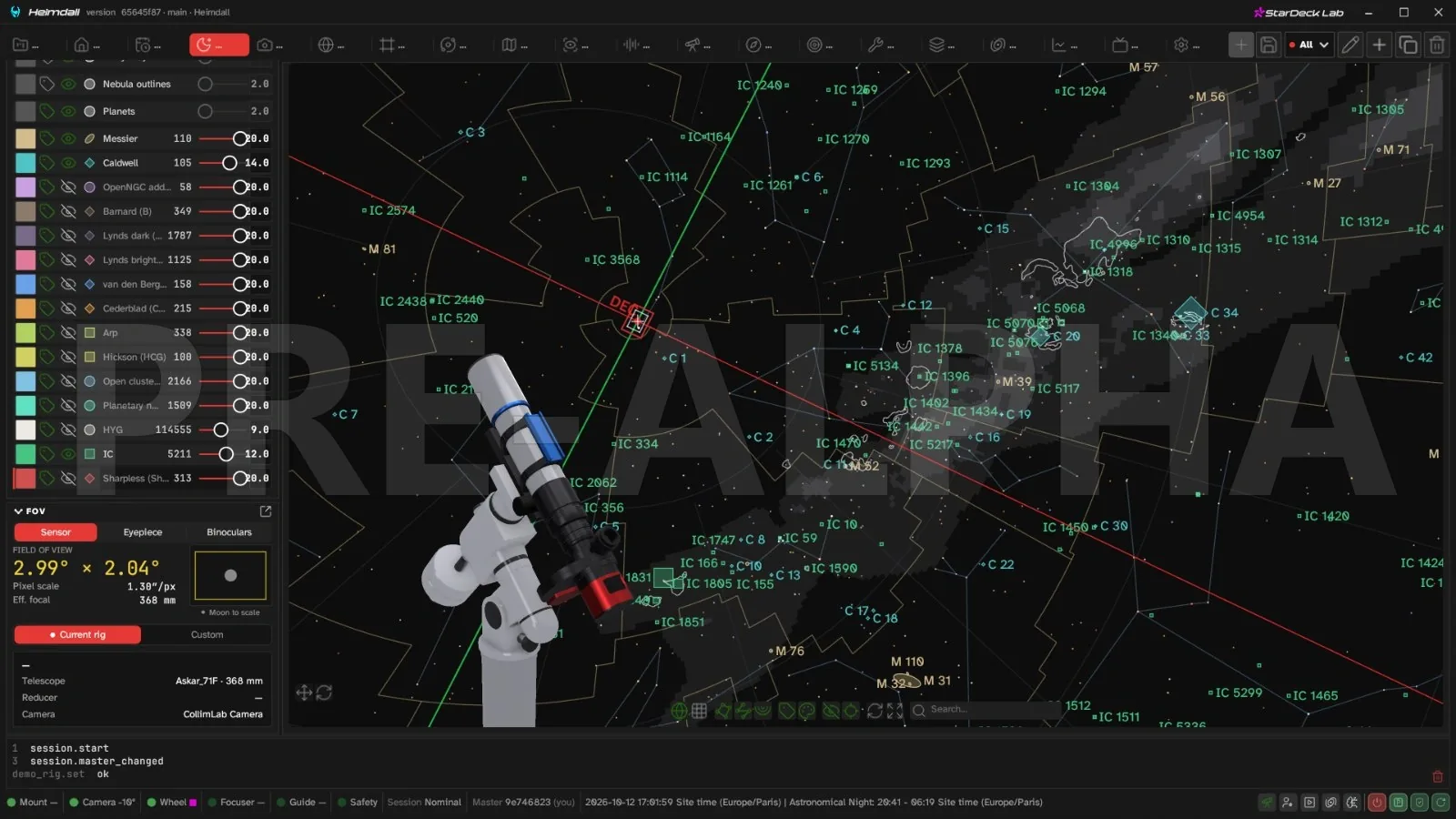
The sky as your sensor will see it: you pick the target, point at it, and all of Heimdall picks it up.
Himinn is Heimdall's sky map. Offline, built for photography rather than visual observing, it is used to decide what to photograph and to hand the target to the other workshops.
In short
The sky as your sensor will see it.
Projection, objects at real size and instrument field: you judge the framing before going out.
A target chosen once.
The object chosen in Himinn feeds Framing, Projects and the Sequencer: no name or coordinates to copy over.
From sky to mount in one gesture.
Search, open the card, Point: the same screen goes from idea to slew.
Light and offline.
Messier built in, other catalogs on disk, no download at night.
What the workshop does
Inside Heimdall, Himinn is the starting point of the night. You find the target, check it will be high, see what fits in your instrument's field, then point at it. The object chosen here isn't re-entered anywhere else: the other workshops pick it up.
What sets it apart
A general-purpose planetarium shows the sky for the eye. Himinn shows it for the sensor: photographic projection, instrument field, objects at their size.
An atlas separate from the session software makes you copy the target over. Here the map is part of Heimdall and shares its current object.
It stays light: the map doesn't weigh gigabytes of survey imagery.
All features · 17
The sky
- Draws an offline 3D sky mapStars, constellations and their boundaries, object names, grids, the horizon and the meridian of the site.
- Uses a projection dedicated to astrophotographyThe sky as your sensor will see it.
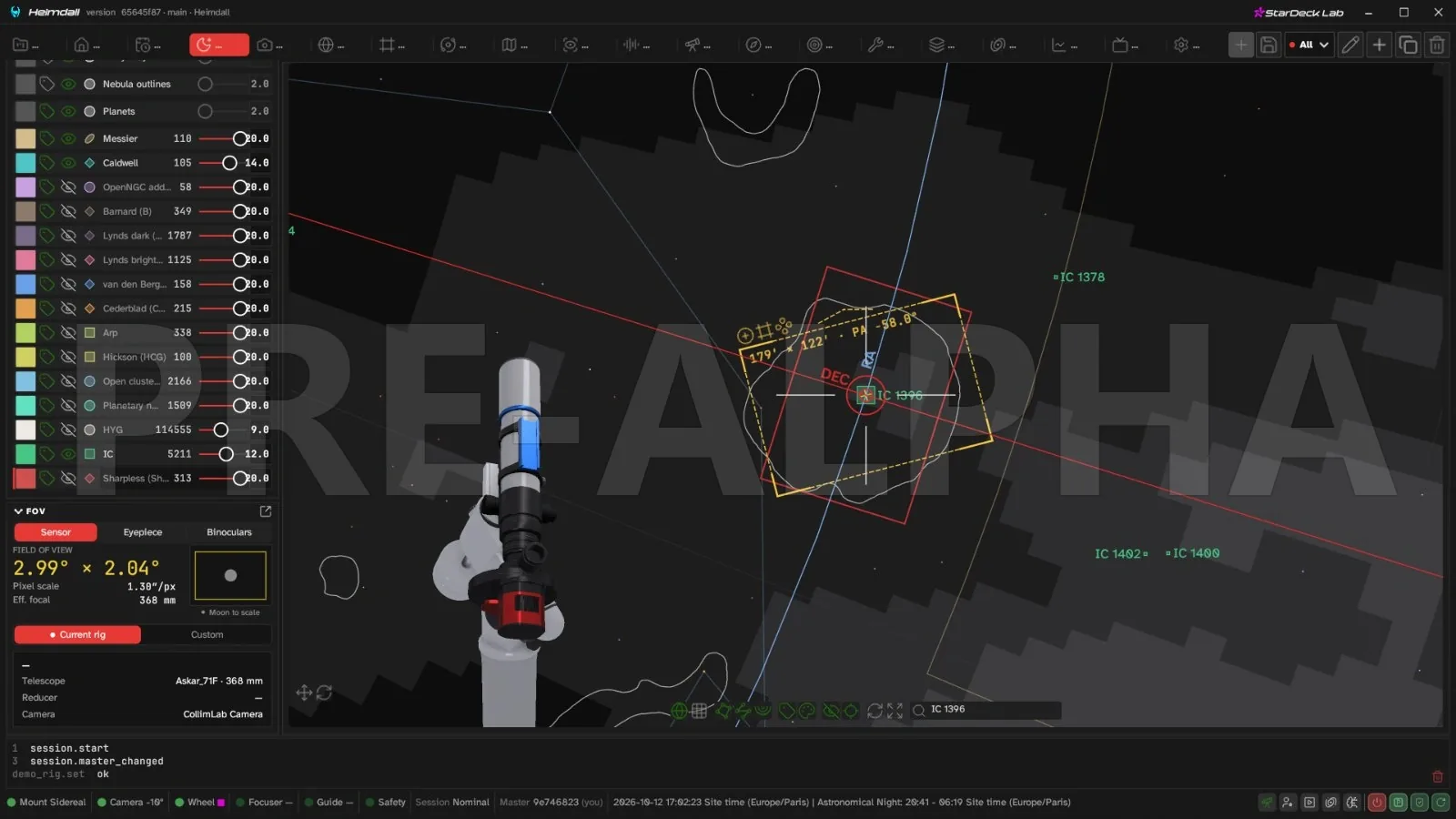
- Draws deep-sky objects at their real sizeYou see at once what fills a field and what is tiny in it.
- Sets the site and the timeTonight's sky, or another night's; an internal night clock follows the observer's site.
- Shows your instrument's fieldThe camera and optics frame sits on the map.
Search and choose
- Searches from the toolbarAn always-visible search field; the list updates with every keystroke.
- Finds by identifier or common nameM 31, NGC 7000, or the object's usual name.
- Opens a card for each objectType, constellation, magnitude, size, position, current altitude, rise, meridian transit, set and the night's altitude curve.
- Recenters the view on the objectA click in the list moves the view and opens the card.
- Sets Heimdall's current objectThe selected object is picked up by Framing (the Sync button), by Project creation and by the Sequencer's Target node.
Point
- Sends the telescope to the objectFrom the card, Point starts the slew; safety comes before the mount, as everywhere in Heimdall.
- Shows where the mount pointsA reticle and two large red circles, centered on the pointed coordinates, move at real angular speed when the mount moves.
- Never touches the hardware directlyThe map has no direct access to the mount: the slew goes through the engine.
Catalogs
- Ships the Messier catalogAvailable from the first launch.
- Stores other catalogs next to the programFor example OpenNGC for NGC and IC.
- Never downloads in the middle of the nightNo download during a session.
Comfort
- Speaks French and English
Capture — settings, focus rules, job queues
Workshop · 06 / 17
Capture
imaging, one frame or a queue of jobs
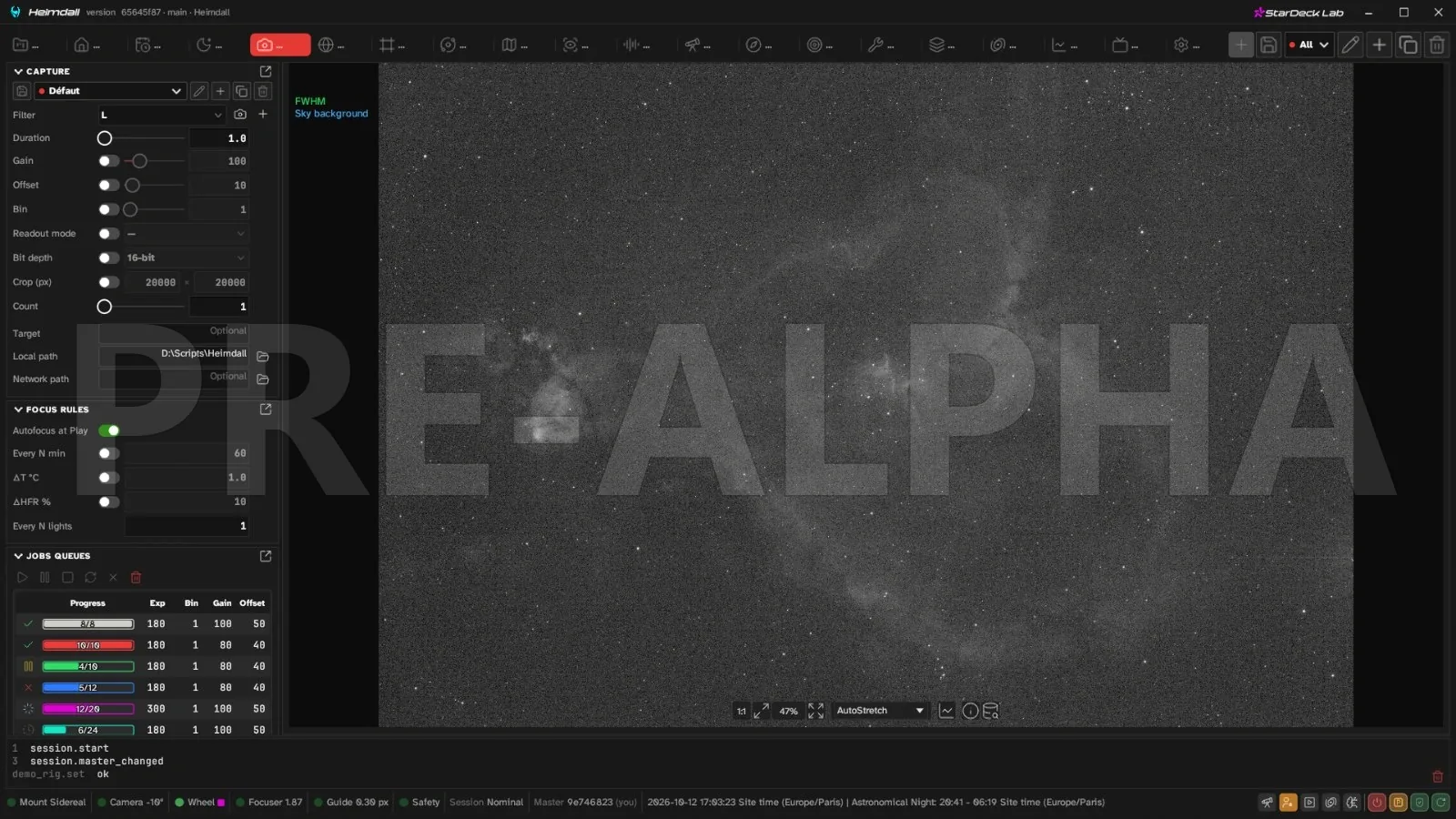
A single exposure in one click, or a job queue that chains filters, durations and frame counts: Capture produces your FITS files and files them for you.
Capture is the deep-sky imaging workshop. This is where you set the camera and the exposure, fire a one-off frame, and build the queue that runs through the night.
In short
One frame in one click, a night in one queue.
The same workshop tests an exposure time and launches hours of frames across several filters.
The night's chores are slipped in for you.
Dither, autofocus and meridian flip fit between frames: the queue doesn't stop and doesn't ruin an exposure.
Files you can find.
Project / night / filter filing, readable names, complete FITS, network mirror: you know where each image is and you don't lose any to flaky Wi-Fi.
The same widgets in the workshop and in the plan.
What you set in Capture, you find in the Sequencer node: no two ways to describe a frame.
The camera stays under control.
Cooler, dew heater, binning flagged in orange, clean abort, safety checked before slewing.
What the workshop does
You want three things: set the exposure, trigger it, find the file. Capture brings the camera, the exposure form and the job queue together, and writes every image as FITS into your Project's folder, under a readable name.
For a single frame, one button is enough. For a night, the queue takes over: a job is a filter, a duration, a gain, an offset, a binning and a frame count. The Sequencer reuses these same widgets in its Capture node, with the values of your plan.
What sets it apart
A classic capture module is a form and a button. Here, imaging is a workshop tied to the Project, the journal and the Sequencer: files arrive filed, and the queue plays out in the plan.
A simple shutter trigger writes files. Capture writes the Project, the HFR and the date into every frame and into the night journal.
And imaging never bypasses safety: the hub and the Safety state come before every movement.
All features · 29
Set up the shot
- Shows the current targetName, right ascension and declination, taken from the target picked in Himinn; you can override it or leave it empty.
- Shows the cameraSensor temperature, cooler power, gain and offset, read from the camera itself.
- Sets the exposureDuration, gain, offset, binning from 1×1 to 4×4, wheel filter.
- Warns about unusual binningThe form turns orange when you leave 1×1, with a tooltip that says what you gain and what you lose.
- Changes filter before the exposureThe chosen filter is moved into place before the shot, and a "changing filter" state is displayed.
- Drives the cooler and the dew heaterCooler on/off with a temperature setpoint, and dew heater power when the camera exposes it.
- Picks the image typeLight, Dark, Flat, Bias or DarkFlat; the type is written into the file name and the IMAGETYP header. It is hidden by default in Capture (Light); a preference shows it everywhere.
Shoot
- Takes a single exposureThe Expose button triggers an immediate exposure with the displayed settings.
- Tracks the exposure stateIdle, exposing, changing filter, saved, discarded; clear messages when the camera is busy or the capture fails.
- Aborts cleanlyAn abort during exposure discards the partial frame.
- Requires being masterOnly one station commands imaging; the others watch, and abort stays reachable from any of them.
The job queue
- Builds a job queueEach job = filter, duration, gain, offset, binning and frame count; "+" pushes the job into the queue.
- Shows the queue as a tableStatus, filter, count, duration, type, binning, gain, offset, with the progress of each row.
- Plays, pauses, stops, resetsPlay starts, Pause lets the current exposure finish, Stop and Reset end or replay the queue.
- Resumes without redoingAfter a Reset, jobs already finished are skipped; only the others start again.
- Slips in dither, autofocus and flipBetween two frames, never during an exposure: dither every N frames (waiting for guiding to settle), autofocus according to the rules, meridian flip.
- Refuses competing gesturesDuring a queue, a manual exposure, a filter change or a mount move by hand is refused: the queue owns the camera.
- Carries over into the SequencerThe Sequencer's Capture node shows the same widgets, several filter rows (for instance L×20, R×10) and plays the queue row by row.
Filing you can find again
- Files every frame in its ProjectProject, then night date, then filter, then raw: the structure is Siril-compatible.
- Names files readablyObject, filter, duration, UTC date and time, counter; an existing file is never overwritten.
- Writes a complete FITSHeader with the object, date, exposure, gain, offset, sensor temperature, filter, binning, instrument, telescope, focal length, site position, and the Project name. Pixels are not modified.
- Produces FITS onlyDeep-sky always comes out as FITS; never a proprietary format.
- Writes where you wantA night folder chosen in Preferences, or in the local path field.
- Mirrors to a networkEach FITS can be copied as it is written to a NAS or shared drive; if the network drops, the local frame is safe and the mirror resumes at the next frame.
- Writes the night journalEvery frame is logged with its filter, duration, HFR and Project.
- Sends a smooth previewThe interface receives a reduced preview, not the whole FITS: it stays fluid even on large images.
Safety
- Refuses what isn't safeMount parked, safety not green, target below the horizon or inside an exclusion zone: the slew is refused with a clear message before the exposure.
- Reacts to a lost deviceIf a critical device disappears mid-exposure, the error is reported and the session goes to a safe state beyond the configured threshold.
Comfort
- Speaks French and English
 1 / 4
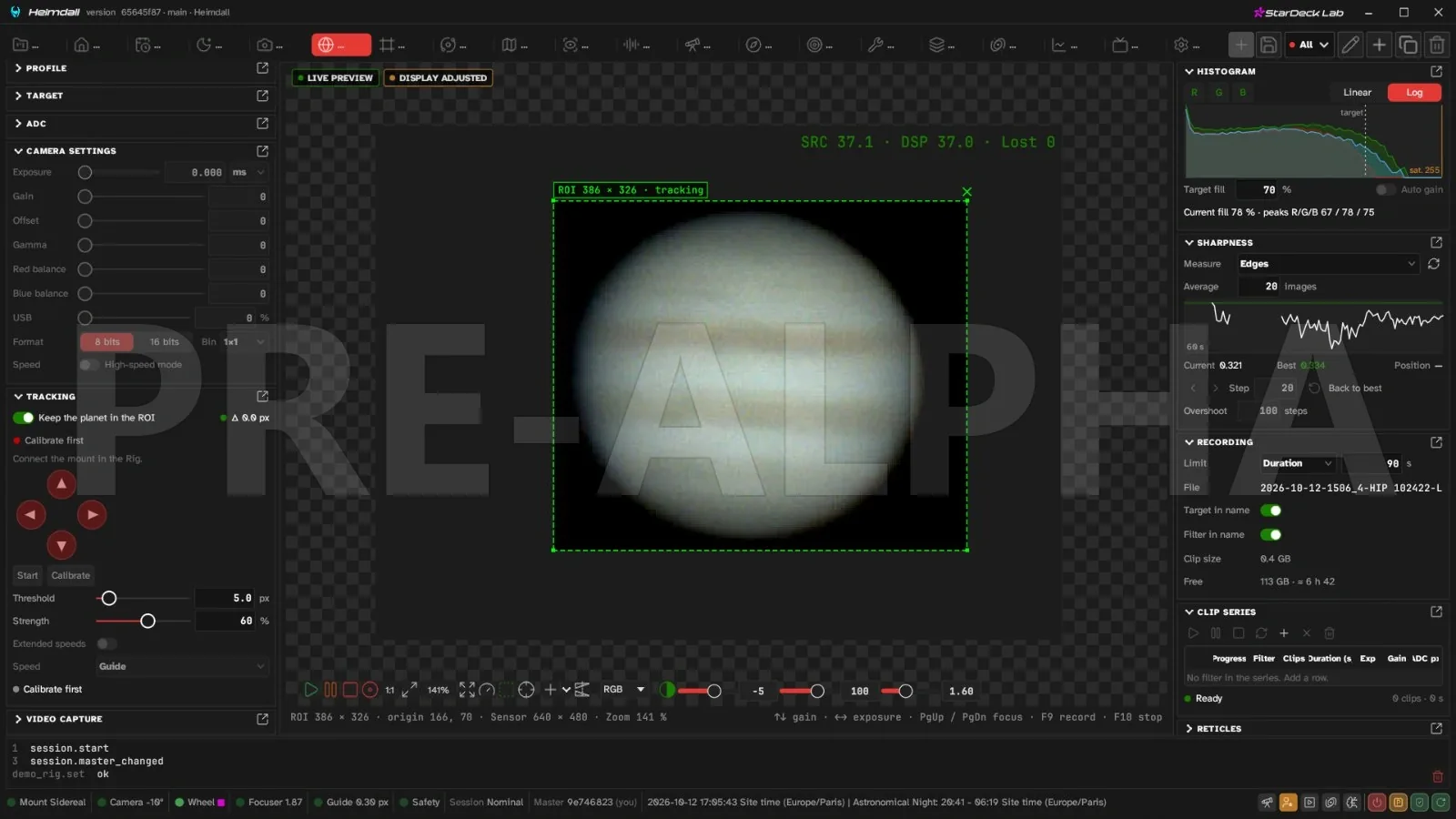
Live stream, ROI and planet tracking
Workshop · 07 / 17
Reïkis
high-frame-rate planetary capture
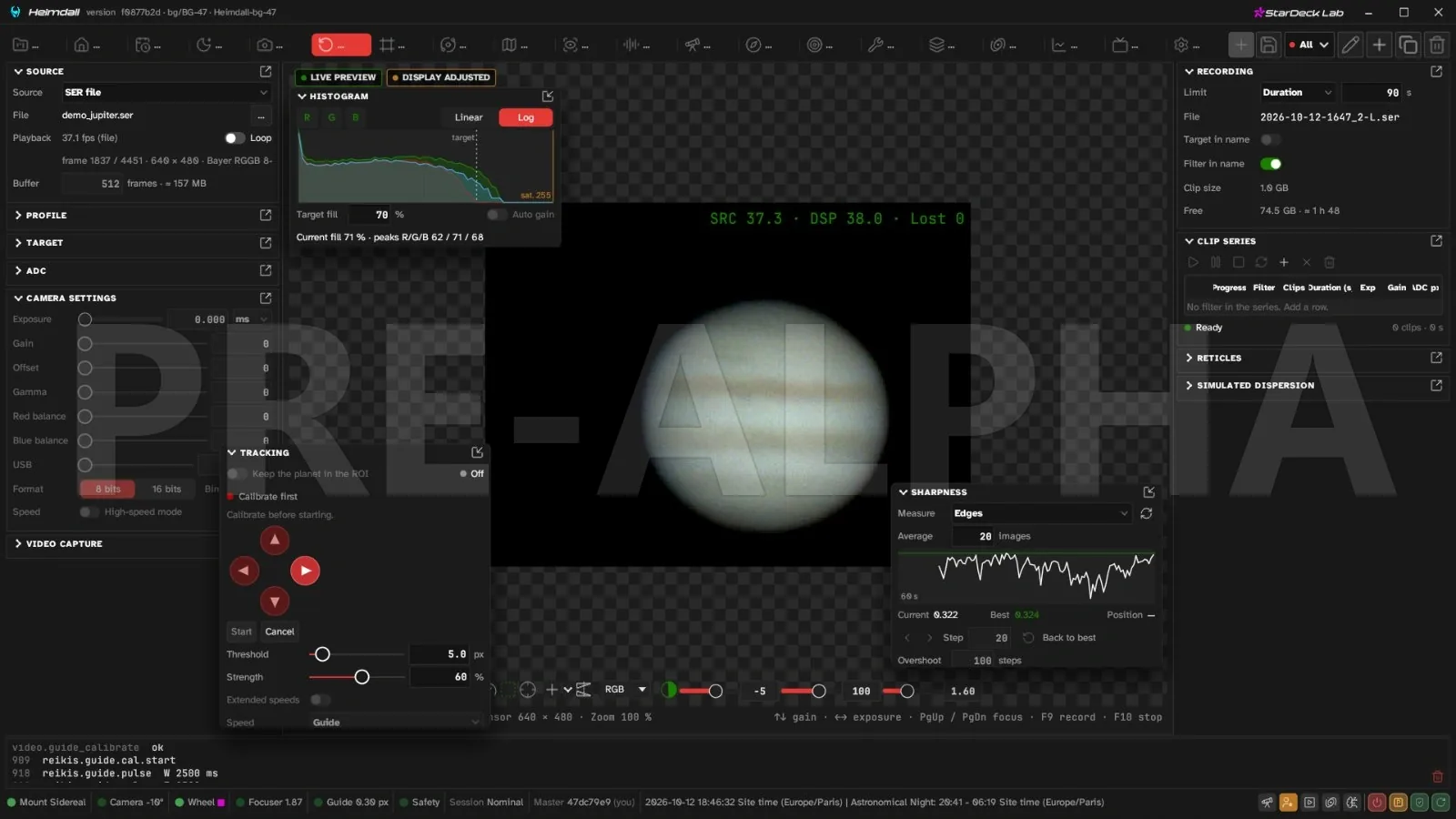
Reïkis, planetary capture: the suite’s high-frame-rate video host, inside Heimdall. Zero-copy, ROI, SER / RAW, visible drop counter.
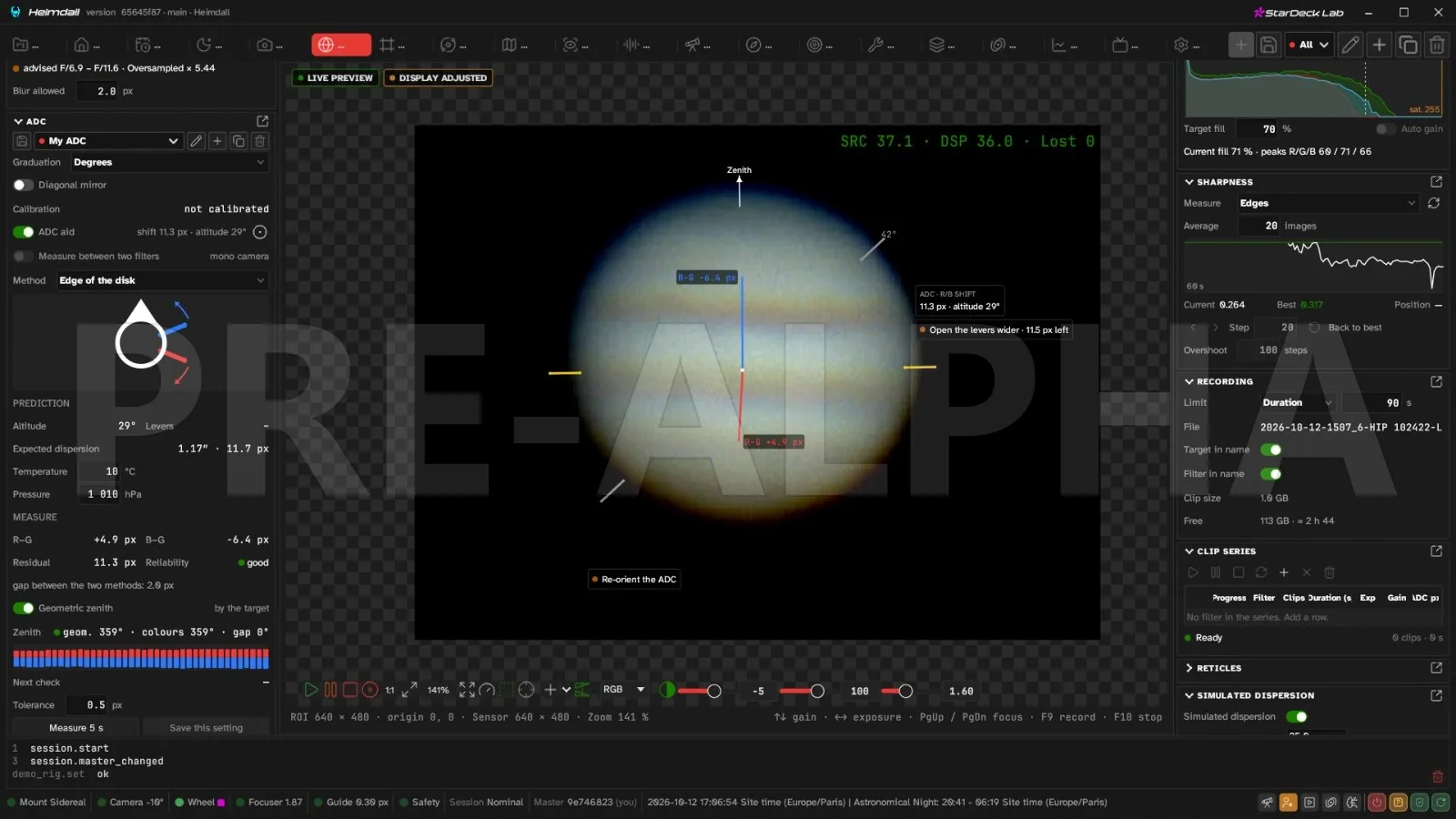
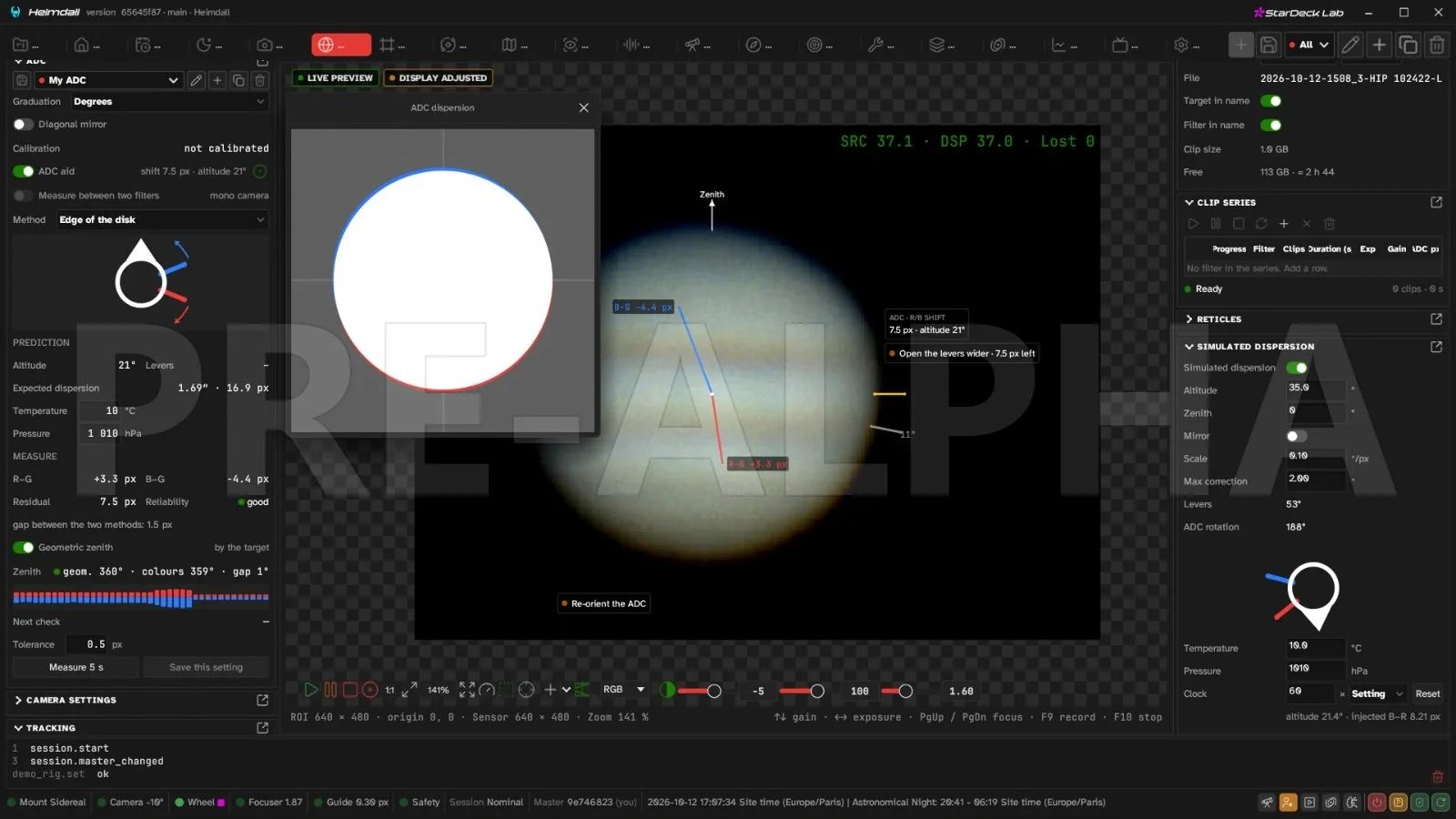
Reïkis handles planetary video: live stream, region of interest, clip recording and ADC assistance.
In short
High frame rate, no hidden drops
The drop counter stays on screen.
The planet stays put
ROI tracking through the mount.
ADC set on screen
Measured dispersion and a readable instruction.
Inside Heimdall
Same rig, same safety, same log as deep sky.
What the workshop does
The camera stream is shown live with source and display frame rates and the number of dropped frames. The planet stays in the ROI thanks to mount tracking.
Clips are recorded as SER or RAW, one at a time or as a per-filter series, with duration, file name and remaining disk space in view.
What sets it apart
Reïkis is the StarDeck suite’s video host: planetary capture lives in the same software as deep sky.
All features · 11
Video capture
- Zero-copyFrames go from camera to disk without needless copies.
- ROIA region of interest around the planet to raise the frame rate.
- Drop counterSource rate, display rate and dropped frames, always visible.
- Camera settingsExposure, gain, offset, gamma, balance, 8 or 16 bits, high-speed mode.
Tracking and sharpness
- Keep the planet in the ROIMount pulse tracking, with adjustable threshold and strength.
- Sharpness measureAveraged sharpness curve, best value and back to the best focuser position.
Recording
- SER / RAWDuration limit, target and filter in the file name.
- Clip seriesA queue of clips per filter, like an exposure queue.
- Disk spaceClip size and remaining recording time.
ADC
- ADC aidMeasures R–G and B–G dispersion on the planet’s disc, and which way to open the levers.
- PredictionExpected dispersion from altitude, temperature and pressure.
 1 / 3
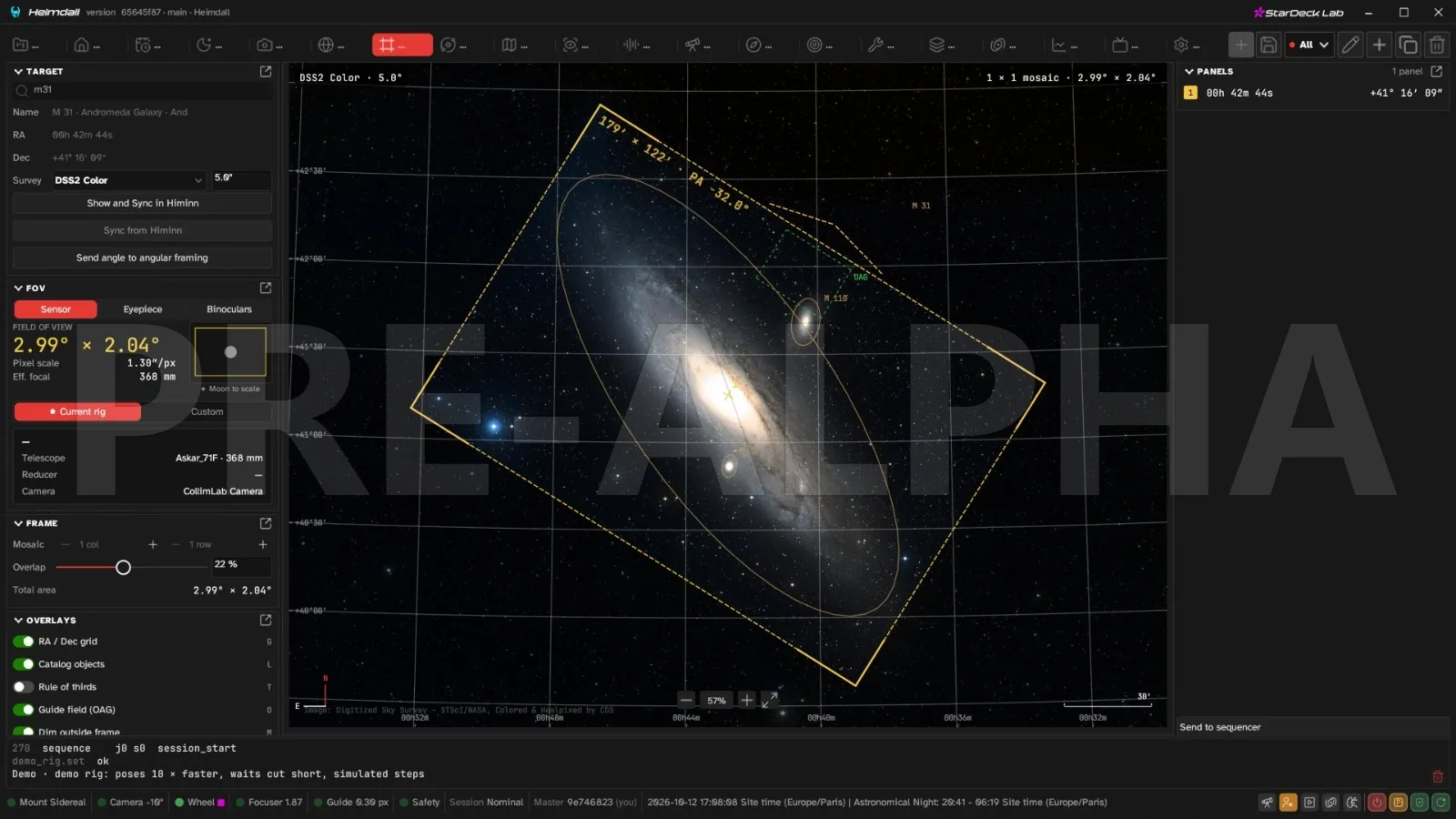
Framing on a DSS survey
Workshop · 08 / 17
Framing
your frame on the sky survey, all the way to a mosaic
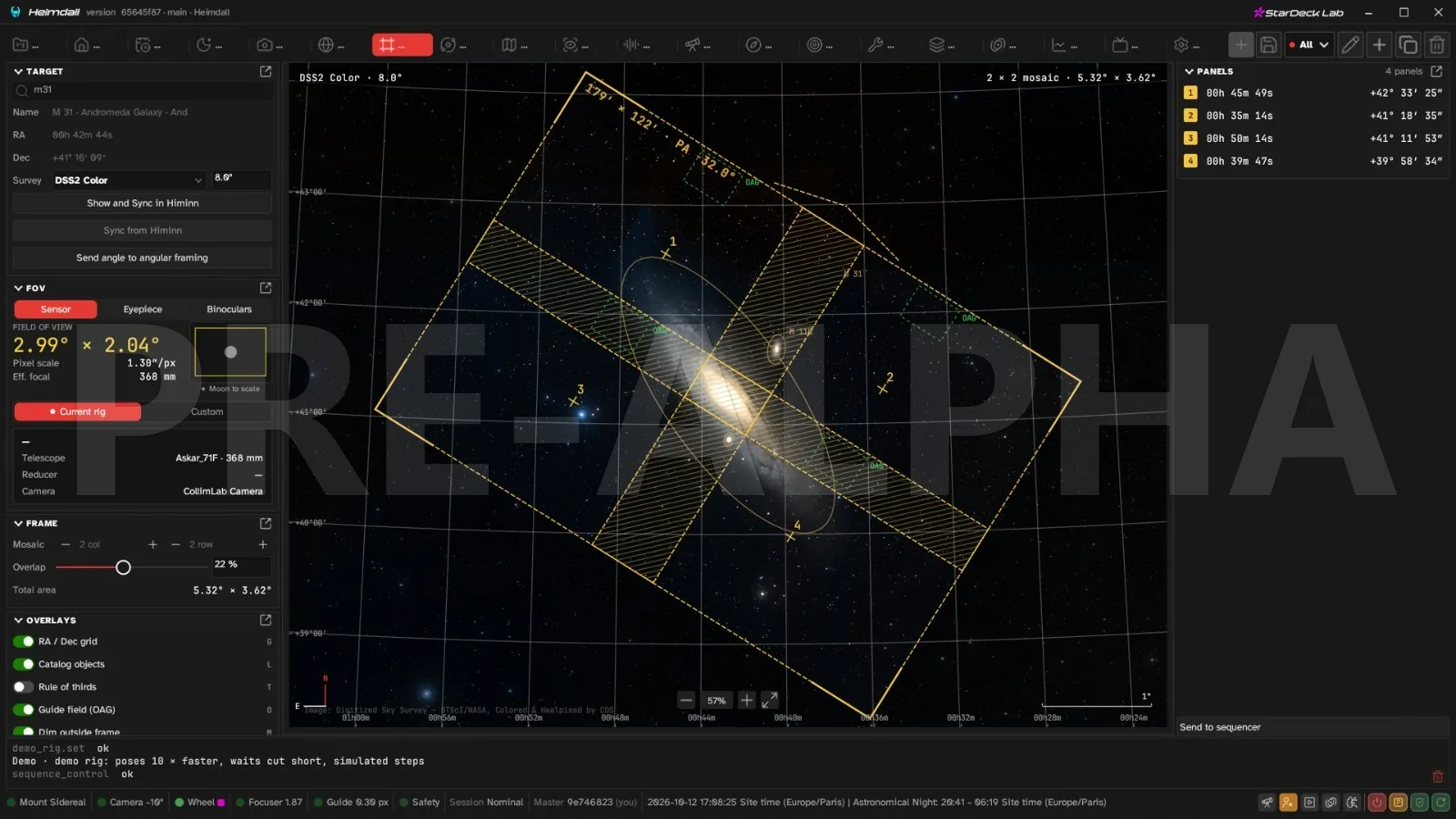
Place your camera's real field on an image of the sky, rotate it with the mouse, extend it into a mosaic: you know what you'll shoot before you slew.
Framing is the framing workshop. It prepares the composition of the image; it drives no device.
In short
You see your gear's field, not a generic rectangle.
Focal length, reducer, sensor and pixel come from the Rig; the frame and the scale are right without re-entry.
A real sky image behind the frame.
Does the nebula spill over? Is there a bright star at the edge? The survey answers before the night.
A mosaic in a few clicks.
Columns, rows, overlap: the grid is laid down, moved and rotated as a block, with its panels numbered and their coordinates listed.
The network is never imposed.
The background is downloaded on your gesture and kept on disk; with no network, a known area still displays.
One gesture to rotate.
Right-click and the grid turns: no slider to set, no angle to type.
What the workshop does
A good image starts with a good frame: where to put the target, at what angle, do you need a mosaic to cover the nebula? Framing answers these questions on a flat map of the sky, with a real image of the area behind it.
The frame, sized exactly to your sensor, focal length and reducer, moves, rotates and multiplies into a grid of panels. Everything is computed from your Rig: you don't re-enter your gear.
What sets it apart
A generic-rectangle framing tool makes you type your focal length and sensor every session. Here, the frame reads your Rig.
A mosaic planner is often limited to a list of coordinates. Here the grid is seen on the sky, with its overlaps, numbers and overlays, and handled as a block.
A framing tool wired to the hardware slews the mount. Framing prepares: it drives no device, which makes it safe to use in broad daylight.
All features · 31
Choose the target and the background
- Takes the target from HiminnThe Sync button reads the object selected in Himinn; name, right ascension and declination appear read-only. No coordinates to type.
- Shows a real sky survey behind the frameYour choice of DSS2 color, DSS2 red or 2MASS, over an area whose size you set (5° by default).
- Downloads only on your gestureNo image arrives unless you clicked or confirmed a setting; no surprise pop-up.
- Shows download progressA bar shows the wait, then the reception, with percentage and speed.
- Keeps the areas you've seenImages are kept on disk: an area you've already viewed shows without network. An area never seen and no network: plain background and a short message; the rest of the workshop stays usable.
The map
- Draws a flat 2D map centered on the objectGnomonic projection, east on the left, north up, independent of Himinn's 3D globe.
- Zooms with the wheel, pans with a dragThe zoom bar gives −, the percentage, +, and "fit".
- Gives its landmarksN / E compass, scale, right ascension and declination ticks, a "survey · size" label and, top right, "columns × rows mosaic · total size".
- Writes to the bottom consoleOne line on a successful load, an error line otherwise.
The camera frame
- Reads the optics from the RigRig list (the current Rig by default), camera and sensor, focal length, reducer and pixel size read-only; the reducer counts only if it is ticked on the tube card.
- Draws the frame to scaleA rectangle at the real size of the field, with a central reticle and a "101′ × 67′ · PA +4.0°" label.
- Computes the field and the scaleField block: single-panel field, total area, scale in arcseconds per pixel. Example: 800 mm, 6248 × 4176 sensor at 3.76 µm → about 1.68° × 1.12°, 0.97″/px.
- Moves the frame with the mouseDragging inside the frame moves it; its center follows.
- Rotates the frame with a right-clickHold the right button and turn the mouse around the center, in 1° steps (0.1° with Shift), position angle shown live.
- Remembers your frameCenter and angle are saved; when you sync a new target, the frame recenters and keeps its angle.
- Stays honest with an incomplete RigNo camera, no tube or unknown pixel: no frame, a message saying which card to complete, dashes in Field.
The mosaic
- Sets columns and rowsFrom 1 to 10 each, with − / + counters.
- Sets the overlapFrom 0 to 50%, with a slider or by typing the value (Enter confirms, a click elsewhere cancels); 15% by default.
- Lays down a rigid gridThe panels form one block: one center, one angle, no panel moves alone. Changing the number of columns or rows grows the grid around its center without touching the center or the angle.
- Shows the overlapsEach panel is a dashed outline, shared areas are hatched.
- Numbers the panelsA number above each panel's reticle, left to right then top to bottom, 1 at the top left of the grid.
- Moves and rotates the grid as a blockDragging inside a panel moves the whole grid; right-click, inside or outside, rotates it around its center.
- Lists the panelsRight column: a number, the right ascension and declination of each panel's center.
- Gives the total areaOverlap deducted.
- Keeps the mosaicColumns, rows, overlap, center and angle are restored when you reopen.
The overlays
- RA / Dec grid(G key): fine lines across the whole map.
- Catalog objects(L key): outlines at real size and angle, with their names, for the catalogs active in Himinn.
- Rule of thirds(T key): across the whole grid.
- Dim outside the frame(M key): only the inside of the grid keeps full brightness.
- Remembers your choicesThe checkbox state is saved; shortcuts respond only when the mouse is over the map.
Comfort
- Speaks French and English
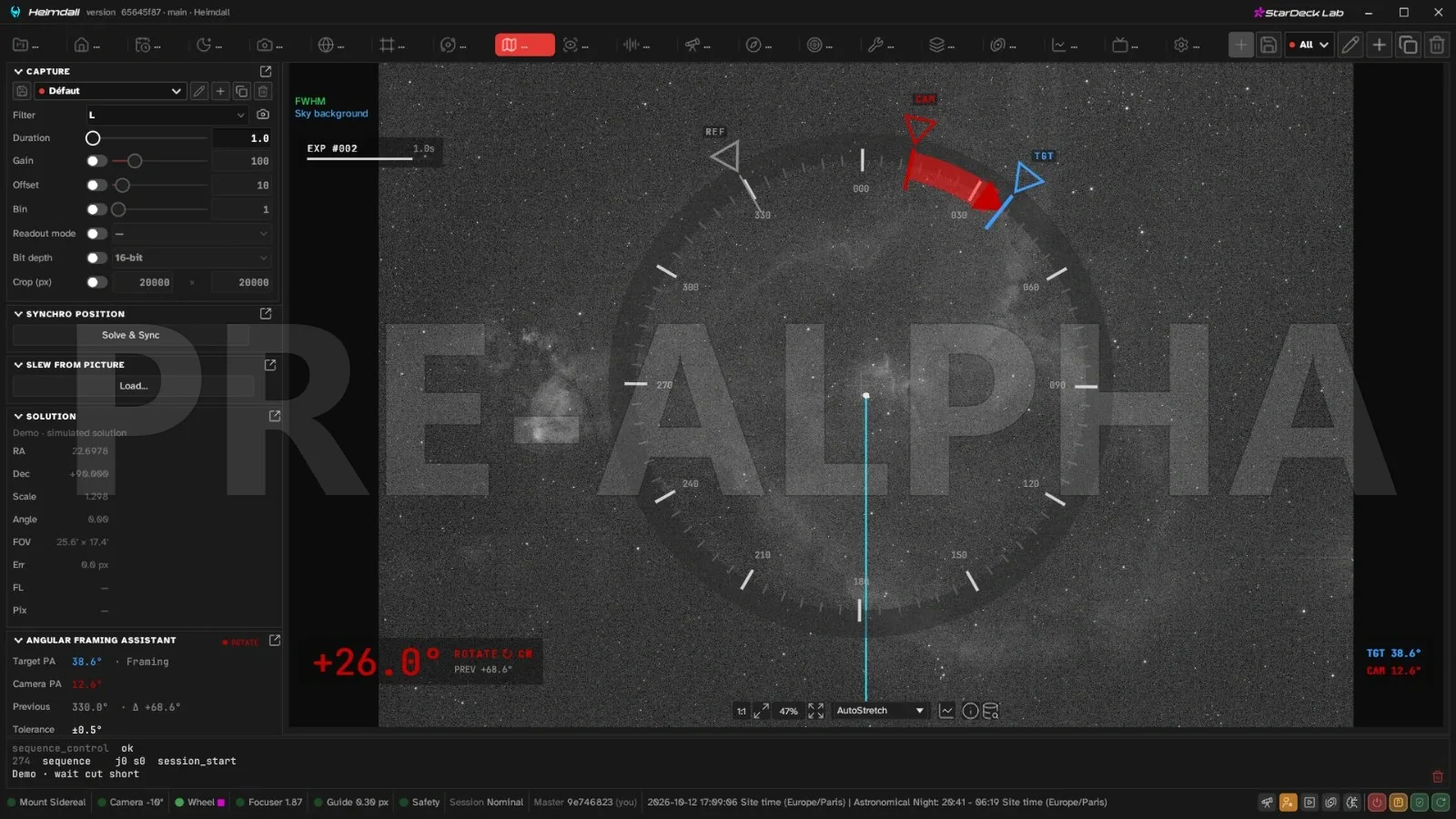
Sync, slew from a picture and angular framing assistant
Workshop · 09 / 17
Plate-solve
know where you point, and rotate right
Local astrometric solving, no server: where the telescope really points, and how far to rotate the camera.
The Plate-solve workshop takes an exposure, solves it with on-disk catalogues and derives the field’s position, scale and angle.
In short
No server
Everything solves on the machine.
Get a framing back
Slew from an image of a previous night.
Rotate right
The angle to catch up, readable from a metre away.
Linked to Framing
The angle picked at framing arrives by itself.
What the workshop does
Solve & Sync realigns the mount on the measured position. Slew from picture slews to the centre of an existing image, to get back a framing from a previous night.
The angular framing assistant compares the camera’s measured angle with the wanted angle, and shows in large type how far to rotate and which way.
What sets it apart
Angular framing loops with Framing: the angle picked on the DSS survey becomes the rotation instruction on the sky.
All features · 6
Solving
- Offline plate-solveOn-disk catalogues, no cloud server.
- Detailed solutionRA, Dec, scale, angle, field and pixel error.
Pointing
- Solve & SyncRealigns the mount on the measured position.
- Slew from pictureSlews to the centre of a loaded image.
Angular framing
- Target and camera angleThe wanted PA (from Framing) against the measured PA.
- Readable instructionThe angle left to rotate in large type, with direction and adjustable tolerance.
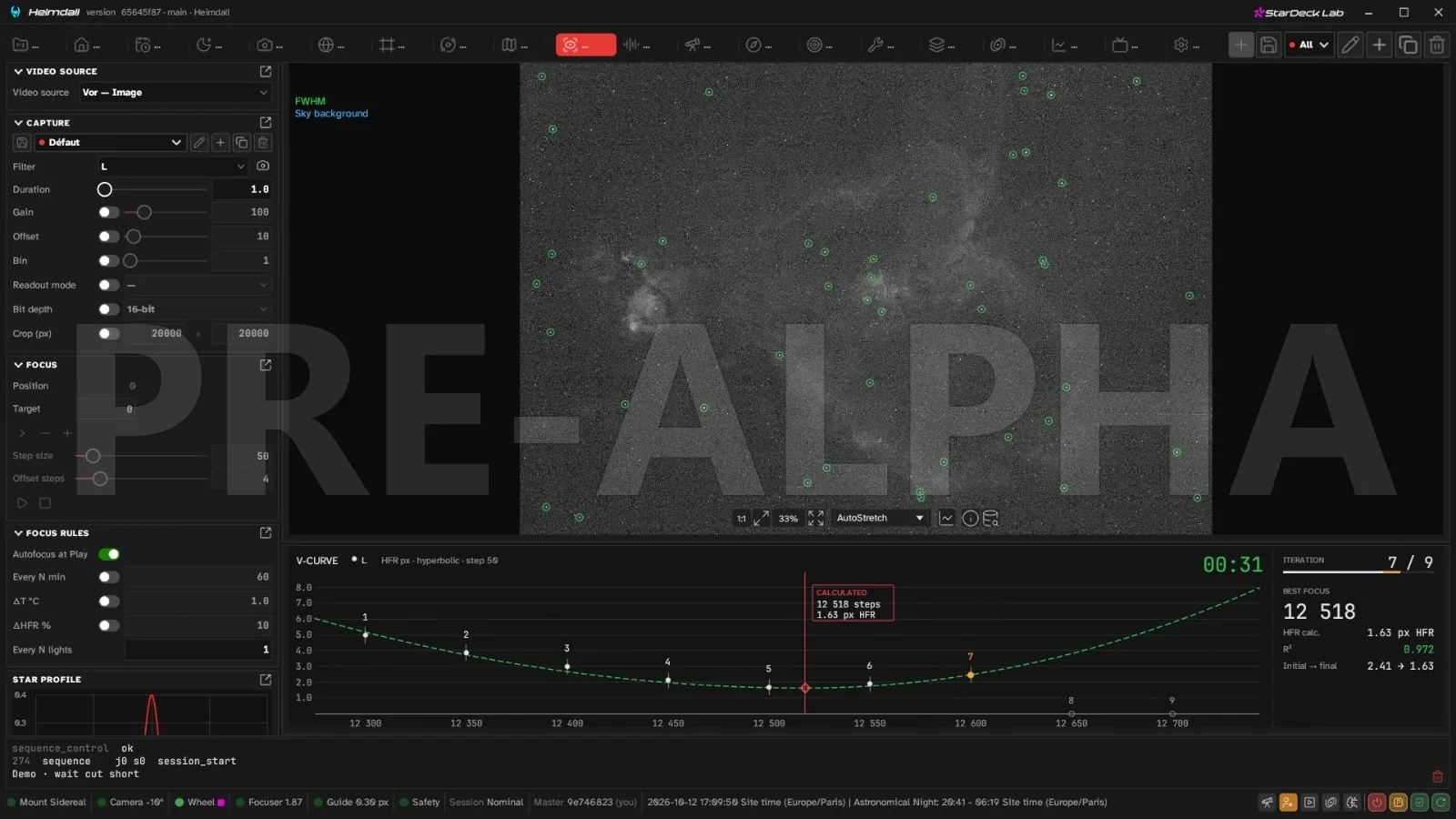
V-curve and best position
Workshop · 10 / 17
Focus
autofocus and its hyperbolic V-curve
An autofocus routine that measures how sharp your stars are, fits a hyperbola to the V-curve and puts the focuser at the sharpest point.
Focus is the focusing workshop. It runs autofocus on demand, triggers it by itself during the night when sharpness degrades, and shows live the curve that justifies the position it picked.
In short
Focus corrects itself.
Temperature, time, degrading HFR, flip: focus is corrected during the night, between two frames.
You see why.
The V-curve with its hyperbola, best point and iterations shows what autofocus measured and why it picks that position.
A failure doesn't break the night.
15% validation, exposure cap, starless sky, focuser dropout: the routine goes back to the last good position instead of chaining blurry images.
Measurements you can check.
Every measurement and every result is logged, with the trigger cause and the outcome.
What the workshop does
Focus drifts: temperature changes, the tube contracts, stars bloat. Refocusing by hand in the middle of the night costs frames and attention.
Focus automates the gesture. It takes a reference exposure, sweeps the focuser on either side of the point, measures the HFR (star sharpness) at each position, fits a hyperbola to the measurements and aims for its minimum. A validation exposure confirms the result; if it is worse than the reference, the routine fails and the focuser goes back to its last good position.
What sets it apart
Manual focusing or a plain fixed-step sweep burns exposures for little information. Here the routine relies on a hyperbolic fit, the physical shape of the sharpness curve, and knows when not to trust its measurement.
A standalone autofocus module is launched by hand. Focus also triggers itself, by rules you choose, and fits into the night's plan.
The measurement rests on the HFR of many stars rather than one: it rejects saturation, trails and elongated objects.
All features · 28
Run focusing
- Runs autofocus in one clickA complete routine: reference exposure, sweep, curve fit, move to the best point, validation exposure.
- Sets the step and the starting offsetFocuser step size and the number of steps out before the sweep; current and target positions are displayed.
- Stops a running autofocusA Stop button cuts the routine if it runs too long or diverges.
- Uses its own exposure settingsDuration, gain, offset, binning and filter of the measurement exposure belong to autofocus, not to your lights; the measurement exposure is never saved as a light.
- Doesn't move the mountAutofocus acts on the focuser only.
- Requires being masterOnly one station commands; the controls are greyed out for the others.
Measure and visualize
- Measures HFR over many starsStar detection above the background, centroid, rejection of saturated stars, trails and over-elongated objects; the HFR kept is the median, robust against outlier stars.
- Plots the V-curveHFR in pixels against focuser position, with the fitted hyperbola, the best point, the calculated value and the initial → final shift.
- Shows the running iterationEach exposure of the sweep is added to the curve as it is measured.
- Logs every measurement and every resultPosition, HFR, star count, temperature, then best point, fit quality, number of exposures, trigger cause and outcome.
A routine that protects itself
- Compensates focuser backlashThe final approach is always made in the same direction, with one overshoot and return per routine.
- Validates before acceptingIf the HFR at the point it found is at least 15% worse than the reference, the routine fails and goes back to the last good position.
- Caps the number of exposuresSixteen at most; beyond that, the routine stops on the last good position.
- Rejects a doubtful curveIf the hyperbola fit isn't good enough, the routine fails rather than inventing a point.
- Copes with a starless skyTwo measurements in a row with no star and the routine stops with a message, without crashing; the last good position is kept.
- Flags a focuser that drops outAn inconsistent position is reported as a device offline and no science exposure follows.
- Stops cleanly on abortThe focuser returns to the last known good position.
- Reads back a replayable night journalFocus measurements are used to verify the best point and the number of exposures.
Trigger it during the night
- Autofocus before the first lightOne routine when the sequence starts (on by default).
- Refocus every N minutesA time interval of your choice.
- Refocus on a temperature changeWhen the focuser temperature has moved by more than N °C since the last accepted autofocus, if the probe is present.
- Refocus when HFR degradesWhen a light's HFR is N% worse than that of the last accepted routine, checked every N lights (10% by default).
- Refocus after a meridian flipA checkbox of the flip, set with the Sequencer.
- Slots in without spoiling a frameAutofocus runs between two exposures, never during one; the queue then continues.
- Doesn't loopA trigger launches a single routine, then the queue continues; a routine that crashes stops the queue cleanly, with no new light taken at a bad focus point.
Drive the focuser by hand
- Moves the focuserTo a target position or step by step, through the interface, never straight on the hardware.
- Forbids competing gesturesDuring a sequence, manual focuser moves are refused; Stop remains available.
Comfort
- Speaks French and English
Guiding in the Dashboard: RA / Dec curves, scatter, RMS (dedicated screenshot coming)
Workshop · 11 / 17
Guiding
built-in guiding, no third-party software
Calibration, RA / Dec curves, scatter and dither: guiding is built into Heimdall. PHD2 stays optional.
Guiding runs in the engine, with the same safety and the same log as the rest of the session.
In short
Built in
No second program to launch.
Visible everywhere
Curves and RMS right in the Dashboard.
Sequence-driven
Automatic dither and restart.
PHD2 if you like
Nothing is imposed.
What the workshop does
RA and Dec curves, the scatter target and RMS values (total, RA, Dec, peak) are shown live, also from the Dashboard.
Dither and guiding restart after the meridian flip are driven by the sequence.
What sets it apart
Guiding shares the engine’s safety: every mount move goes through the same check.
All features · 5
Guiding
- Built-in guidingCalibration and corrections in the engine, no third-party software.
- Curves and scatterRA, Dec, scatter target, total and peak RMS.
- Optional PHD2For those who prefer their own tool.
In the sequence
- DitherAdjustable amplitude, frequency and settle time.
- Restart after flipGuiding restarts by itself after the meridian crossing.
 1 / 2
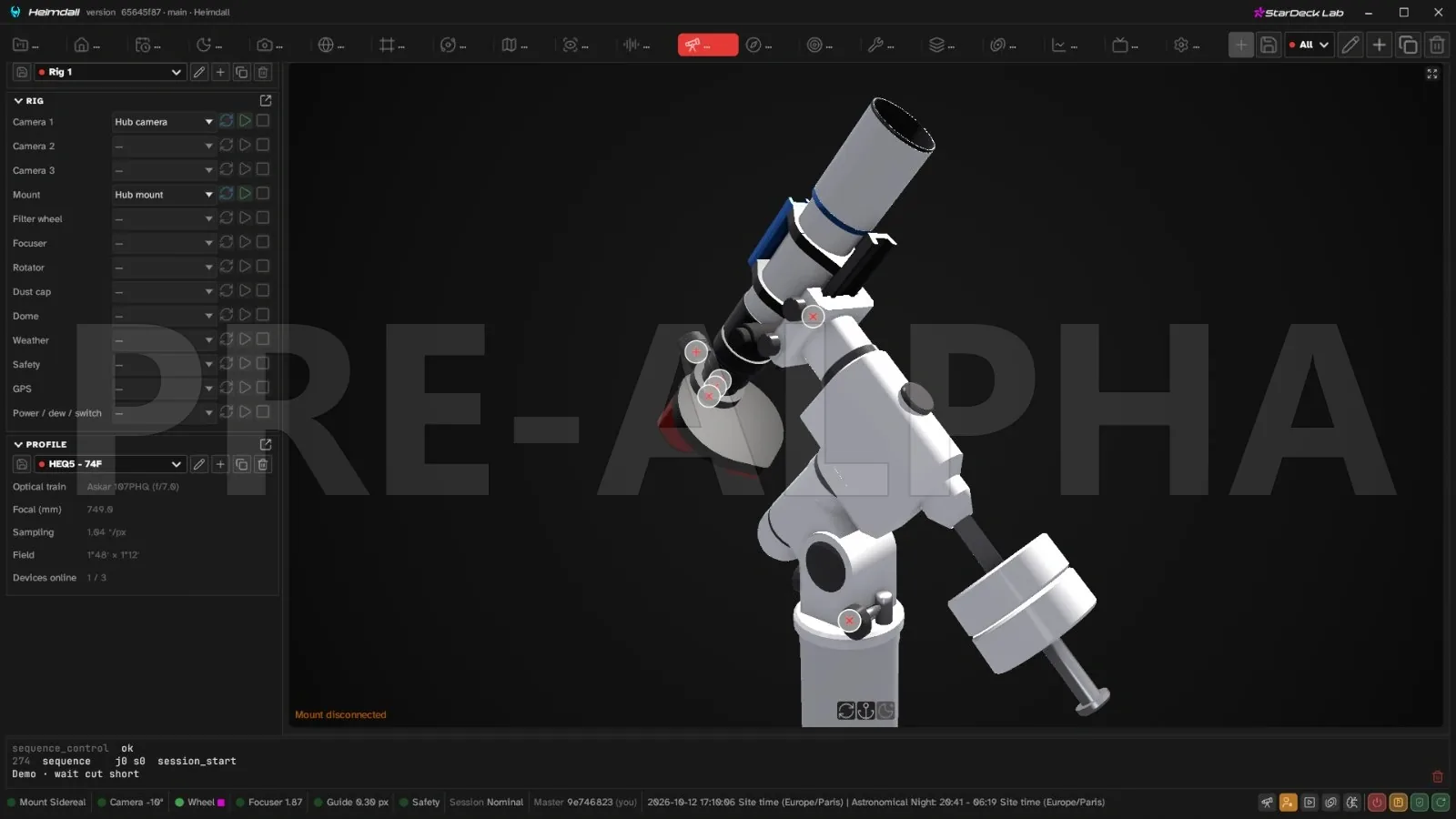
Refractor on an equatorial mount
Workshop · 12 / 17
Rig 3D
the optical train, piece by piece
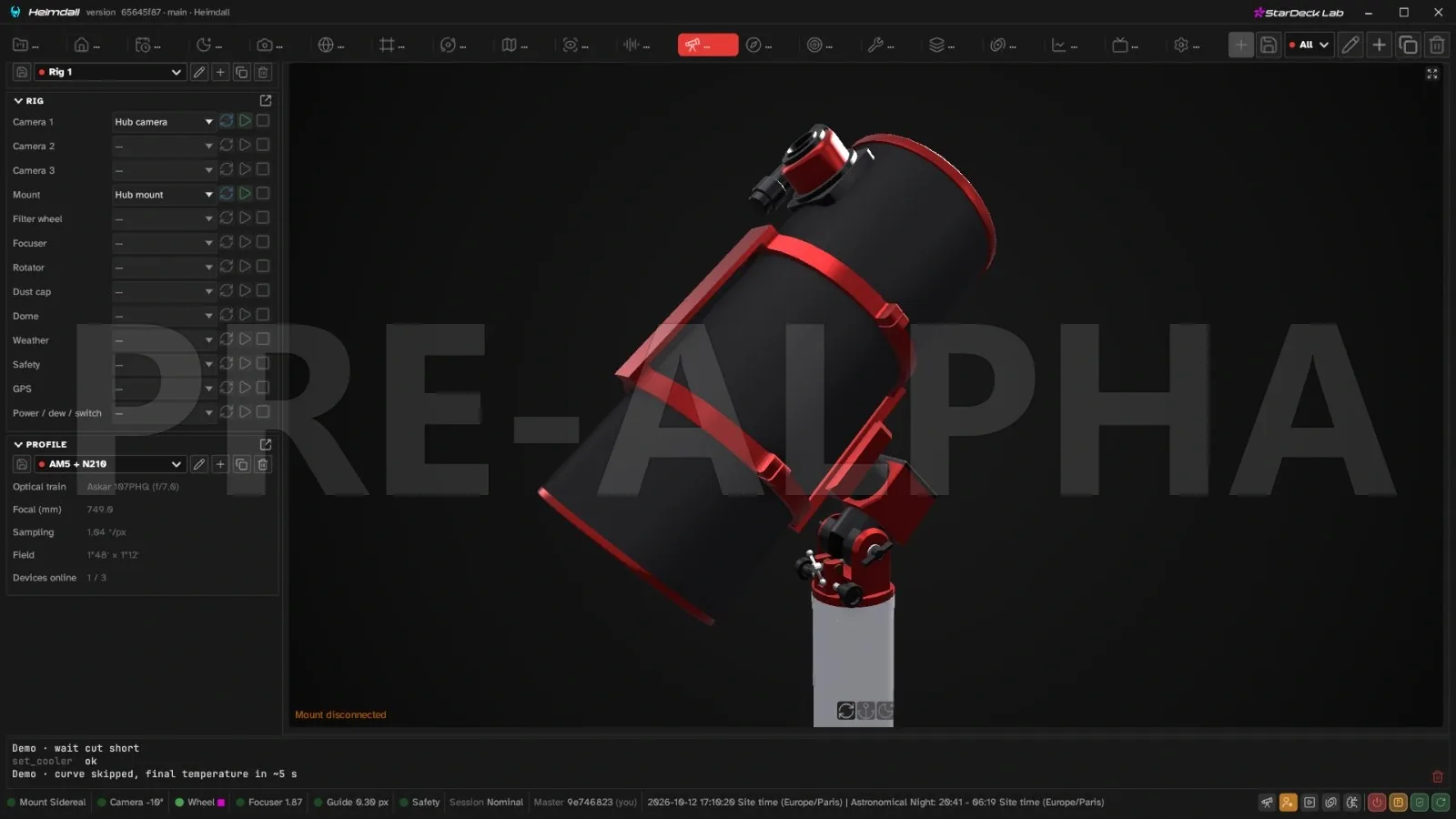
Your real gear, assembled in 3D: click a piece, its card opens, and all of Heimdall derives your field, your scale and your settings from it.
The Rig 3D is the gear-description workshop. It tells Heimdall what your setup is made of, and shows each device's state on the very piece it concerns.
In short
Your gear, not a list.
You assemble your setup in 3D and set each device on its piece.
One description for all of Heimdall.
Focal length, reducer, sensor and pixel entered once feed the field, the scale and the framing.
Your defaults, per camera.
Gain, offset, binning, cooling: saved per camera model and reused everywhere.
See each device's state where it is.
Mount, camera, wheel, rotator, focuser: their state is read on their piece.
Author-made models accepted.
A 3D model with its named anchor points assembles itself.
What the workshop does
Session software has to know your optics: focal length, reducer, pixel size, sensor. Elsewhere, these values are typed into lists and forms. Here they attach to a piece you can see: the tube, the camera, the filter wheel, the mount.
You assemble the optical train in 3D, from the pier or tripod up to the camera. A click on a piece opens its card: the device's state, its own settings, its defaults. The other workshops then read this profile.
What sets it apart
A gear profile is usually filled in through lists. Here the profile is built on the piece: you see what you describe.
A connection panel shows who is online. The Rig 3D also shows what each device is doing: temperature, tracking, filter in place.
A decorative 3D model stays decor. Here it carries the values the other workshops use.
All features · 21
Assemble the setup
- Builds the optical train piece by pieceSupport, mount, telescope, reducer, off-axis guider, filter wheel: you start from an empty attachment point, click, pick a piece from a list, and the next point appears.
- Accepts author-made 3D modelsA 3D model that carries its named anchor points attaches itself to the right piece; a missing model is replaced by a simple shape, without blocking.
- Removes a pieceClicking an occupied point removes the piece; a confirmation is asked if several pieces depend on it.
- Orients each piece from its cardAn angle from 0 to 360° for the tube, the camera, the filter wheel and the rotator; on a Newtonian, the tube rotates in its rings and the train follows.
- Keeps several RigsA Rig list (create, rename, duplicate, delete); the current Rig is the one the other workshops use.
- Saves the buildThe profile retains the pieces placed and their orientation.
- Summarizes the profileOptical train, focal length, sampling, field, number of devices online.
See and navigate
- Orbits, pans and zooms around the setupA 3D view with ambient lighting and occlusion to read the volumes; a button resets the view.
- Highlights the selected pieceOutline and tint on the piece whose card is open.
- Links the piece to its cardA label and a line lead the eye from the piece to its card.
- Opens several cards at onceThey place themselves next to their piece without overlapping, move by their title bar and close with the cross.
The piece cards
- MountState, pier side, tracking state, guide speed as a multiple of sidereal, mount type (equatorial, fork, alt-az), read-only; a box stays empty rather than showing an invented value.
- Optical tubeAperture, focal length, obstruction, f-ratio and reducer: the field and scale across Heimdall derive from them.
- Main cameraState, sensor temperature, cooling power, sensor, pixel. Default value sets, per camera model, set gain, offset, binning, readout mode, 8 or 16 bits, cropping, target temperature and dew heater power; they apply everywhere once saved. Buttons turn the cooling and the dew heater on or off.
- Guide cameraThe same card, with its own settings, chosen from the camera catalog.
- Filter wheelModel choice, a drawn and animated wheel, filters with their transmission bands, a table to name each filter, filter change by double-click.
- RotatorState and angle.
- FocuserState and position.
- Disconnects the card's deviceThe Disconnect button stops the device through the hub.
- Stays honestA field with no data stays empty; no placeholder values.
Comfort
- Speaks French and English
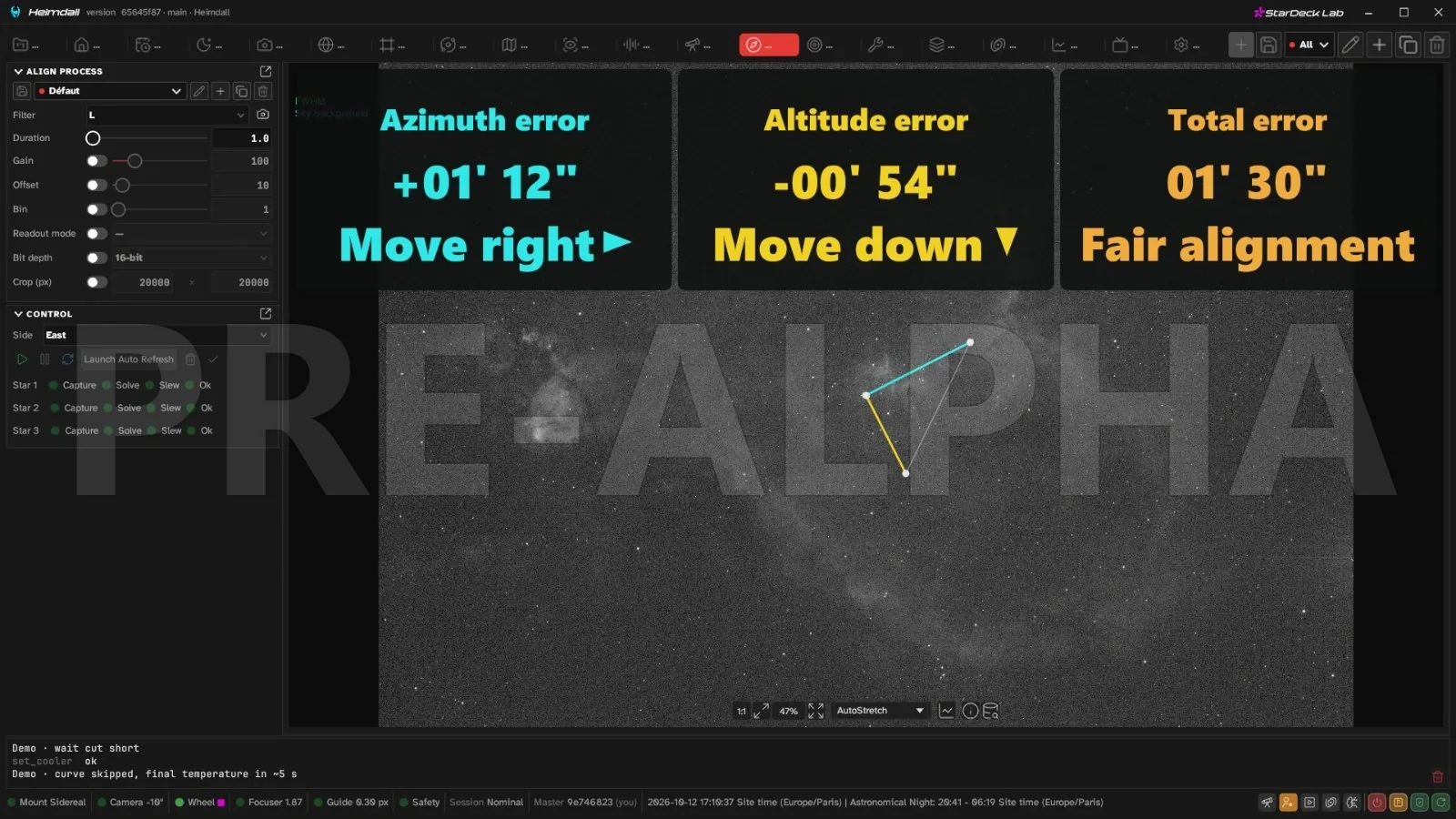
Live azimuth and altitude errors
Workshop · 13 / 17
Polar alignment
the star triangle and plate-solving
Three stars, a local plate-solve, and a live reading of your mount's error: you know which way to turn the knobs, and by how much.
Polar Alignment is the polar-setup workshop. It measures where your mount's right-ascension axis points relative to the celestial pole, and reports it in arcminutes, in azimuth and in altitude.
In short
A clear direction for every knob.
Triangle, arcminutes in azimuth and altitude, arrows: you know what to turn and which way.
A short loop, not a long drift.
Three stars, one measurement, one correction, again: you watch the error fall as you turn.
No network, no other software.
The anchor plate-solve is local, with a built-in catalog for both hemispheres.
A threshold that suits you.
Green, orange, red according to the threshold you set: you aim for the result that suits your focal length.
A result you can freeze.
Validate keeps the last error for the session.
What the workshop does
On an equatorial mount, the right-ascension axis must aim at the Earth's rotation axis. In the field you can't see it: you infer it. The workshop replaces a long drift procedure with a short loop: capture, solve, correct, repeat.
Three successive stars are enough to locate the axis. The workshop draws the error as a triangle over the camera image and adds arrows: East, West, up, down. You turn the knobs, the measurement refreshes, the error drops. All of it works offline.
What sets it apart
A drift-based polar alignment needs long measurements. Here, three stars and a plate-solve are enough, and the measurement repeats live.
An assistant that depends on an external solver requires installing it. This one solves locally with its own reduced catalog.
An assistant that moves without checking exposes your gear. This one checks safety, refuses a parked mount and keeps abort at hand.
All features · 22
Measure
- Measures on three starsFor each star: a short exposure, an anchor plate-solve, a one-hour slew in right ascension, then the next star.
- Chooses the rotation directionEast or West: the direction decides how the mount moves between two stars.
- Sets the measurement exposureDuration, gain, offset and binning, with ready-to-use starting values.
- Solves locally, with no networkThe anchor plate-solve uses a reduced catalog built in for both hemispheres; it works without any other solving program.
- Tracks progress with indicatorsCapture, Solve, Slew, Ok light up in cascade for each star; after the third, "Anchored — turn the knobs".
- Works with the guide camera or the main cameraWhichever the hub exposes.
Read the error
- Draws the star triangleThe picture of the error between the mount axis and the true polar axis, over the camera image.
- Puts numbers on the errorAzimuth error, altitude error and total error, in arcminutes.
- Shows which way to correctEast / West / up / down arrows say which way to turn the azimuth and altitude knobs.
- Moves the anchor point with the mouseClicking a star in the viewer locks onto it and the computation recenters around it.
- Colors by an adjustable thresholdGreen below half the threshold, orange up to the threshold, red beyond; the threshold is in arcminutes and is kept from one session to the next.
Correct in a loop
- Refreshes liveWhile you turn the knobs, a new measurement restarts from the first star and posts a new result; you watch the error drop.
- Starts and stops Auto RefreshOne button chains the measurements, another stops them cleanly.
- Pauses and resumesPause keeps the current star, the indicators and the last error; resume restarts from the kept star.
- Validates the session's errorValidate freezes the last measurement (azimuth, altitude, total), recalled afterwards without recomputing.
- Resets everythingThe trash can returns the workshop to its pre-launch state: no validated error, no kept image.
Safety and state
- Refuses to move a parked mountThe "mount parked" state is displayed, and safety comes before any movement.
- Keeps abort within reachThe status bar with abort and park stays visible.
- Displays the session stateReady, anchoring, paused, anchored, live refresh, error validated.
- Reports failures with stable codesSession already running, solve failed on the last star, validation without a measurement: the same codes in either language.
- Asks for what it needsWithout a camera or a controlled mount, the session won't start; without a known latitude, the workshop says so.
Comfort
- Speaks French and English
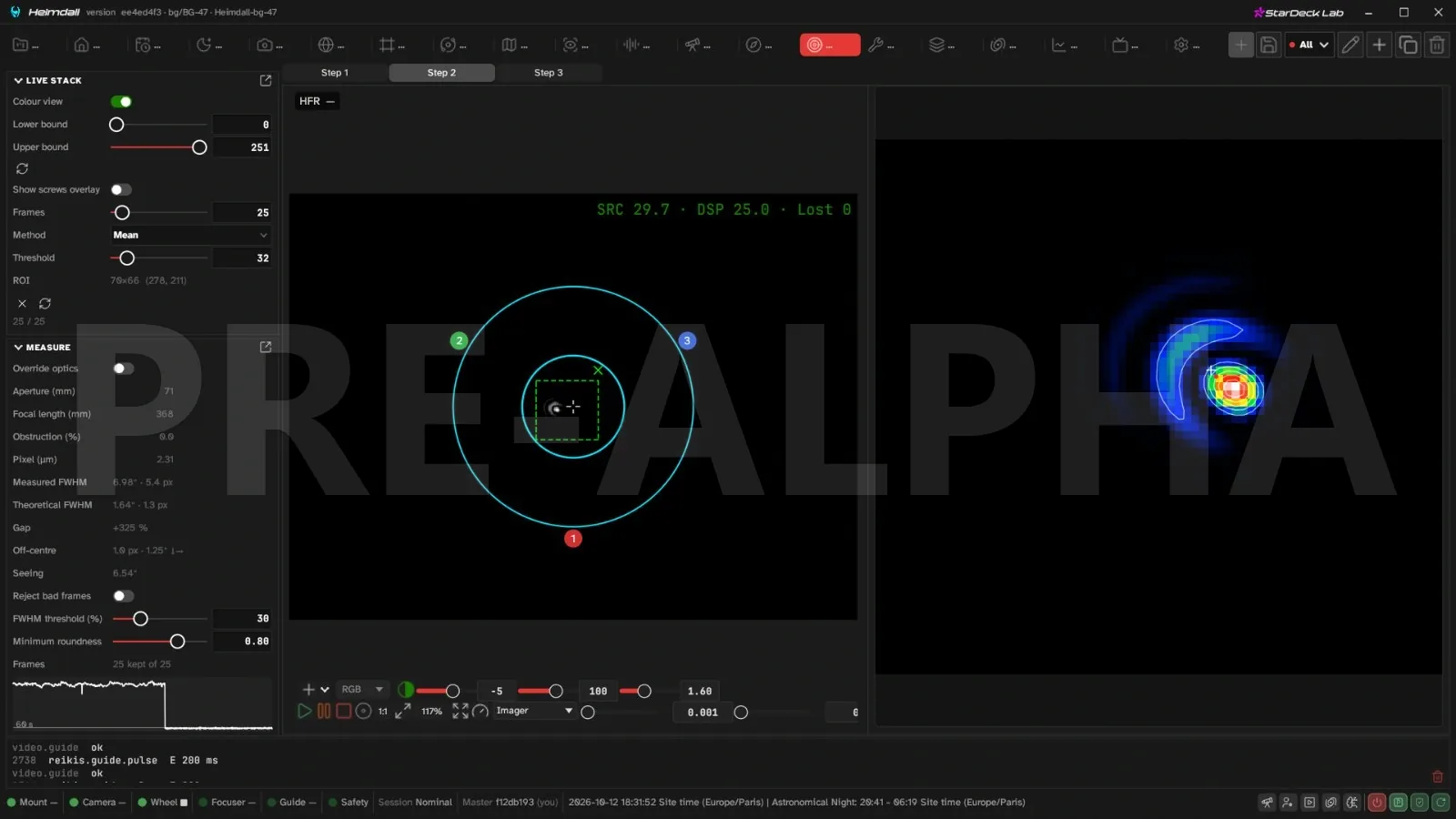
Collimation: circles, screws and HFR
Workshop · 14 / 17
 Mio
collimation built into Heimdall
Donut figure, circles, screws and live HFR on the video feed: set your telescope's collimation without leaving your station.
Mio is Heimdall's collimation workshop. You use it before the night, on a star, with the camera connected.
In short
See how far off-center you are.
Concentric circles, marked screws, numeric HFR: adjusting stops being guesswork.
The star recenters itself.
The auto-centerer brings the star back to the circles' center: you keep the same reference while you adjust.
A result that reads better.
The rolling stack brings out a clean donut against a noisy background.
All inside the station.
The camera and the mount are the Rig's; you go from collimation to imaging without reconnecting.
What the workshop does
Collimating means aligning the optics. You defocus a star: it becomes a donut, and that donut must be concentric. The workshop overlays circles and the position of the adjustment screws on the live image: you see how far off-center the donut is, you turn a screw, you see the image again.
Inside Heimdall, the camera and the mount are those of your Rig, through the hub: nothing to reconnect.
What sets it apart
Collimating by eye on a screen is judged by impression. Here, circles, screws and HFR give measurable references.
An external tool means sharing the camera and the mount between two programs. Here, the workshop works on the same hub as everything else.
All features · 20
See the donut
- Shows the live video feedThe hub's camera, with the exposure and gain bar.
- Lays down concentric circlesPosition, radius, stroke width and color are adjustable; you add some, remove some, recenter the set in one click.
- Moves the circles with the mouseDrag the center or a ring; the arrow keys fine-tune (Shift = 10 pixels); the space bar hides everything.
- Marks the screw positionsThree markers at 120°, with an adjustable rotation to line them up with your telescope.
- Keeps several setupsOverlays are stored in a list (create, rename, duplicate, delete) saved on the computer.
- Displays live HFRA number next to the image; a dash when there is no star.
Center the star automatically
- Recenters the star on the circles' centerThe auto-centerer sends short pulses to the mount.
- Calibrates itselfA button measures the mount's response in the four directions; an indicator shows the state.
- Is adjustableAggressiveness, maximum pulse duration, dead zone in pixels.
- Can be driven by handA North / South / East / West pad moves the mount in pulses.
- Goes through the hubPulses use the hub's guiding control; the interface never talks to the mount directly.
Stack for a clearer view
- Accumulates frames continuouslyA rolling stack of 5 to 300 frames (25 by default), registered on the star.
- Chooses the methodMean or maximum, with a threshold from 0 to 255.
- Delimits a stacking zoneA right-click creates, moves or removes the zone; Clear and Reset zero the counter.
- Overlays the screws, dimmedOn the stack, the screw markers stay visible, read-only.
Three steps
- Step 1: liveVideo feed with circles, screws and the auto-centerer.
- Step 2: live and stack side by sideYou adjust the screw and watch the result build up.
- Step 3: the stack alone, large, with zoom, pan and fit-to-window.
Comfort
- Stays safeThe station's abort and park remain within reach; a watcher cannot change the settings.
- Speaks French and English
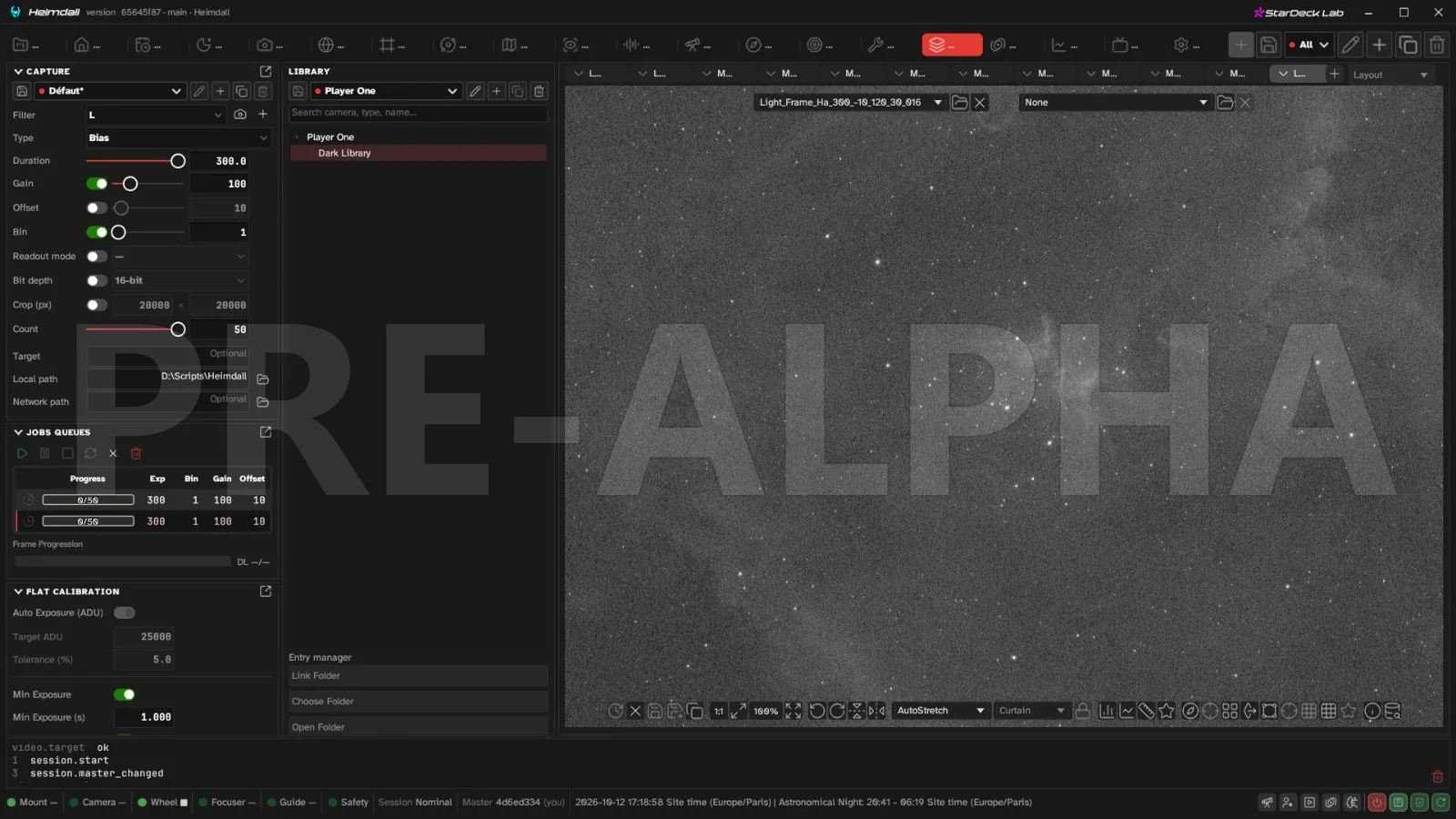
Calibration library
Workshop · 15 / 17
Calibration Library
darks, flats, bias and masters
Shoot your darks, flats and bias, build your masters and find them again, camera by camera, in one workshop.
The Calibration Library is the calibration workshop. Calibration files live there and nowhere else: not in the sky-imaging tools, not mixed in with your lights.
In short
All calibration in one place.
Darks, flats, bias and masters are filed by camera, away from your lights.
Masters without external software.
A right-click builds a master with the well-established mean-with-rejection method, without flooding memory.
Good flats, even at twilight.
The Flat Wizard finds the exposure time, checks each frame and readjusts as the light changes.
You find what you shot.
Each entry carries the settings read from its FITS; the index returns on restart; search filters live.
Nothing deleted by accident.
Removing from the library and deleting files are two distinct choices.
What the workshop does
To calibrate an image you need darks, flats and bias, and above all you need to know where they are, which camera they belong to, and with which settings they were taken. The workshop files all of this in a per-camera library, builds the masters for you, and helps you take good flats, including at twilight.
It is laid out in three columns: imaging and the job queue on the left, the master library in the middle, a viewer on the right.
What sets it apart
The calibration files of a sky-imaging tool get mixed in with the lights. Here, they have their own workshop and their own folder.
A hand-made folder of masters has no index and no rules. Here, each camera has its library, its types, its entries, with settings read from the headers.
Shooting flats on the fly means tweaking the exposure time while the sky darkens. Here it readjusts itself.
All features · 31
Take the calibration frames
- Reuses the standard imaging controlsCapture's exposure form and job queue, with the same settings and the same image type.
- Picks the image typeDark, Flat, Bias or DarkFlat; the type is written into the file name and the IMAGETYP header. Dark by default in this workshop.
- Files frames into the libraryEach frame goes into its library's folder, under the right type, with duration, temperature, gain, offset and filter in its name.
- Shows the latest frameThe viewer on the right displays the image you just took.
The master library
- Creates one library per cameraCamera name (the connected imager's by default) and a root folder, chosen or created.
- Organizes by typeUnder each camera: Dark, Bias, DarkFlat and Flat. No Light.
- Sorts flats by filterThe connected wheel's filters are offered, or typed by hand without a wheel.
- Creates entriesAn entry = a folder of raw frames. Its name is read from the first FITS header: type, duration, temperature, gain, offset and frame count.
- Links or chooses an entry's folderLink an existing folder without copying it, choose or create a folder, open it in the file explorer.
- Searches liveA field filters the tree by camera, type, filter or entry name, keeping the parents of the results.
- Renames, deletes with careA deletion offers "remove from library", "remove and delete files" or cancel; removing only is the default.
- Finds everything again on restartEach library's index is kept at its root.
Build a master
- Mean with 3-sigma rejectionA right-click on an entry builds the master: pixel-by-pixel mean with iterative rejection of outliers, with no normalization for darks, bias and darkflats.
- Calibrates flats with biasFor a flat, you choose which Bias or DarkFlat master of the same camera to subtract (or none); each flat is calibrated, multiplicatively normalized, then combined.
- Writes a 32-bit floating-point FITSThe useful headers (type, duration, temperature, gain, offset, filter) are carried over and the number of combined frames is recorded; rebuilding replaces the master.
- Works in bands of rowsNever N full images in memory.
- Runs in the backgroundThe interface stays responsive; the entry shows "in progress".
- Displays the masterA click on a master opens it in the viewer on the right; a new frame always takes over.
Point for sky flats
- Points at a wall panel or a patch of skyThree ways: Move to Wall (stored azimuth and altitude, for a flat panel or a fixed wall), an East / West list (east in the evening, west in the morning, default height near the zenith) with an editable height, or RA / Dec coordinates typed by hand.
- Parks instead of slewingA Park checkbox sends the mount to its park position instead of aiming at a coordinate, useful when the panel is fixed at the park position.
- Stops tracking on arrivalOnce the mount has arrived, tracking is turned off; the tracking state (off, sidereal, lunar, solar) is read on the status bar.
- Shows the shooting windowsAn altitude chart on the ephemeris marks the Sky Flat bands: from sunset to civil dusk in the evening, from civil dawn to sunrise in the morning.
The Flat Wizard
- Finds the exposure time by itselfAn "Auto exposure (ADU)" checkbox searches, by bracketing, for the exposure that reaches a target level (25,000 ADU by default) within a tolerance (5% by default).
- Bounds the searchOptional minimum and maximum exposure.
- Checks every frame of a seriesWithin tolerance, the frame is saved; out of tolerance, it is rejected and the exposure is readjusted for the next one, useful when sky light drifts at twilight.
- Works on a single frame or on the queueOn "Take", it searches until the first valid frame; on a queue job, it searches then keeps checking.
- Chains filters through the queueOne Flat job per filter; each keeps its own target and tolerance.
- Measures the real ADUOn the captured frame, not on an estimate.
- Says where it standsAn indicator and a line: idle, searching (exposure and ADU being tried), found (frame kept and its ADU), failed.
- Sets what happens on failureIn Preferences, your choice: stop without saving, or save the last frame tried anyway.
Comfort
- Speaks French and English
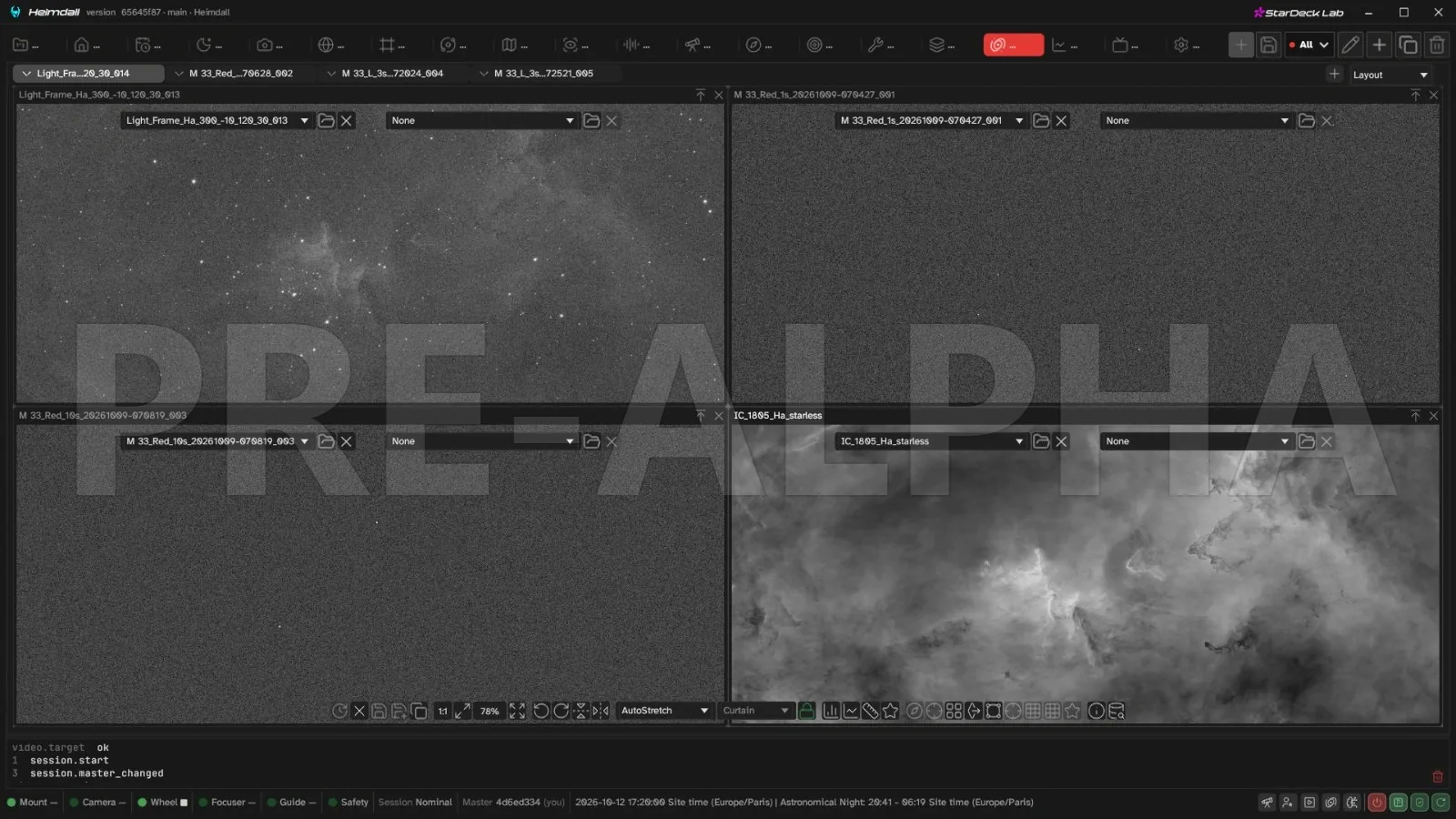
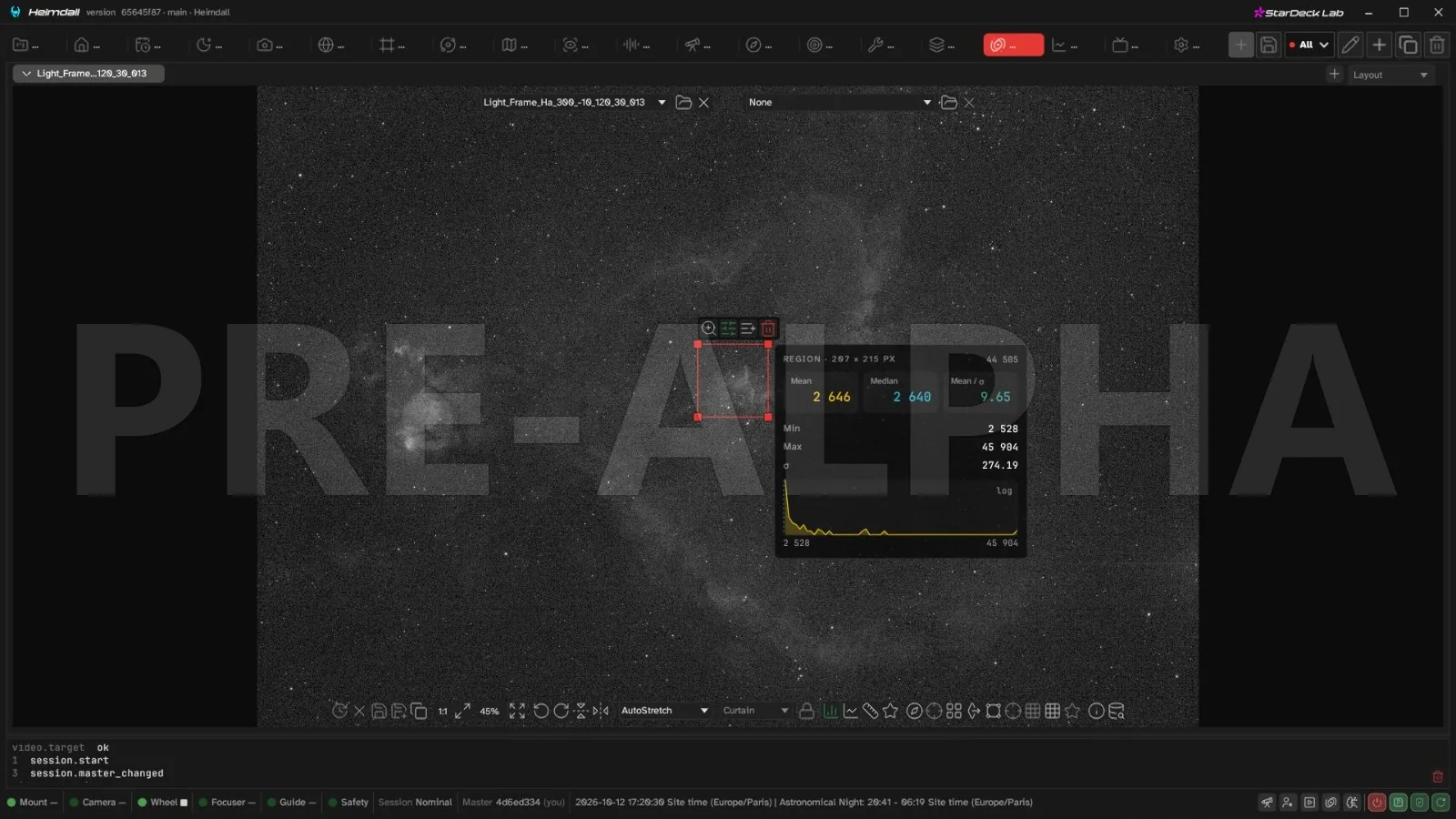
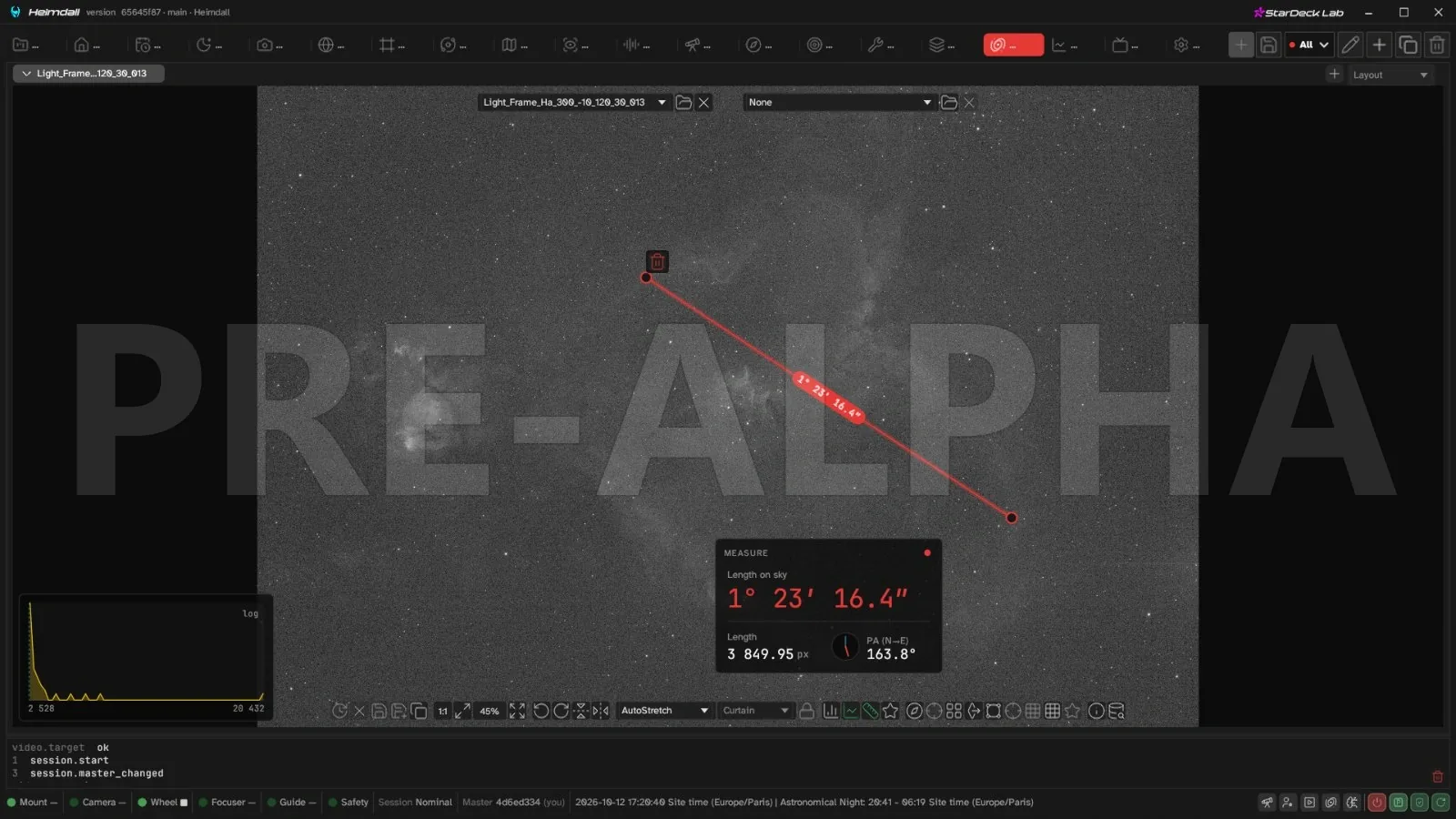
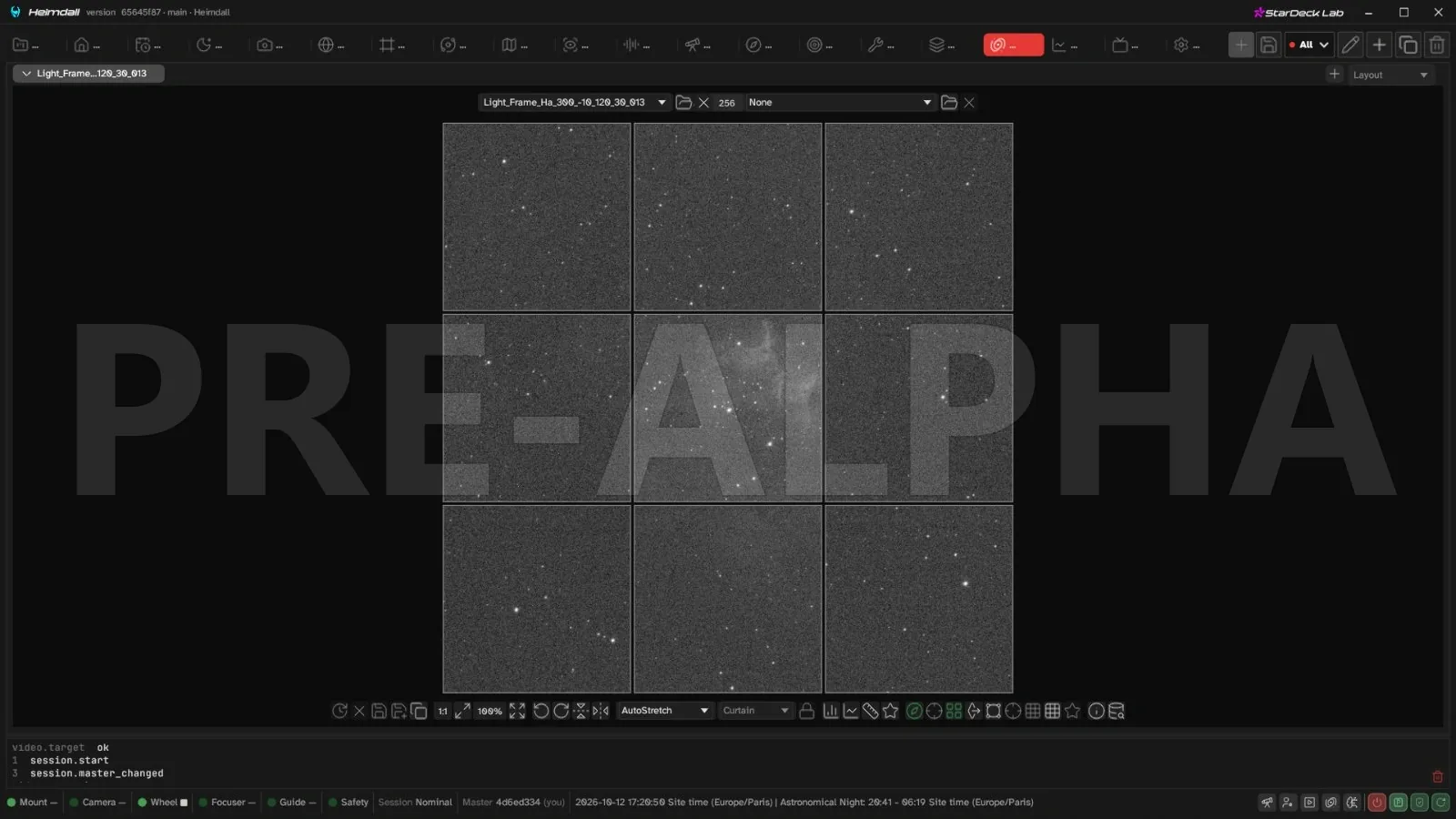
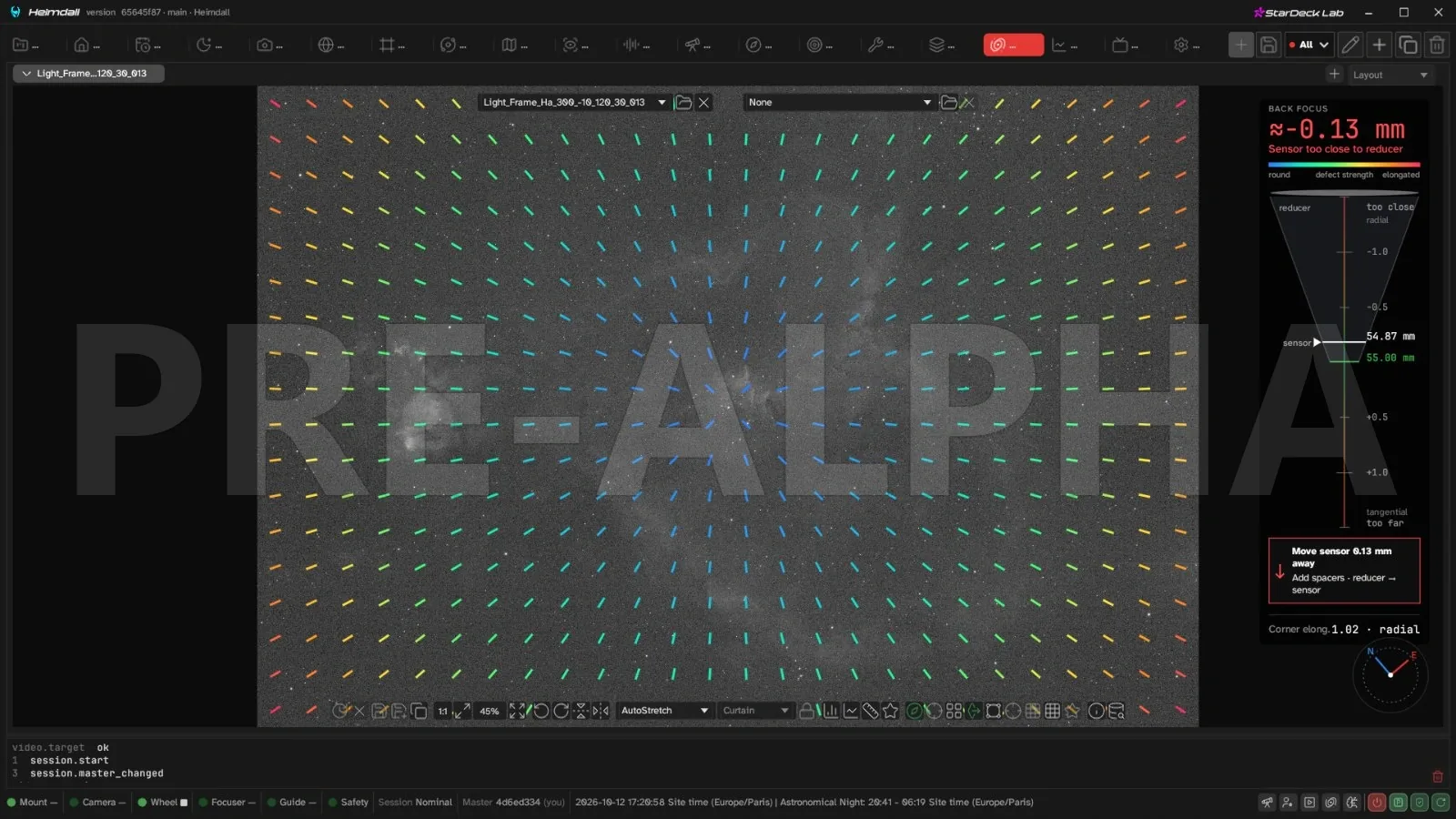
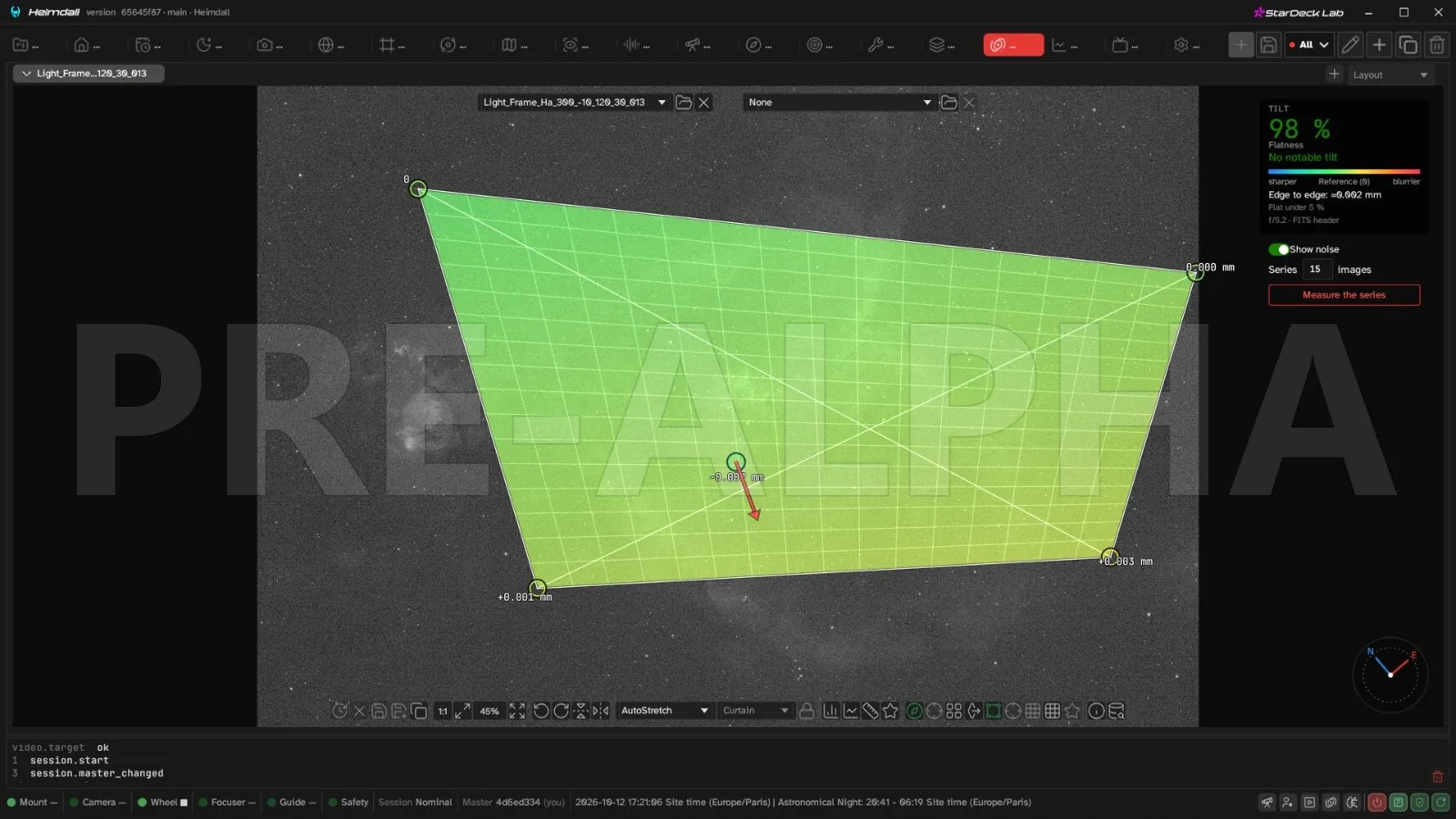
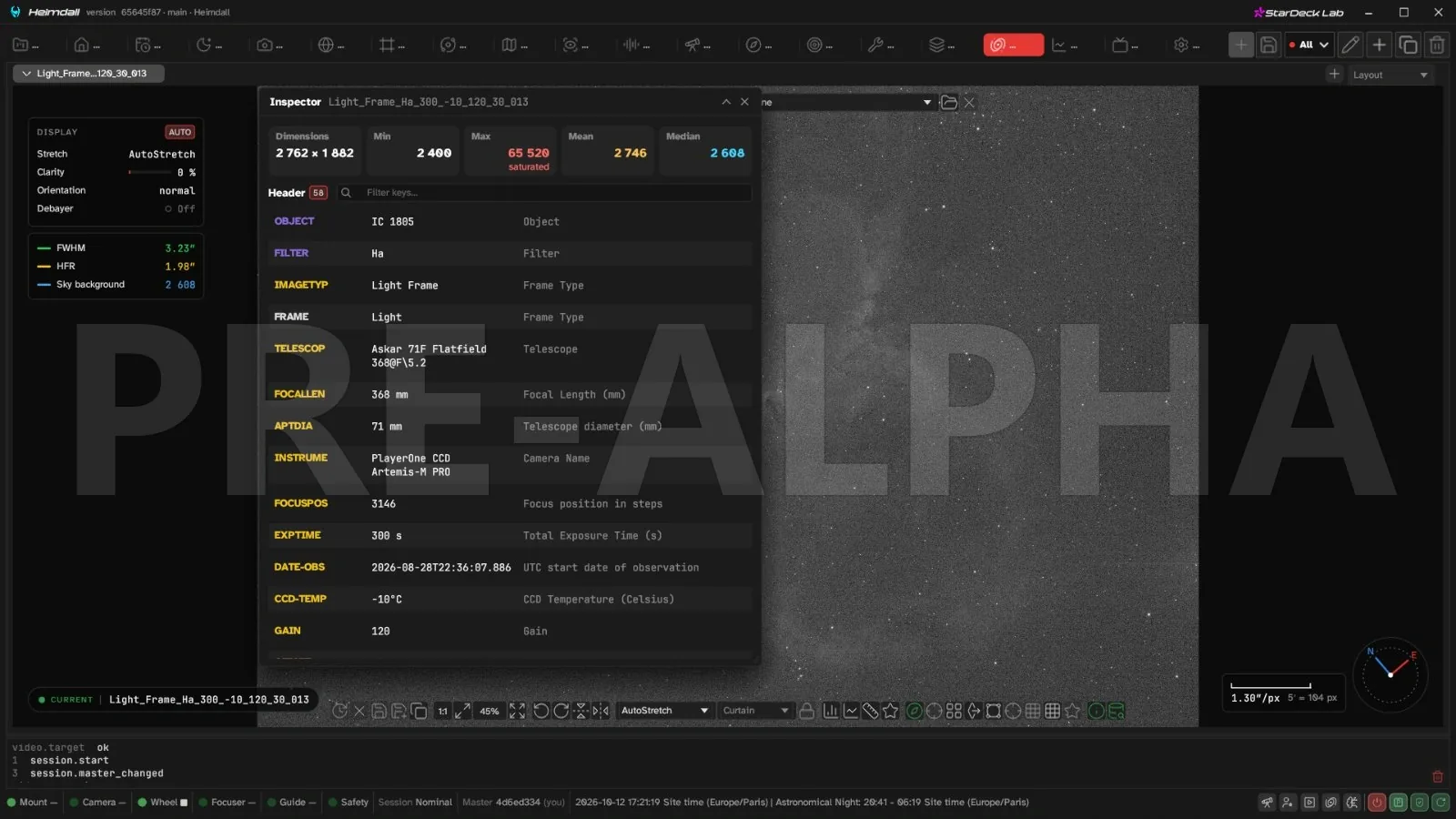
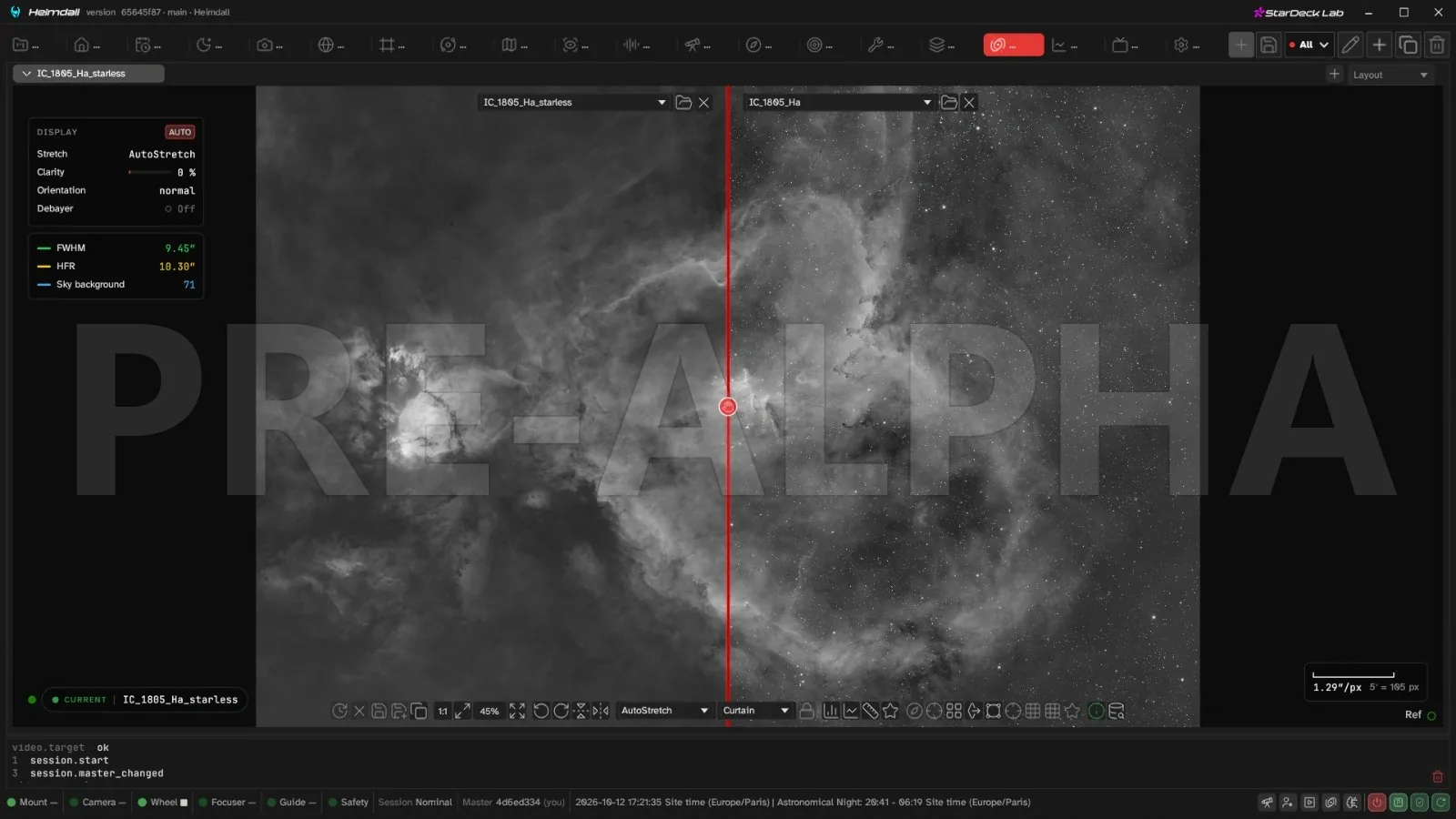
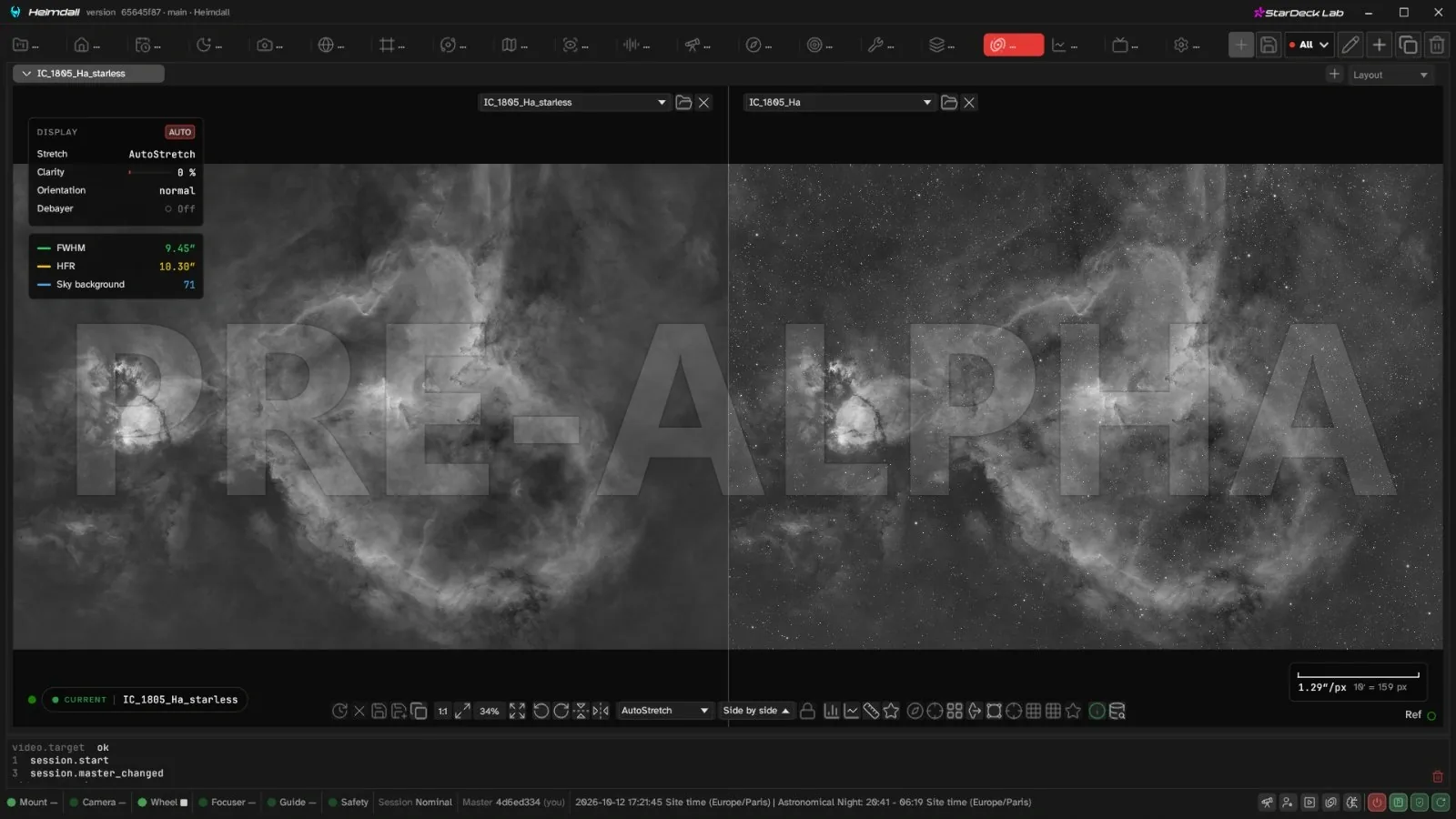 1 / 9
Four images side by side
Workshop · 16 / 17
 Vör
the FITS viewer, inside Heimdall
Your FITS images, stretched for the eye and measured for the imager: the same viewer everywhere in Heimdall, from the live night to the next day's sorting.
Vör is Heimdall's FITS viewer. It shows your frames, compares them, inspects them and measures them, without ever changing a pixel of the file.
In short
The same viewer everywhere.
Imaging, plate-solving, guiding, calibration, Dashboard: one way of looking at an image.
See without damaging.
All the stretching is display-only: the FITS on disk never changes.
Compare effortlessly.
Curtain, blink, side by side, difference: the right image stands out fast.
Measure to decide.
Area statistics, distances, coma, scale: you judge an image with numbers.
Sort a night in minutes.
Thumbnails, metrics, keyboard: next-day sorting doesn't need another program.
What the workshop does
A raw astrophotography image is dark and hard to read: the signal sits at the very bottom of the histogram. Vör stretches it for display only, and gives you an imager's tools: compare two images, read the header, measure, spot coma.
Inside Heimdall, it is the same viewer everywhere: the Vör workshop, but also imaging, plate-solving, guiding, the Calibration Library and the Dashboard. You change neither tool nor settings.
What sets it apart
A general-purpose viewer opens images. Vör is built for astrophotography: astro stretches, Current / Ref, astrometry from your own plate-solve, coma, tilt.
A full processing suite modifies the image. Vör modifies nothing: it looks and measures, before or alongside your processing software.
All features · 22
Open and organize
- Opens your FITS filesWith the Open button, by drag and drop onto the window, or from the Dashboard.
- Loads the latest frame by itselfEvery saved exposure opens a new image tab, up to a limit of 16.
- Keeps two images face to faceA current image (Current) and a reference image (Ref); dropping a FITS on the left half makes it Current, on the right half Ref.
- Steps through the folderThe left and right arrows open the next or previous FITS, keeping zoom, pan and stretch.
- Browses a session folderA thumbnail grid opens the folder; the first image shows at once, its neighbors load in the background.
- Reads the usual FITS formatsMulti-HDU and compressed FITS (FZ / Rice), with raw or automatic display modes.
Display
- Stretches the image for displayLinear, logarithm, square root, squared, asinh, AutoStretch or histogram; AutoStretch by default. The file's pixels stay unchanged.
- Adjusts the stretch continuouslyCtrl + wheel tunes the stretch; a HUD shows whether stretch and debayering are active.
- Zooms and pans in syncWheel centered on the cursor, drag to pan, Fit, 1:1, + and −; zoom follows across both images.
- Rotates and flipsRotate and Flip.
- Shows the histogramA histogram of the current image, toggleable.
- Copies the previewThe stretched image is copied to the clipboard.
Compare
- Compares Current and RefA curtain separates them; advanced comparison adds side by side, swipe, opacity and difference.
- Flips between them instantlyBlink toggles between the two images almost instantly, even on large FITS, thanks to an image cache.
Inspect and measure
- Reads the FITS headerAn inspector shows the header and the statistics of the image or of a selected area.
- Draws an ROI or a distanceYou trace an area or a segment and read its statistics: minimum, maximum, mean, standard deviation.
- Overlays astrometryNorth and East, with the scale in arcseconds per pixel, from the latest plate-solve.
- Judges comaThe Coma Inspector shows the center and the edges or corners of the image side by side.
- Measures tilt and backfocusMeasurement and overlay tools, distinct from collimation.
Sort
- Computes metrics through a Python scriptFWHM, HFD and others, to sort and filter images.
- Sorts from the keyboardAccept, reject, delete, favorite, with undo.
Comfort
- Speaks French and English
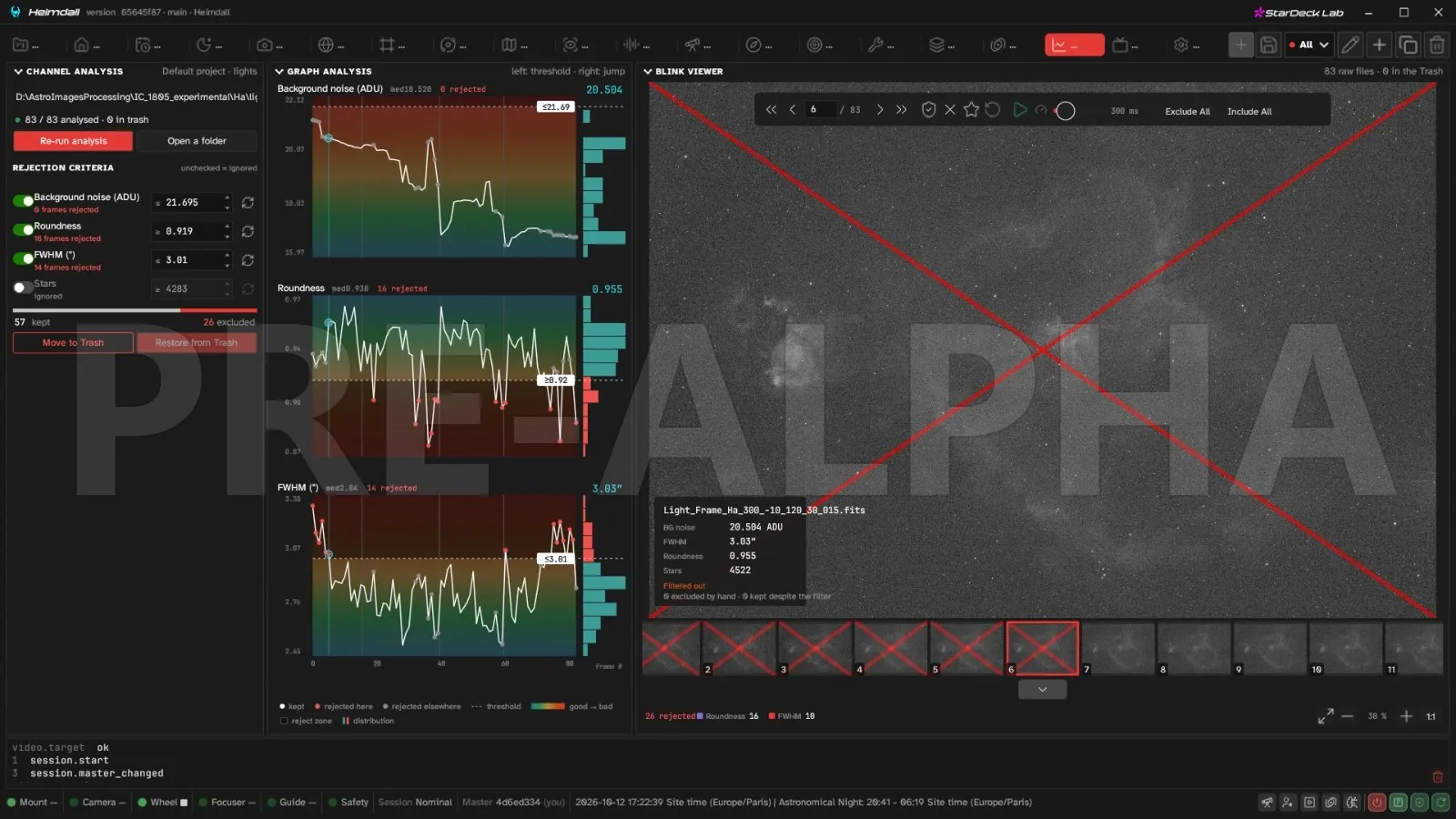
Reject criteria, per-frame graphs and blink viewer
Workshop · 17 / 17
Analysis
sort frames before processing
Background, roundness, FWHM, star count: every frame is measured, bad ones go to a reversible trash.
The Analysis workshop measures every frame in a folder and lets you set rejection thresholds, criterion by criterion.
In short
Before processing
Keep only the good frames.
Readable criteria
One graph and one threshold per measurement.
You stay in control
Blink and manual exclusion.
Nothing is lost
The trash can be restored.
What the workshop does
Each criterion has its per-frame graph, with threshold, reject zone and distribution. Drag the threshold and the rejected count updates.
The blink viewer steps through frames with their measurements; exclude or restore by hand. Rejects go to a trash, and come back from it.
What sets it apart
Thresholds are set on the graph: you see right away which frames fall.
All features · 8
Measurements
- Background noise (ADU)Spots hazy or moonlit frames.
- RoundnessSpots elongated stars (wind, guiding).
- FWHMSpots blurred frames.
- Star countSpots passing clouds.
Sorting
- Per-criterion thresholdsToggle one by one, with the rejected count.
- Graphs and distributionFrame by frame, with the reject zone.
- Blink viewerSteps through frames with their measurements, manual exclusion.
- Reversible trashMove to Trash and Restore from Trash.
At the telescope
The same workshops, sized for your hand.
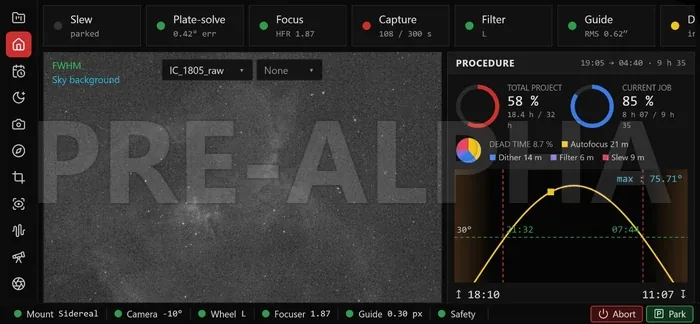
The engine serves the interface on your local network. Nothing to install: open the browser on your tablet or phone. Settings panels fold away, the image stays full screen, Abort and Park stay under your thumb.
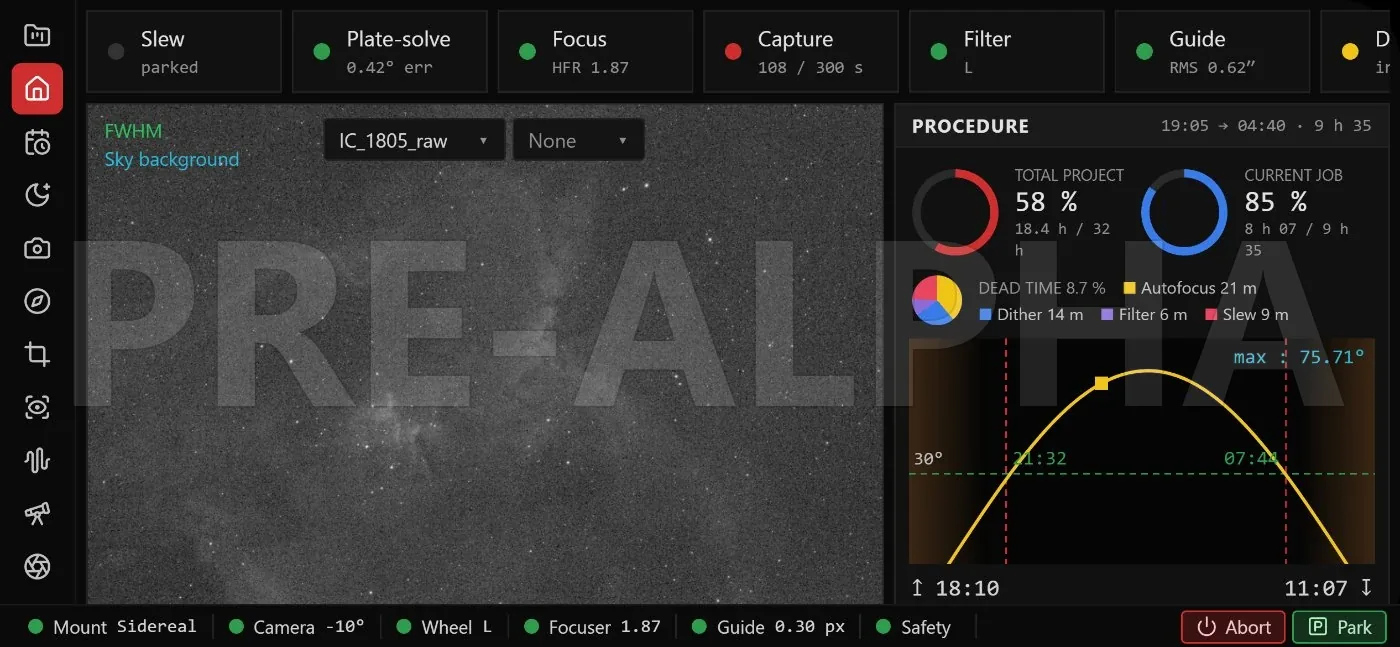
The night at a glance: latest frame, sequence, guiding.
04 · Built for the dark
Risky settings stand out
Readable in the dark
Dark background, a single accent colour, readable fields, large touch targets.
Visible guardrails
A dangerous setting (gain, temperature…) turns its field orange.
2.4
6.3
Detachable palettes
Any widget of a form can leave its column and float as a palette in the window: drop it anywhere, dock it back, reorder the column, just like the images in Vör.
Easy to translate
French and English ship with the product. Another language is added with a simple JSON file, no recompiling.
Engine written in Rust
A single native binary, no heavy runtime. GPU preview, with a CPU fallback if there is no graphics card.
05 · What sets it apart
Five things we do differently
AI assistant · MCP
An AI assistant that drives all of Heimdall
The assistant doesn’t just answer questions, it can act in every workshop. It picks the target, frames, slews, focuses, guides, builds the sequence, starts the exposures and sorts the frames.
Everything it can drive
- Scheduler
- Project
- Sequencer
- Himinn
- Framing
- Plate-solve
- Capture
- Reïkis
- Focus
- Guiding
- Polar alignment
- Calibration
- Rig
- Vör
- Analysis
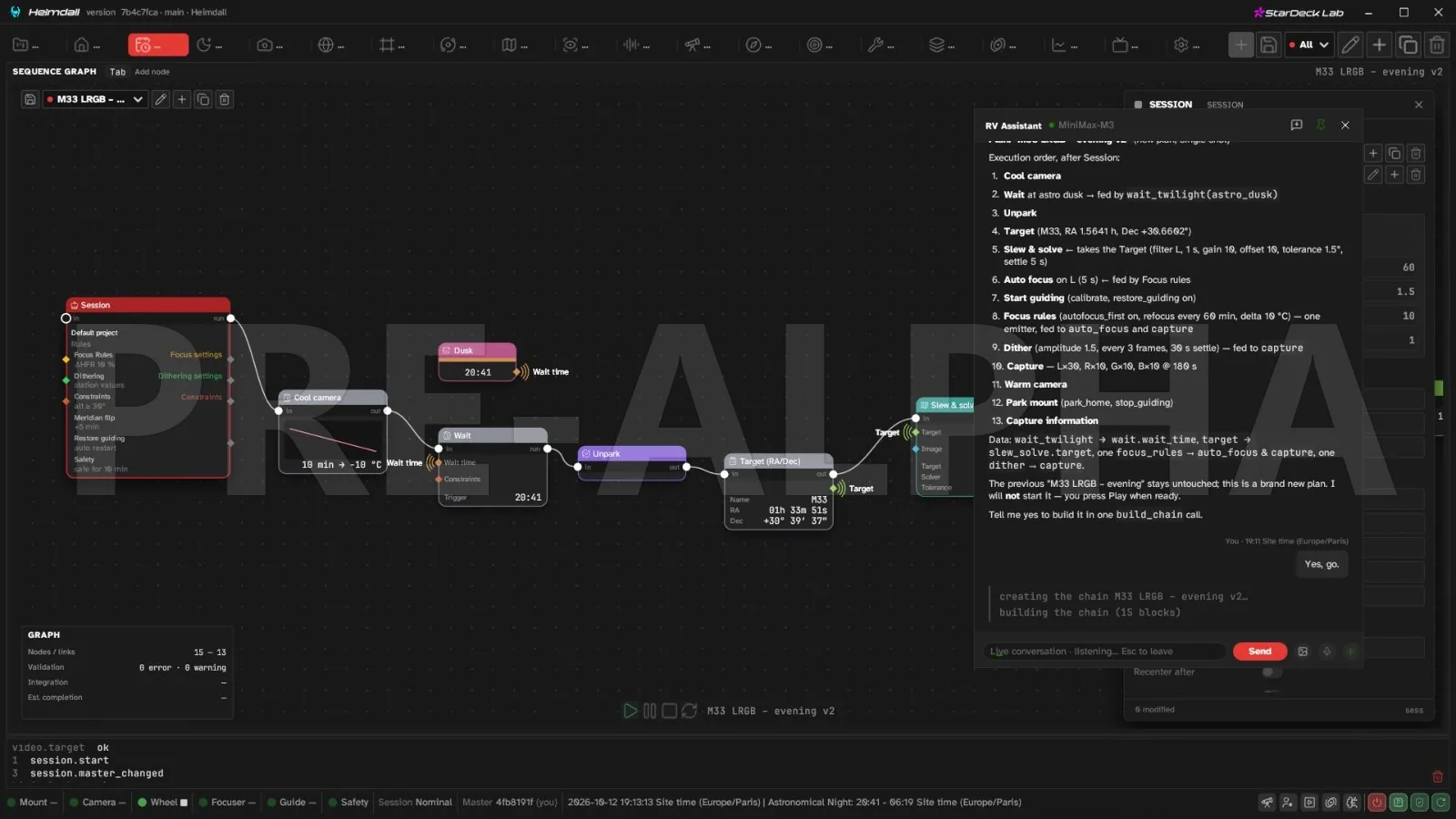
Inside Heimdall you chat with an assistant linked to your account. Say “M33”: it knows your rig (filters, camera, instrument) and the night, and proposes filters, exposure time and total integration, allowing for dead time (adjustable in Preferences).
It can also build the night’s sequence in the Sequencer: it summarises first, then places and connects the blocks in front of you, without starting it. You press Play.
The assistant goes through the same commands as the screen, with the same safety checks. It never takes the master from you. The model provider is interchangeable, and a small connection test checks that it answers.
Nothing starts without your written go-ahead.
Nothing moves before your written “yes”
- You say “M33”. It proposes filters, exposure time and integration.
- You answer “yes”, in writing.
- It finds the object in Himinn and slews the mount through safety.
- It sets up the DSO Capture queue and starts the capture.
You watch each step on screen. If the mount is parked, it asks for a second “yes” before unparking.
“stop” or Stop
Typing “stop” or clicking Stop cuts the slew and the exposure, directly inside Heimdall.
Visual sequencer
The node-based sequencer
The Sequencer is a graph: targets, loops, exposures, autofocus, guiding, meridian flip, dither and slews are blocks you wire together. Each block does one thing and can be reused. It takes an hour or so to get used to, then you won’t want to go back.
Presets carry over from one night to the next.
Before the night
The Scheduler: pick your target before the night
The Scheduler workshop answers “what should I shoot tonight, with this equipment?”. Two sub-tabs.
Search looks through imager catalogues with criteria: frame fill in % (does the target sit well in your rig’s field?), minimum altitude, hours above that altitude during astronomical night, distance from the Moon, magnitude. The table shows the silhouette, size, mini-curves for the night and the year, and a score.
Target list keeps your favourites per rig: a star on a target sets it aside for the chosen rig, and frame fill is recalculated with that rig’s field. An “Only shootable tonight” box keeps only what stays high enough for long enough, and the Transit column gives the meridian crossing time. From the target card, New project creates the project and Send to Framing sends the target to framing.
Planetarium
Himinn, the planetarium
An offline 3D sky map with a native projection dedicated to astrophotography: the sky as your sensor will see it.
Instrument field of view, imager catalogues, search, goto: everything you need when shooting, at a glance. And it does not weigh gigabytes.
Framing ⇄ Himinn
Framing that works both ways
What you move in one shows up in the other. Camera and optics frame, rotation, grid mosaic. The rotation assistant relies on local plate-solving.
06 · Everything is in the product
If four nights out of five need it, it is not an extension.
What Heimdall includes, with no add-on to buy and no server to call.
Live polar alignment
Star triangle, plate-solve anchoring.

Mio, built-in collimation
Donut figure, circles, screws, live HFR on the video stream.
Autofocus
V-curve, star profile and trigger rules.
Calibration Library
Masters, flat wizard, flat position.
3D Rig
Your real optical train, piece by piece, with orientation (Newton, OAG), dimensions and connection cards.
Vör, the FITS viewer
Stretch, zoom, Ref / Current comparison, measurements, tilt and backfocus.
Reïkis, planetary capture
The suite’s high-frame-rate video host, inside Heimdall. Zero-copy, ROI, SER / RAW, visible drop counter.
Frame sorting
Background, roundness, FWHM: reject thresholds, graphs and blink, reversible trash.
Offline plate-solving
Catalogues on disk, no cloud server needed to recentre a target.
Internal guiding, dither, meridian flip
All built in. PHD2 stays optional.
3D Environment
The instrument in its space (pier, cables, safe zones): see a collision before it happens.
LiveStack
Aesthetic stacking during the night, in a separate process: if it fills the disk, it does not take the engine down.
Abort notifications
Via Telegram, ntfy or email: you get a message as soon as a session stops.
AI assistant
It drives every workshop on request: see above.
Safety first
Safety checks before every mount movement.
No account to run a session
No cloud account is needed to run a session; only the assistant asks for one.
07 · Open, no hardware lock-in
No proprietary format.
Devices go through a single hub based on Alpaca, usable outside Windows, with native SDKs for modern cameras.
Extensions are written in Python, in an isolated process, with the same session contract as the interface and no way around safety. Developers are free to sell their extensions.
| Hardware | Single Alpaca-based hub + native camera SDKs |
| Deep-sky | FITS |
| Planetary | SER / RAW |
| Headers | Time and position (NTP / GPS) |
| Log & prefs | Readable JSON |
| Extensions | Python, isolated process |
What Heimdall is not
- Processing software
- A science tool
Not PixInsight or Siril (beyond LiveStack stacking and measurements in Vör). Photometry, spectroscopy and exoplanets are out of scope.
Heimdall is for amateurs who want trouble-free capture nights.
08 · The StarDeck suite
You can start with any of them.
Heimdall is the main app. The other tools in the suite are built in, and some are also sold on their own.
Himinn
Free
The planetarium for planning your imaging, built into Heimdall and available on its own.
Built in · also standalone

Reserve Heimdall at 30% off.
One-time purchase, licence for two machines, one year of updates from release. Or apply for the beta to try it before anyone else.
€69 incl. VAT instead of €99 · 2-machine licence · licence at release
Or by subscription · Patreon
Heimdall is included in the Valhalla tier — €9 / month
Use Heimdall for as long as you’re a member, with everything in Rune: Vör and EasyFlow for Siril. Beta channel, early builds, priority support. Cancel anytime.
Access lasts as long as your membership. A purchased licence is yours to keep.
Not sure yet? Try it first: