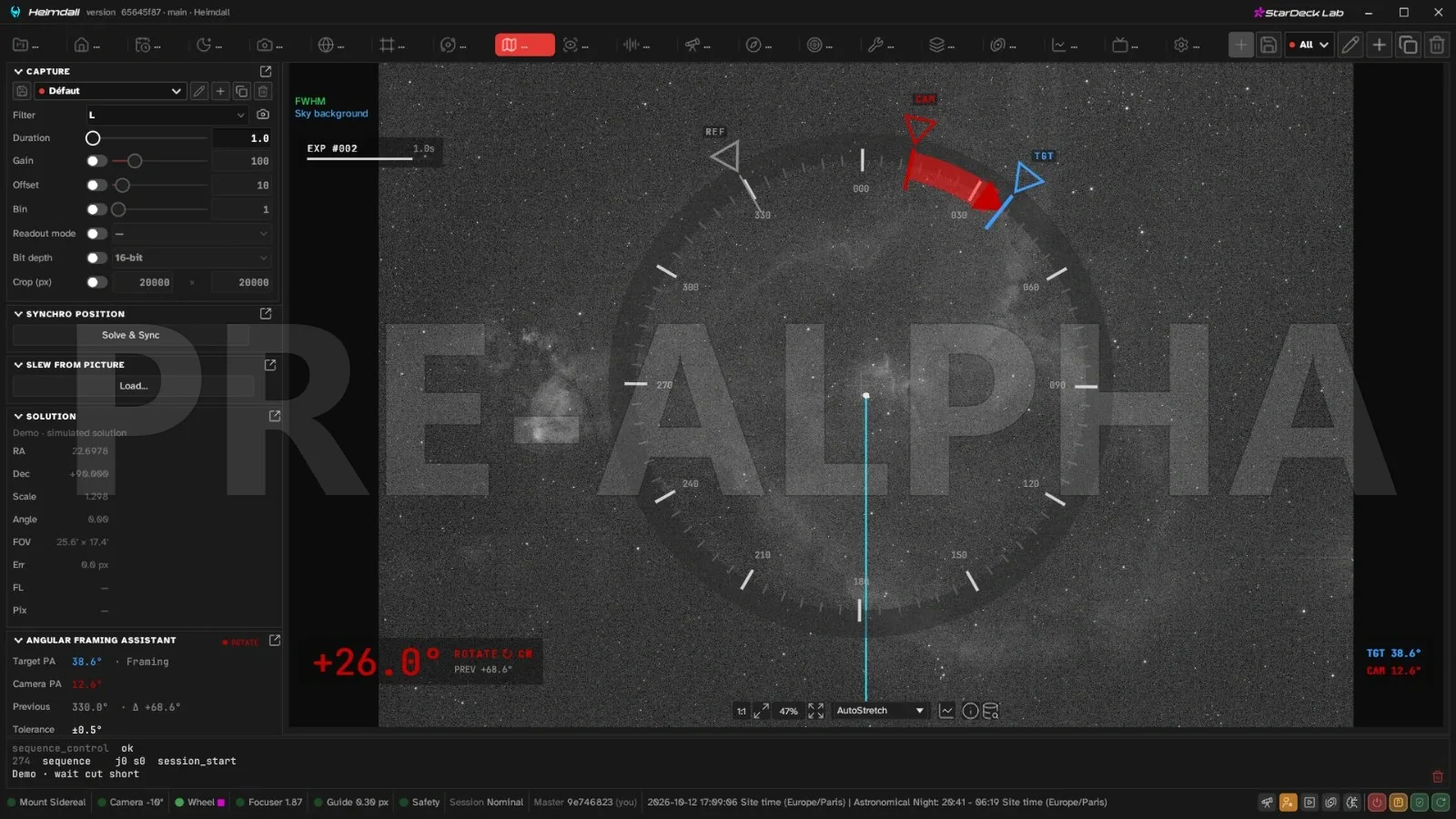
Framing on a DSS survey1 / 3

Framing on a DSS survey

Workshop · 08 / 17

Framing

your frame on the sky survey, all the way to a mosaic

Place your camera's real field on an image of the sky, rotate it with the mouse, extend it into a mosaic: you know what you'll shoot before you slew.

Framing is the framing workshop. It prepares the composition of the image; it drives no device.

In short

You see your gear's field, not a generic rectangle.

Focal length, reducer, sensor and pixel come from the Rig; the frame and the scale are right without re-entry.
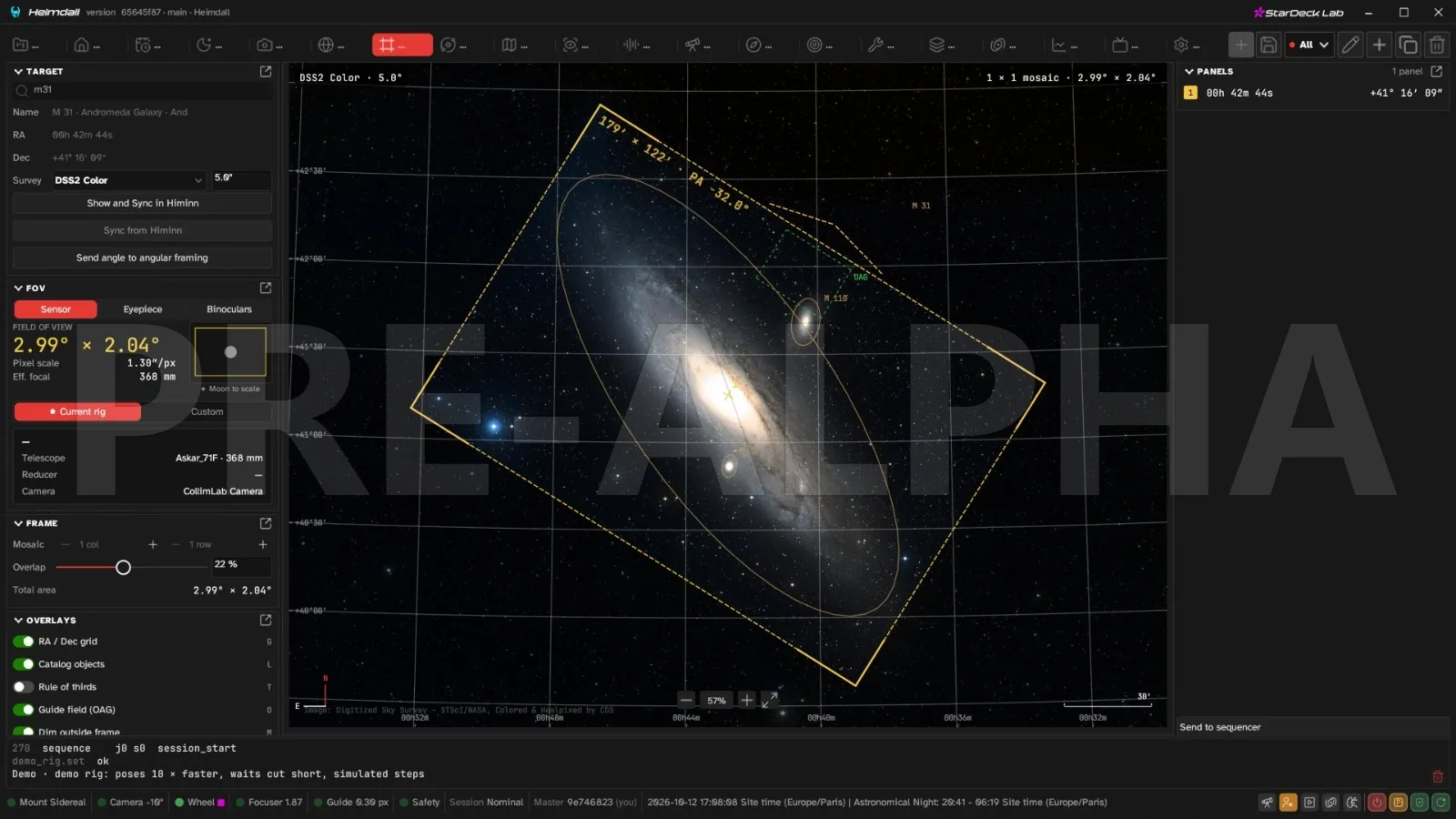
A real sky image behind the frame.

Does the nebula spill over? Is there a bright star at the edge? The survey answers before the night.

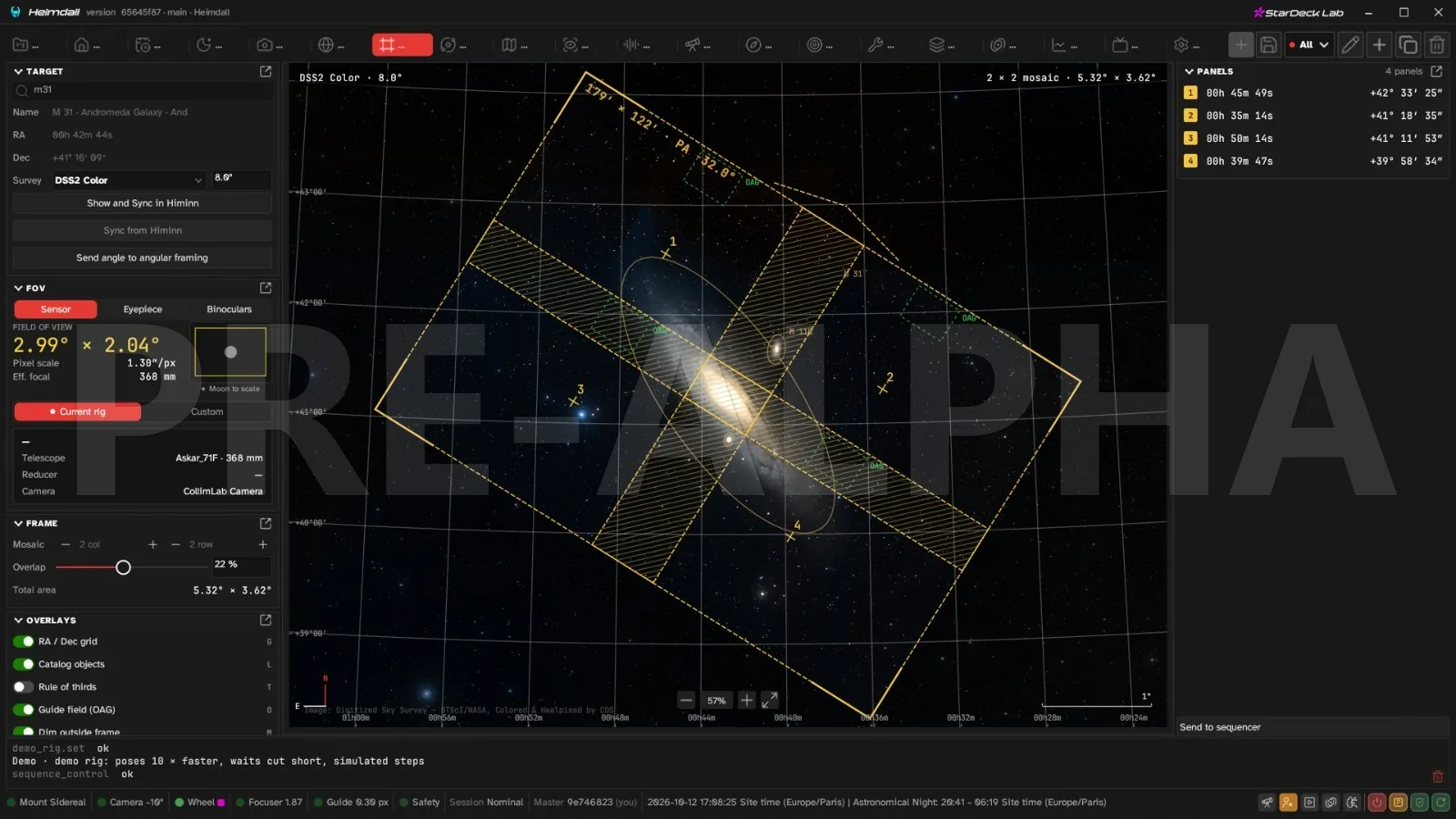
A mosaic in a few clicks.

Columns, rows, overlap: the grid is laid down, moved and rotated as a block, with its panels numbered and their coordinates listed.

The network is never imposed.

The background is downloaded on your gesture and kept on disk; with no network, a known area still displays.

One gesture to rotate.

Right-click and the grid turns: no slider to set, no angle to type.

What the workshop does

A good image starts with a good frame: where to put the target, at what angle, do you need a mosaic to cover the nebula? Framing answers these questions on a flat map of the sky, with a real image of the area behind it.

The frame, sized exactly to your sensor, focal length and reducer, moves, rotates and multiplies into a grid of panels. Everything is computed from your Rig: you don't re-enter your gear.

What sets it apart

A generic-rectangle framing tool makes you type your focal length and sensor every session. Here, the frame reads your Rig.

A mosaic planner is often limited to a list of coordinates. Here the grid is seen on the sky, with its overlaps, numbers and overlays, and handled as a block.

A framing tool wired to the hardware slews the mount. Framing prepares: it drives no device, which makes it safe to use in broad daylight.

All features · 31

Choose the target and the background

  • Takes the target from HiminnThe Sync button reads the object selected in Himinn; name, right ascension and declination appear read-only. No coordinates to type.
  • Shows a real sky survey behind the frameYour choice of DSS2 color, DSS2 red or 2MASS, over an area whose size you set (5° by default).
  • Downloads only on your gestureNo image arrives unless you clicked or confirmed a setting; no surprise pop-up.
  • Shows download progressA bar shows the wait, then the reception, with percentage and speed.
  • Keeps the areas you've seenImages are kept on disk: an area you've already viewed shows without network. An area never seen and no network: plain background and a short message; the rest of the workshop stays usable.

The map

  • Draws a flat 2D map centered on the objectGnomonic projection, east on the left, north up, independent of Himinn's 3D globe.
  • Zooms with the wheel, pans with a dragThe zoom bar gives −, the percentage, +, and "fit".
  • Gives its landmarksN / E compass, scale, right ascension and declination ticks, a "survey · size" label and, top right, "columns × rows mosaic · total size".
  • Writes to the bottom consoleOne line on a successful load, an error line otherwise.

The camera frame

  • Reads the optics from the RigRig list (the current Rig by default), camera and sensor, focal length, reducer and pixel size read-only; the reducer counts only if it is ticked on the tube card.
  • Draws the frame to scaleA rectangle at the real size of the field, with a central reticle and a "101′ × 67′ · PA +4.0°" label.
  • Computes the field and the scaleField block: single-panel field, total area, scale in arcseconds per pixel. Example: 800 mm, 6248 × 4176 sensor at 3.76 µm → about 1.68° × 1.12°, 0.97″/px.
  • Moves the frame with the mouseDragging inside the frame moves it; its center follows.
  • Rotates the frame with a right-clickHold the right button and turn the mouse around the center, in 1° steps (0.1° with Shift), position angle shown live.
  • Remembers your frameCenter and angle are saved; when you sync a new target, the frame recenters and keeps its angle.
  • Stays honest with an incomplete RigNo camera, no tube or unknown pixel: no frame, a message saying which card to complete, dashes in Field.

The mosaic

  • Sets columns and rowsFrom 1 to 10 each, with − / + counters.
  • Sets the overlapFrom 0 to 50%, with a slider or by typing the value (Enter confirms, a click elsewhere cancels); 15% by default.
  • Lays down a rigid gridThe panels form one block: one center, one angle, no panel moves alone. Changing the number of columns or rows grows the grid around its center without touching the center or the angle.
  • Shows the overlapsEach panel is a dashed outline, shared areas are hatched.
  • Numbers the panelsA number above each panel's reticle, left to right then top to bottom, 1 at the top left of the grid.
  • Moves and rotates the grid as a blockDragging inside a panel moves the whole grid; right-click, inside or outside, rotates it around its center.
  • Lists the panelsRight column: a number, the right ascension and declination of each panel's center.
  • Gives the total areaOverlap deducted.
  • Keeps the mosaicColumns, rows, overlap, center and angle are restored when you reopen.

The overlays

  • RA / Dec grid(G key): fine lines across the whole map.
  • Catalog objects(L key): outlines at real size and angle, with their names, for the catalogs active in Himinn.
  • Rule of thirds(T key): across the whole grid.
  • Dim outside the frame(M key): only the inside of the grid keeps full brightness.
  • Remembers your choicesThe checkbox state is saved; shortcuts respond only when the mouse is over the map.

Comfort

  • Speaks French and English

All Heimdall workshops